
Use Data Products
Alation Cloud Service Applies to Alation Cloud Service instances of Alation
This topic provides information on how to use data products and provide feedback to data product owners:
Understand the Data Product Catalog Page
Each data product has its own catalog page, which provides the information you need to determine whether the product is suitable for your task.
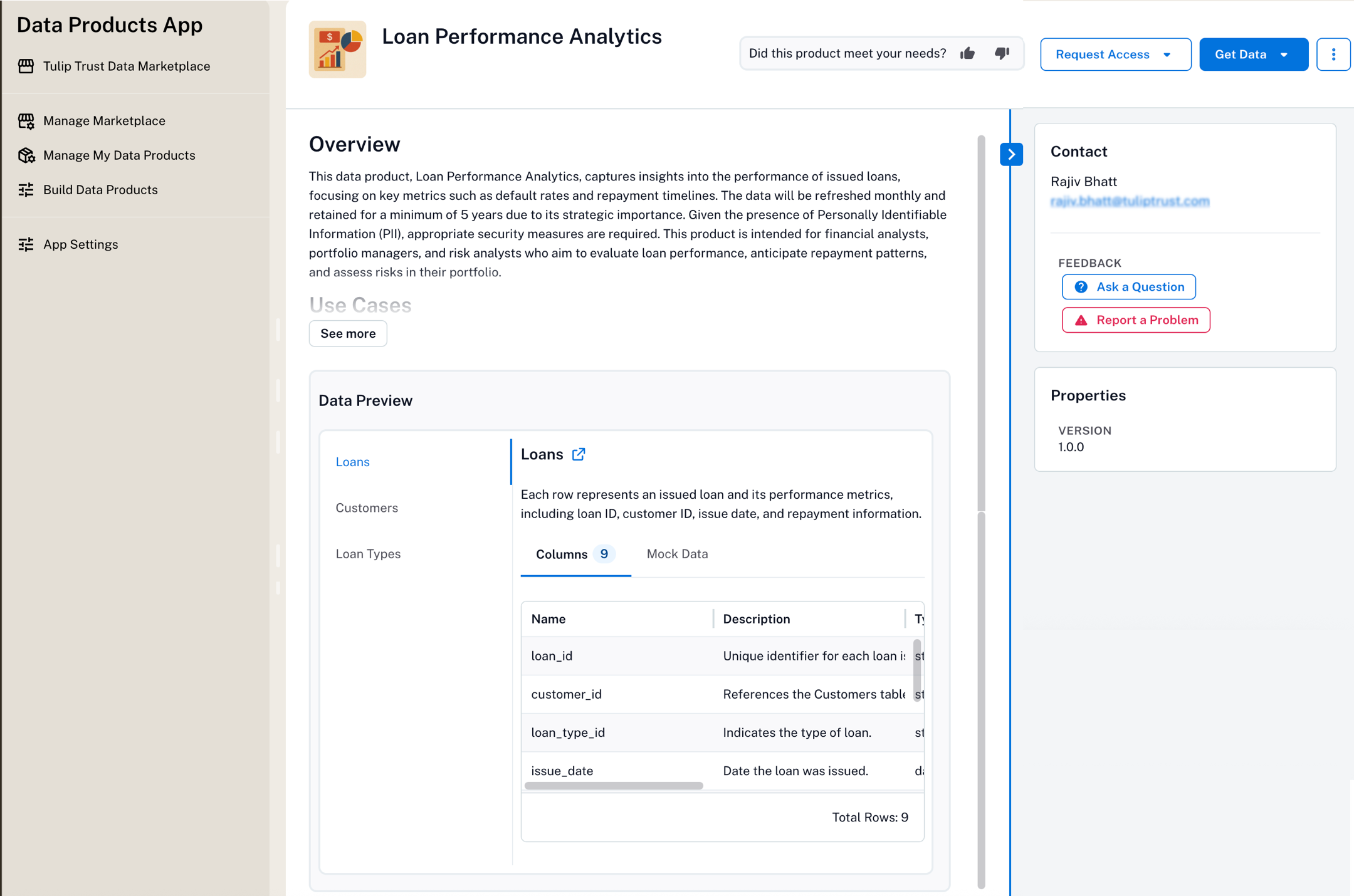
You’ll see a page similar to the following:
Section |
Description |
|---|---|
Name |
The data product name at the top of the page |
Description |
High-level summary of what the data contains and its purpose |
Data Preview |
A preview of the record sets included into the data product along with mock data |
Contact Info |
Whom to reach out to if you have questions |
Request Access Get Data |
Use the Request Access and Get Data buttons to get access to the data. This section appears only if delivery systems are specified in the data product definition YAML file. |
Feedback |
Provide feedback or report issues with the data product. |
Request Access to a Data Product
To request access perform the following steps:
Important
If the data product owner has configured the access request information in the data product YAML file, the Request Access button appears on the product catalog page. If not, you may need to contact the product owner directly.
On the data product’s catalog page that requires access, click the Request Access button.
Follow the instructions displayed on the Data Access Request dialog.
Note
If no access instructions are shown, contact the product owner or submit feedback.
Use a Data Product
Once you have access, here’s how to use the data:
Open the data product’s catalog page.
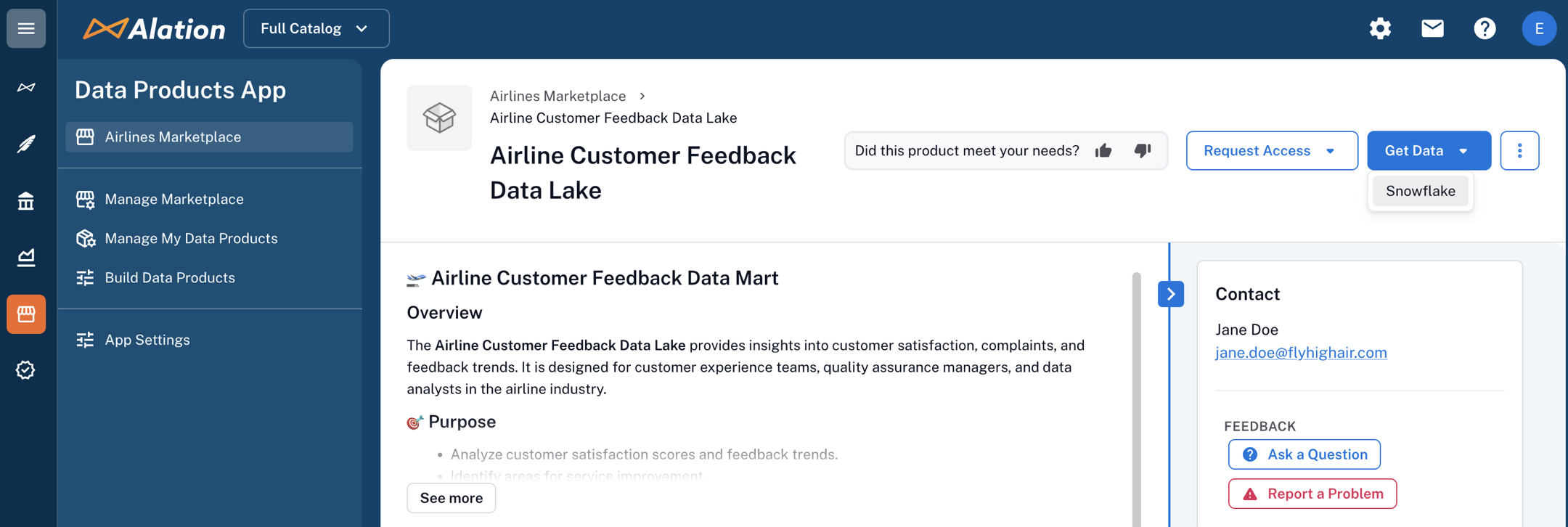
Click Get Data on top right.
Note
This option appears only if the data product owner has specified the delivery systems in the data product definition YAML file.
Click the link to open the system, or copy the connection string.
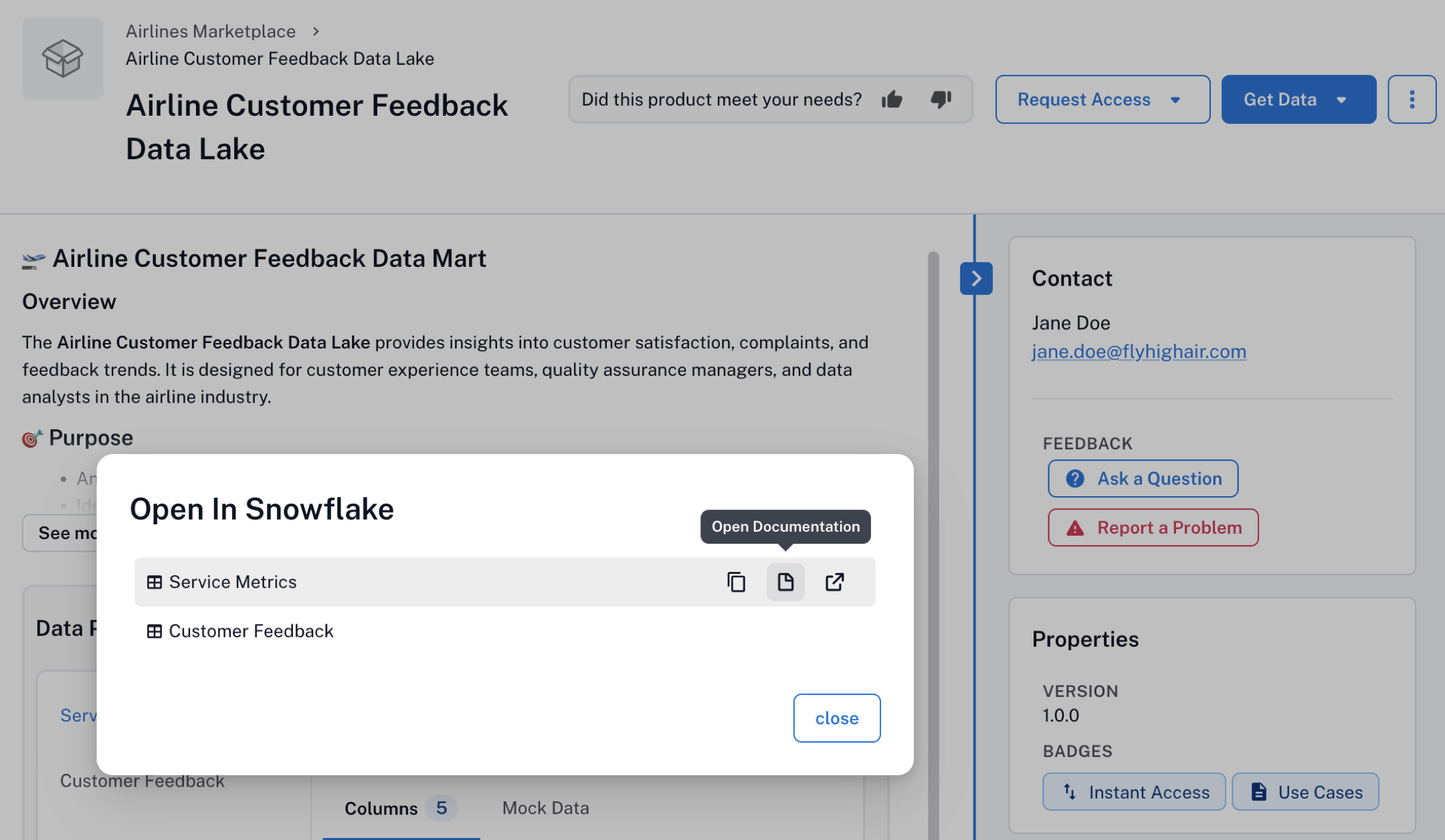
Use your existing credentials or access roles to connect. If the product owner added the corresponding configurations, you also find:
Links to BI tools
File-based links (Example: a downloadable CSV or Parquet files)
Documentation links for help using the data product
Provide Feedback on a Data Product
If you have used the product and want to suggest improvements or report an issue:
Open the data product catalog page.
Locate the Feedback section.
Click the Ask a Question or Report a Problem button and enter your comment, questions, or report an issue.
You can also provide your feedback using the Did this product meet your needs? option available on the top of the page.
Your feedback goes directly to the product owner or data producer. You can share the following information:
Suggestions for improvements
Notes about data quality
Requests for additional fields
Any problems with access or usability
Chat with Data Products
For some data products, you can interact with the data using an AI-assisted chat. This chat experience lets you ask questions in natural language and get responses based on the data in the product, helping you explore and understand the data more easily.
Chat availability is configured by the Data Product Admin when the data product is created. If Chat is enabled, a Chat button appears in the top-right corner of the data product page.
To use chat, you must be authenticated to the underlying data source. This means you need access to the database that stores the data. If you don’t have access, you can request it from the data product owner before using chat.
The chat experience is similar to other AI chat tools you may already be familiar with, such as ChatGPT or Google Gemini.
A Chat conversation is a chat session you start while you’re logged in. You can have multiple conversations during the same session. These conversations are saved and may be reviewed by Data Product Admins if you send feedback about your Chat experience. See Provide Feedback on Chat Responses below.
For more on chatting with a data product, see: Using Chat with a Data Product.
Provide Feedback on Chat Responses
You can share feedback with Data Product Admins about your chat experience to help improve the quality and usefulness of chat responses.
Note
When you submit feedback, the Chat conversation associated with that feedback becomes visible to Data Product Admins. Admins who manage feedback for the data product can review the full chat session that generated the feedback, including both your questions and the chat responses.
To give feedback on a Chat response:
In the Chat window, click the thumbs-up or thumbs-down icon below the response you want to rate. The Add details text area opens.
(Optional but recommended) Enter additional details about your rating. Providing details is especially helpful if you select thumbs down, as it helps Data Product Admins understand why the response didn’t meet your needs.
Note
You can submit feedback without adding details, but including comments makes your feedback more actionable.
Click Submit Feedback.
After you submit feedback, it is sent to the Data Product Admins who manage the data product. For more information on how Data Product Admins review and act on feedback, see Manage Chat Feedback.