
Manage Policy Group
Alation Cloud Service Applies to Alation Cloud Service instances of Alation
Customer Managed Applies to customer-managed instances of Alation
Important
You are viewing documentation for Alation’s Classic User Experience.
Policy Center users can now categorize policy objects to help organize them by grouping them together into Policy Groups. Users in a role of Catalog Admin or Server Admin have access to create these groups. One policy can be added to multiple Policy Groups.
Policy Groups have a dedicated Catalog template and can be curated using custom fields associated with the template and are discoverable using Alation search and search filters. The Policy Groups table appears on the top of the page, while policy objects are listed in the Policies table below.
Create a Policy Group
Perform the following steps to create a policy group:
From the Apps menu, click Curate and Govern.
Under Govern, click Policies to access the Policy Center.
Click + Create Policy Group in the Policy Groups section. A new policy group page appears.
Provide a title for the policy group and click Edit to add the description for the group.
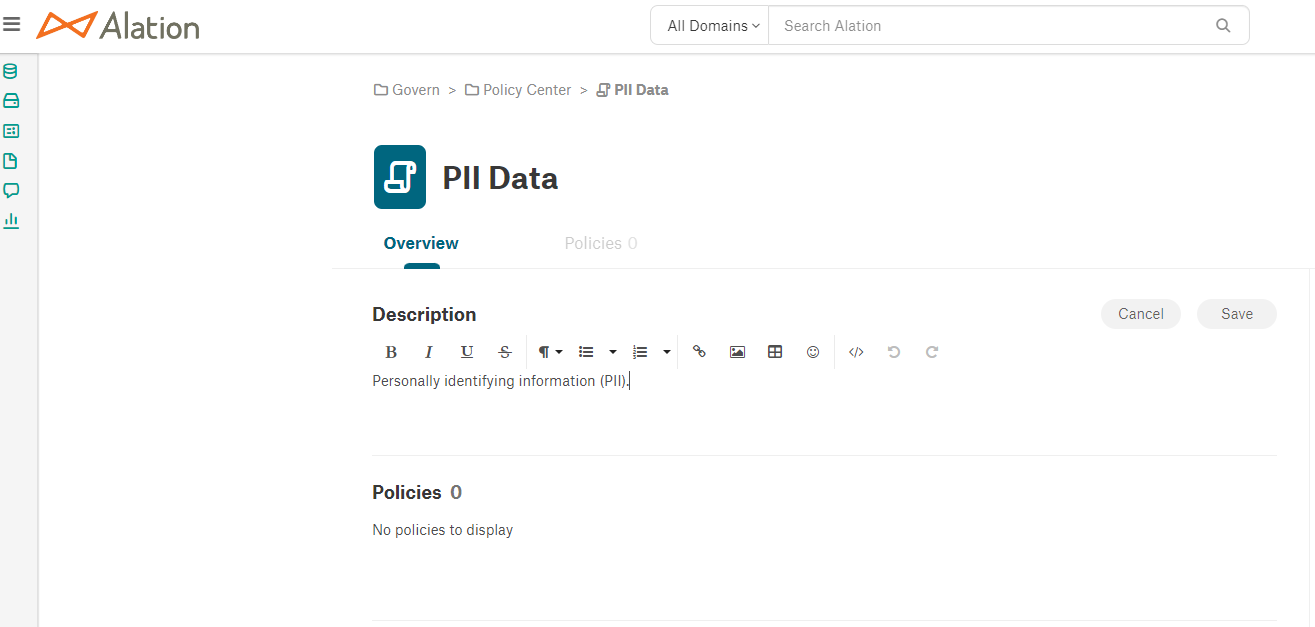
The following can be added to the policy if desired:
Member of a domain or subdomain
Stewards
Tags

Click the Save to commit the changes or the Cancel to discard your edits.
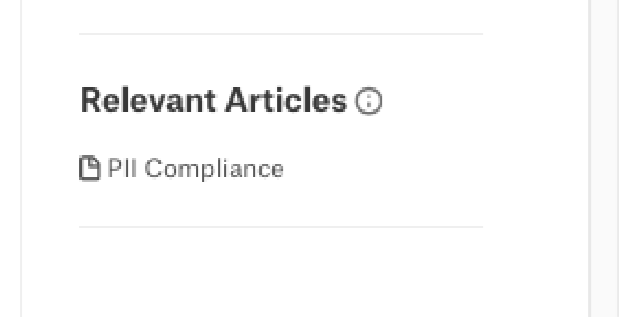
Once created, the policy group can be added to documents using @-mentions. Articles that contain @-references to this policy group will be displayed in the Relevant Articles section on the catalog page.
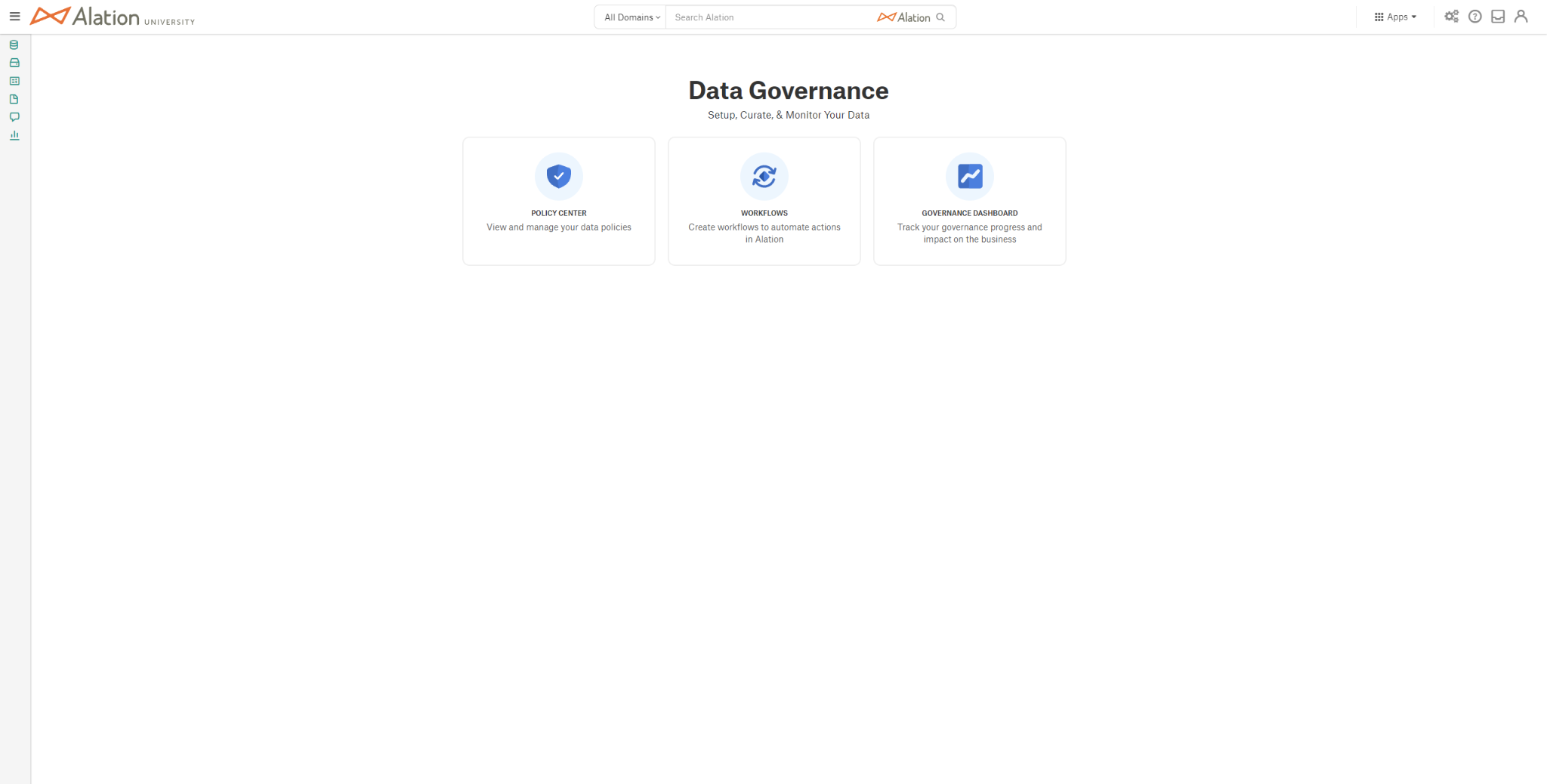
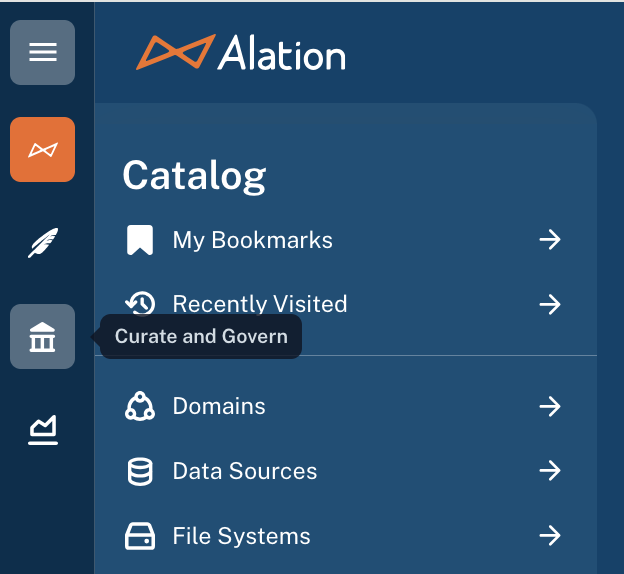
In the left-side navigation panel, click the Curate and Govern icon. The Curate and Govern landing page opens.
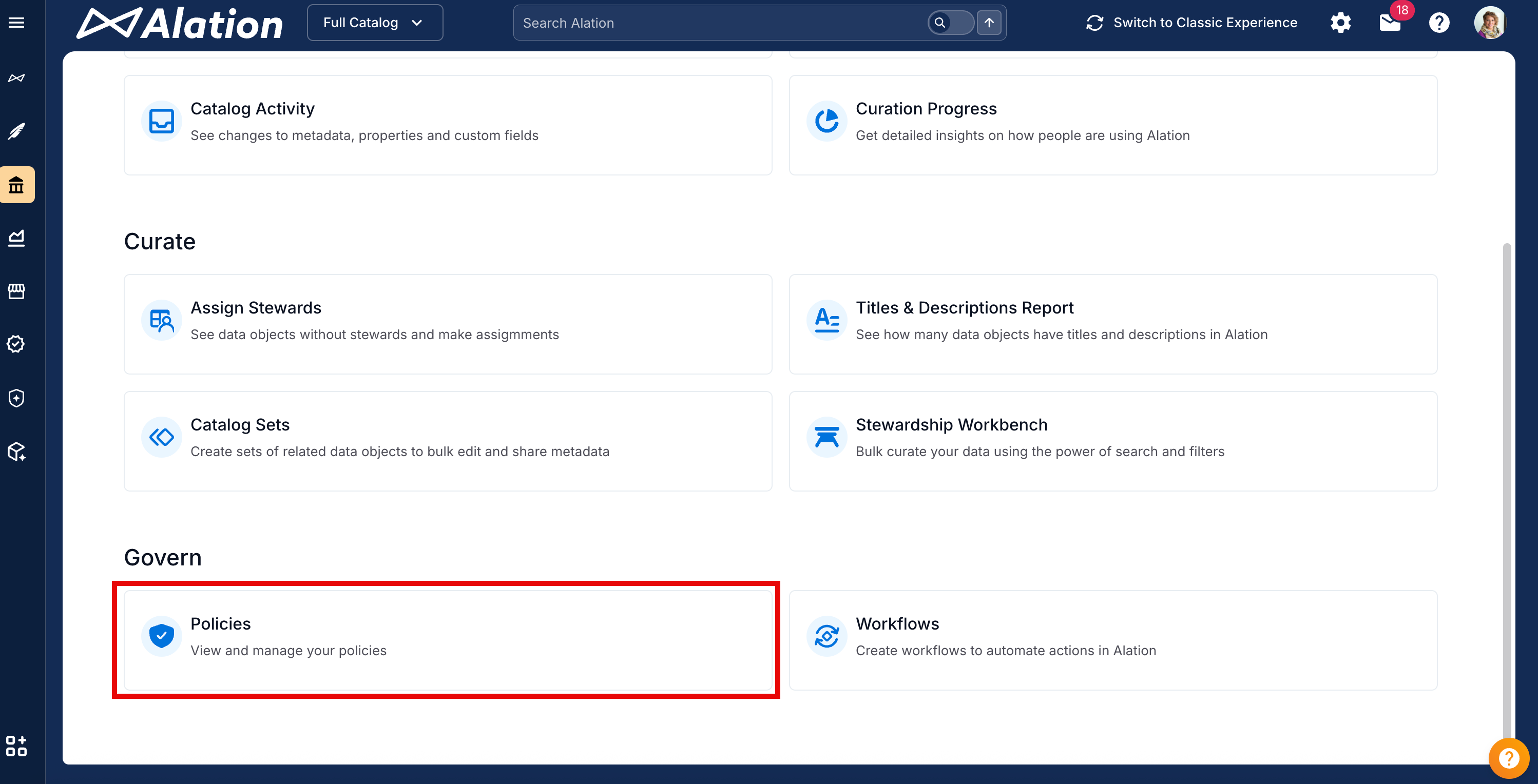
Under Govern, click Policies to access the Policy Center.
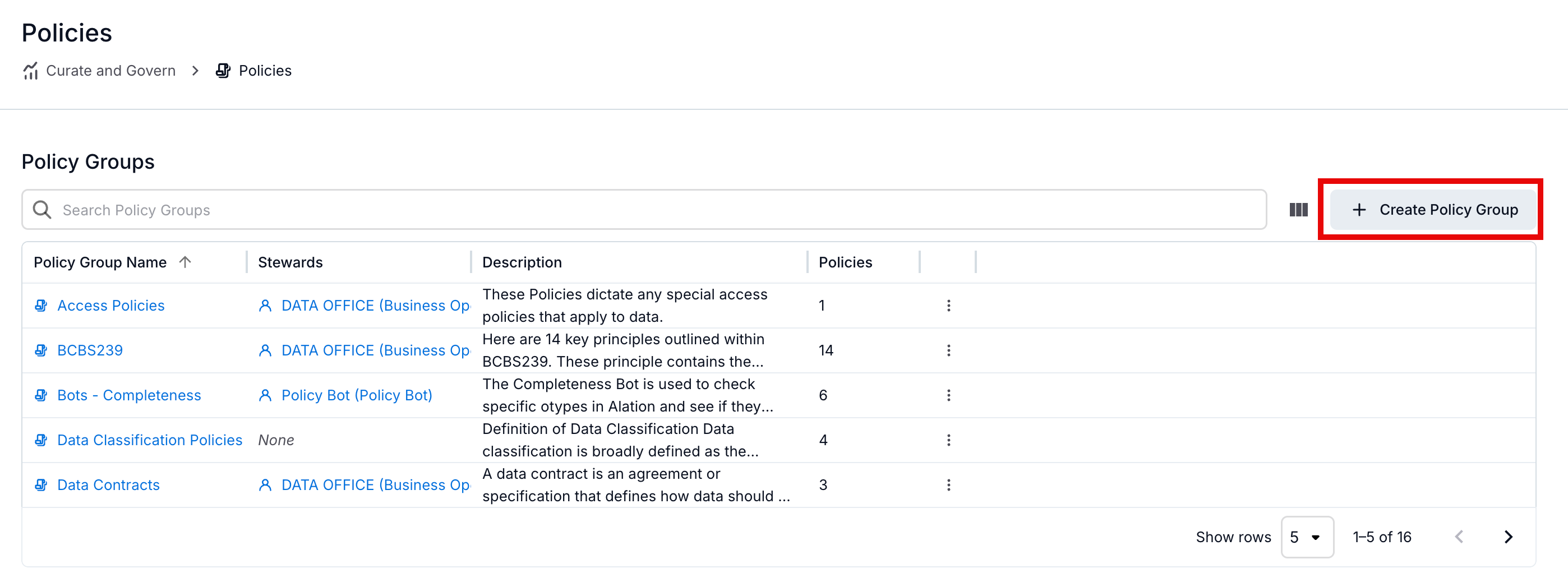
Click + Create Policy Group in the Policy Groups section. A new policy group page appears.
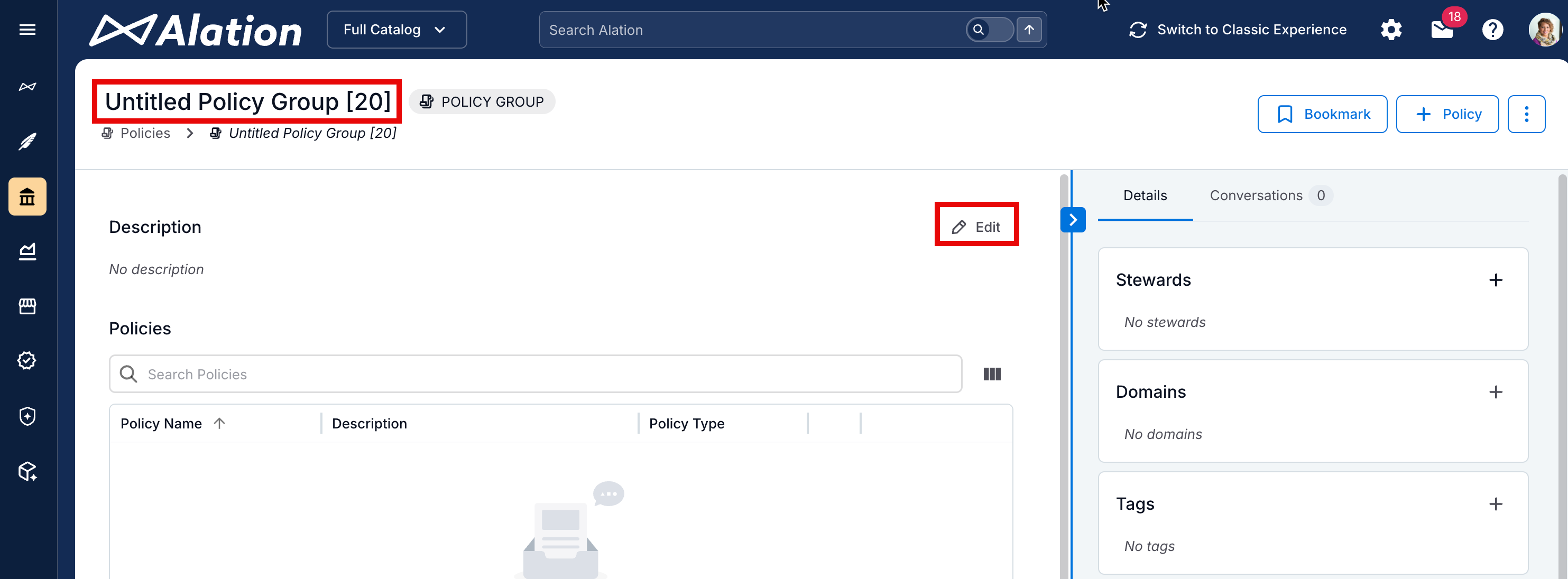
Provide a title for the policy group and click Edit to add the description for the group.
Click the Save to commit the changes or the Cancel to discard your edits.
Once created, the policy group can be added to documents using @-mentions. Articles that contain @-references to this policy group will be displayed in the Relevant Articles section on the catalog page.
Delete a Policy Group
Perform the following steps to delete a policy group:
From the Apps menu, click Curate and Govern.
Under Govern, click Policies to access the Policy Center.
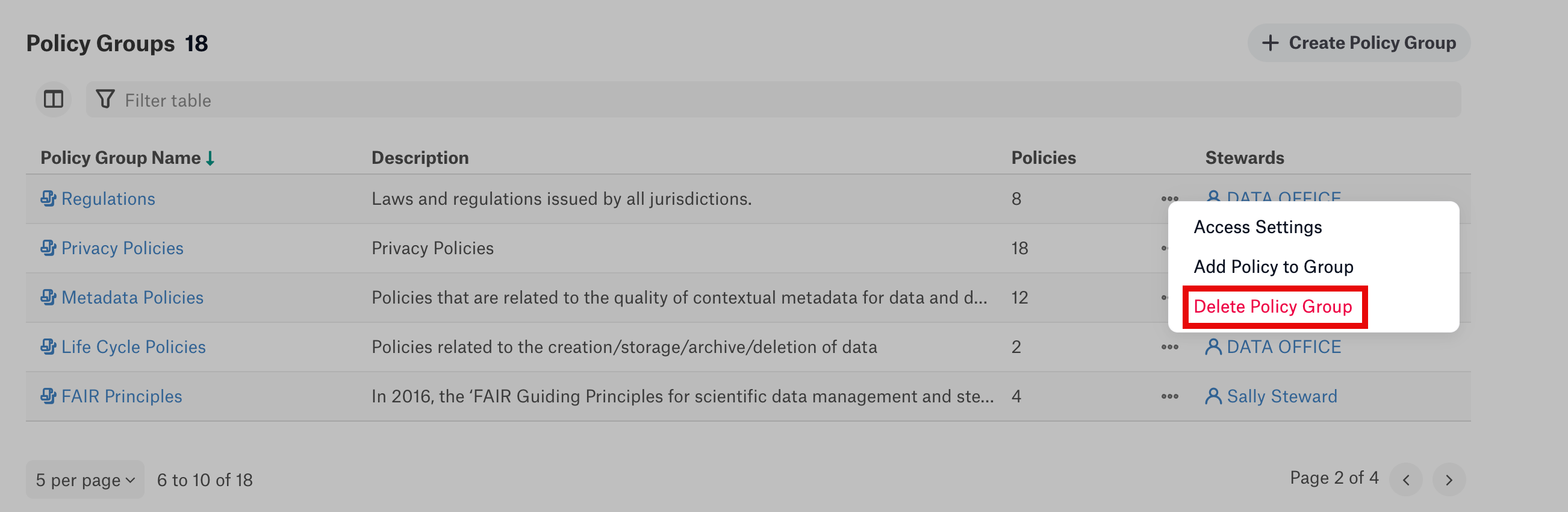
Click the three dot menu on the policy group you wish to delete in the Policy Groups section.

Select Delete Policy Group from the dropdown menu.
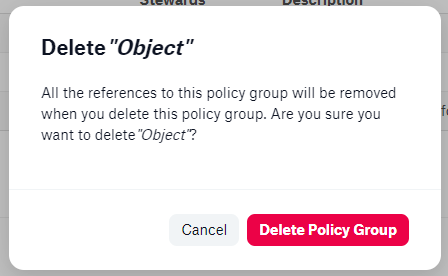
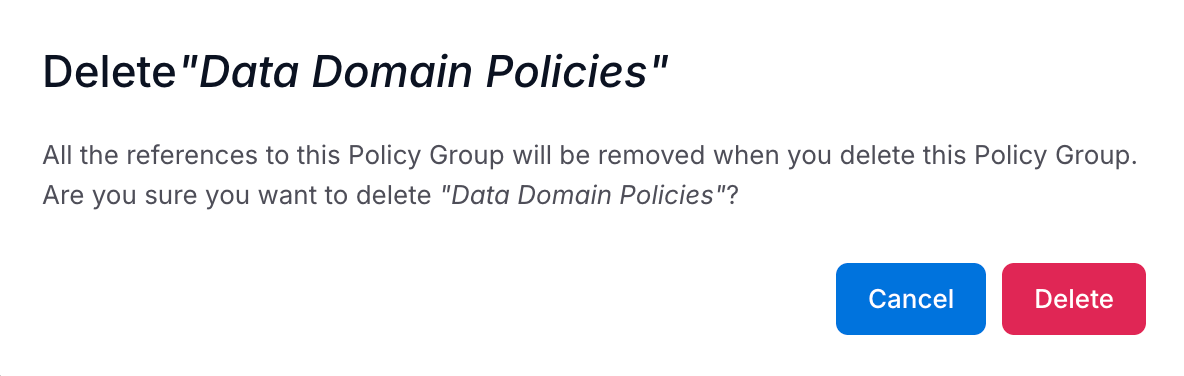
A dialog will appear to confirm the desired removal. If you wish to delete the policy group, click Delete Policy Group.
In the left-side navigation panel, click the Curate and Govern icon. The Curate and Govern landing page opens.
Under Govern, click Policies to access the Policy Center.
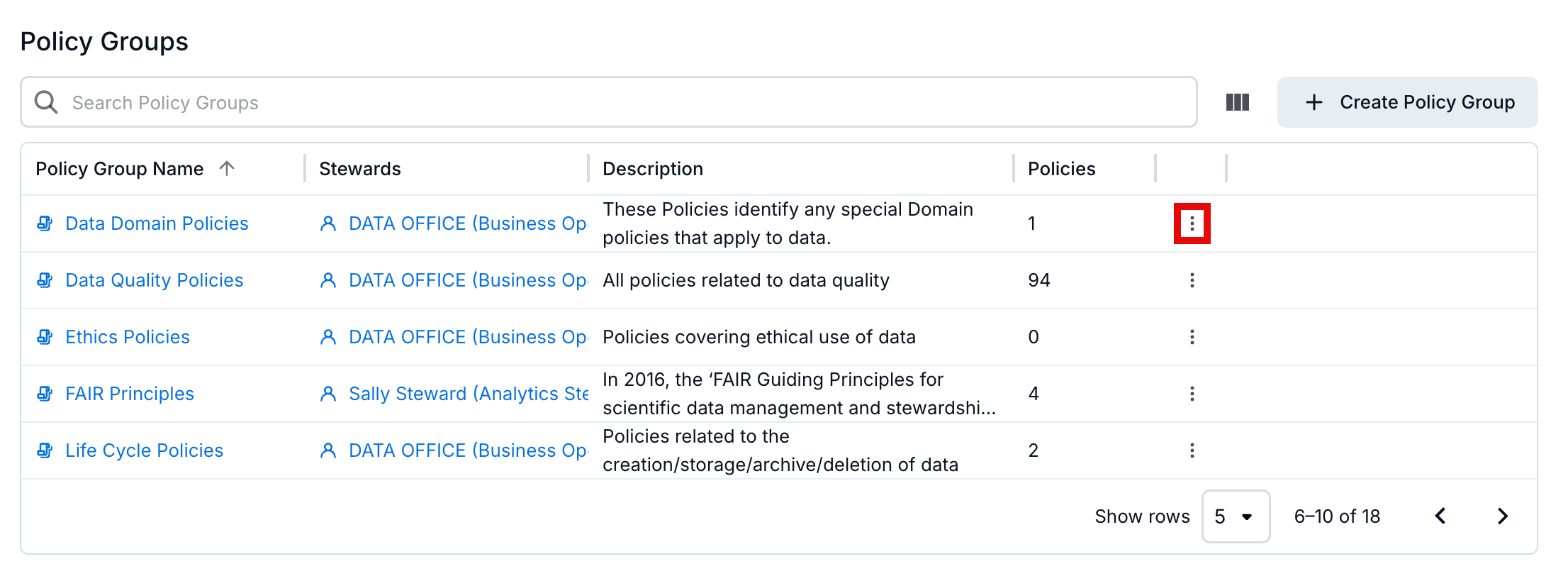
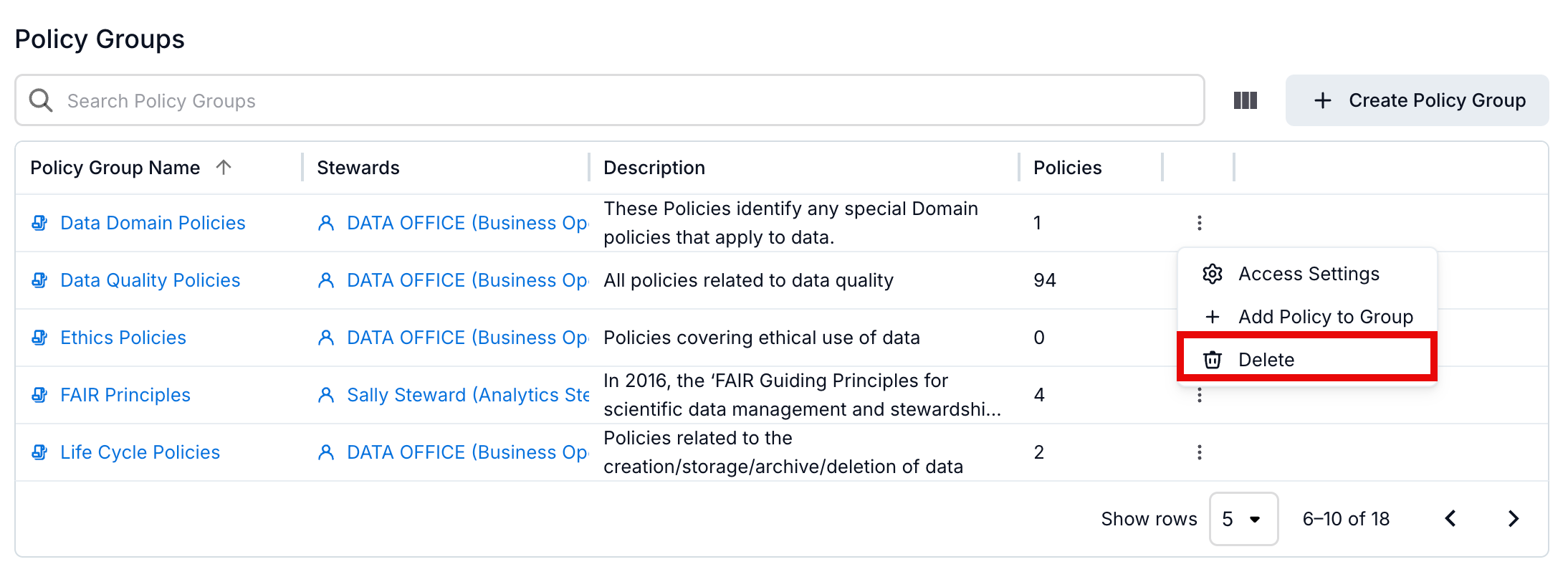
Click the three dot menu on the policy group you wish to delete in the Policy Groups section.
Select Delete from the dropdown menu.
A dialog will appear to confirm the desired removal. If you wish to delete the policy group, click Delete.
Update a Policy Group
Perform the following steps to update policy groups:
From the Apps menu, click Curate and Govern.
Under Govern, click Policies to access the Policy Center.
Click the title of the policy group you would like to edit in the Policy Groups section.
Click Edit to update the policy group. Edits can be made to the title, description, Domains, Stewards, and Tags for the policy group.
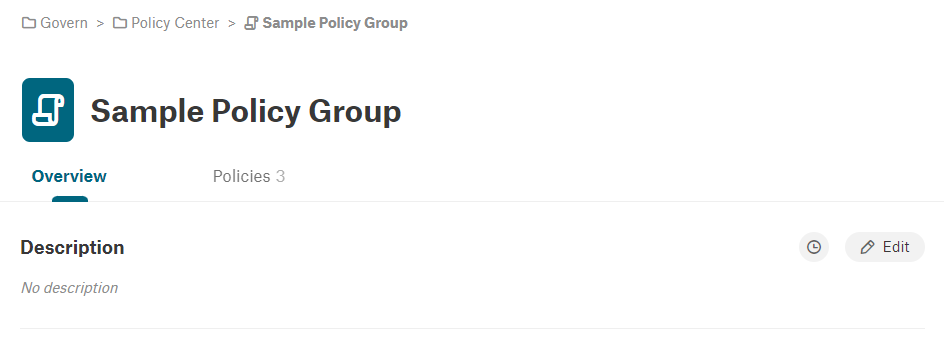
Click Save to commit the changes, or the Cancel to discard your edits.
In the left-side navigation panel, click the Curate and Govern icon. The Curate and Govern landing page opens.
Under Govern, click Policies to access the Policy Center.
Click the title of the policy group you would like to edit in the Policy Groups section.
Click Edit to update the policy group. Edits can be made to the title, description, Domains, Stewards, and Tags for the policy group.
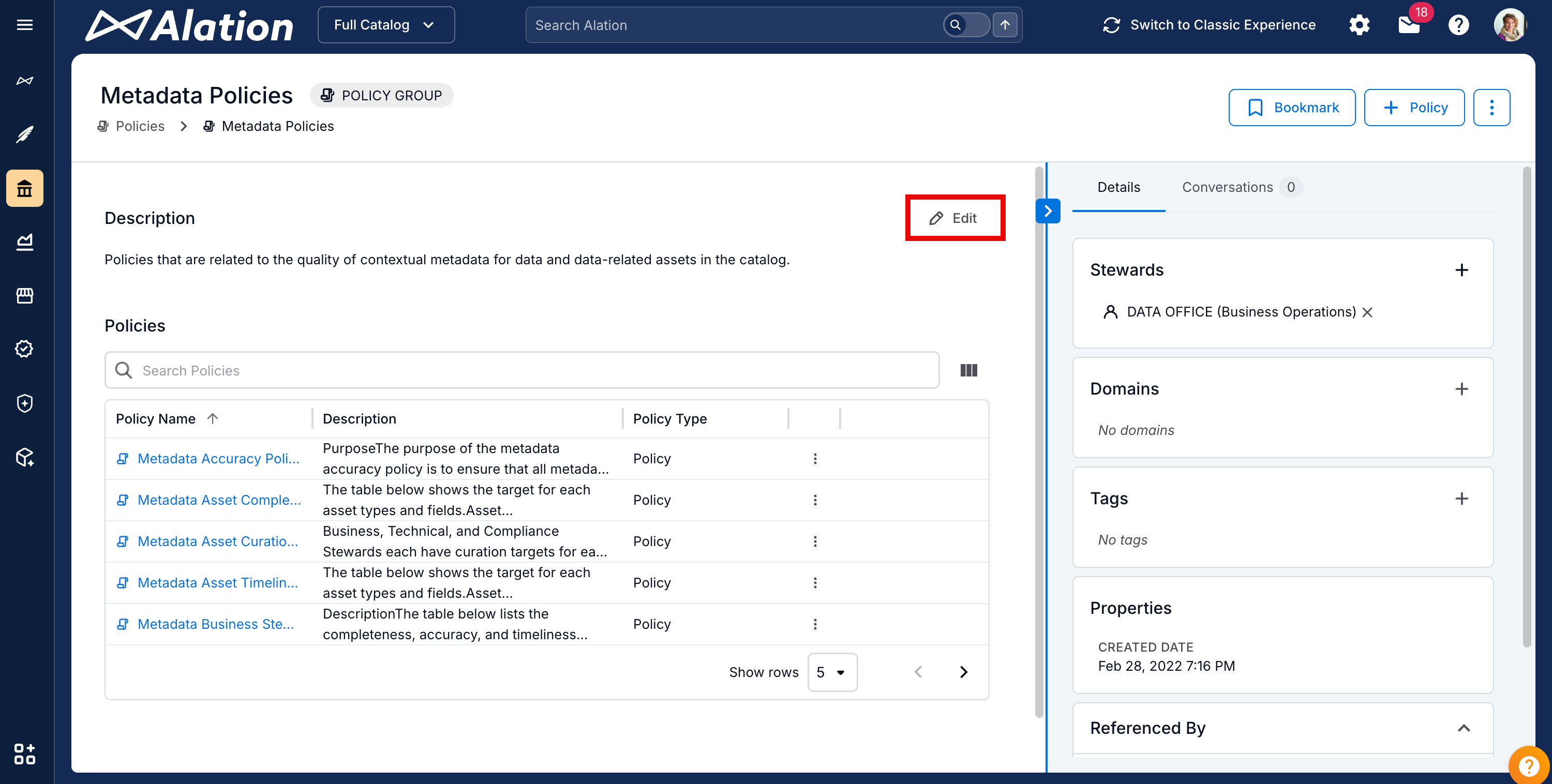
Click Save to commit the changes, or the Cancel to discard your edits.