
Policy Center
Alation Cloud Service Applies to Alation Cloud Service instances of Alation
Customer Managed Applies to customer-managed instances of Alation
Important
You are viewing documentation for Alation’s Classic User Experience.
The Policy Center is a component of the Data Governance App. It surfaces business policies created in the catalog and data policies extracted from Snowflake data sources, enabling data consumers to view applicable policies and understand their impact in a single place. This helps promote responsible and ethical data usage across the organization.
The Policy Center serves as a centralized location for managing both policies and data policies. Users can view policies extracted from cataloged data sources, see the data objects associated with those policies, and access curated details on dedicated catalog pages for each policy.
Get Started with the Policy Center
Policies are categorized into two types:
Data Policies: These policies are extracted directly from the database. Data Policies are currently supported only for Snowflake, where they represent native Snowflake data policies. They can be extracted only from Snowflake data sources for which policy extraction is configured.
Business Policies: These policies are created and managed manually in the Policy Center and can be linked to catalog objects across the platform. Business Policies are data-source agnostic and can be used to capture and manage policy information regardless of the underlying system.
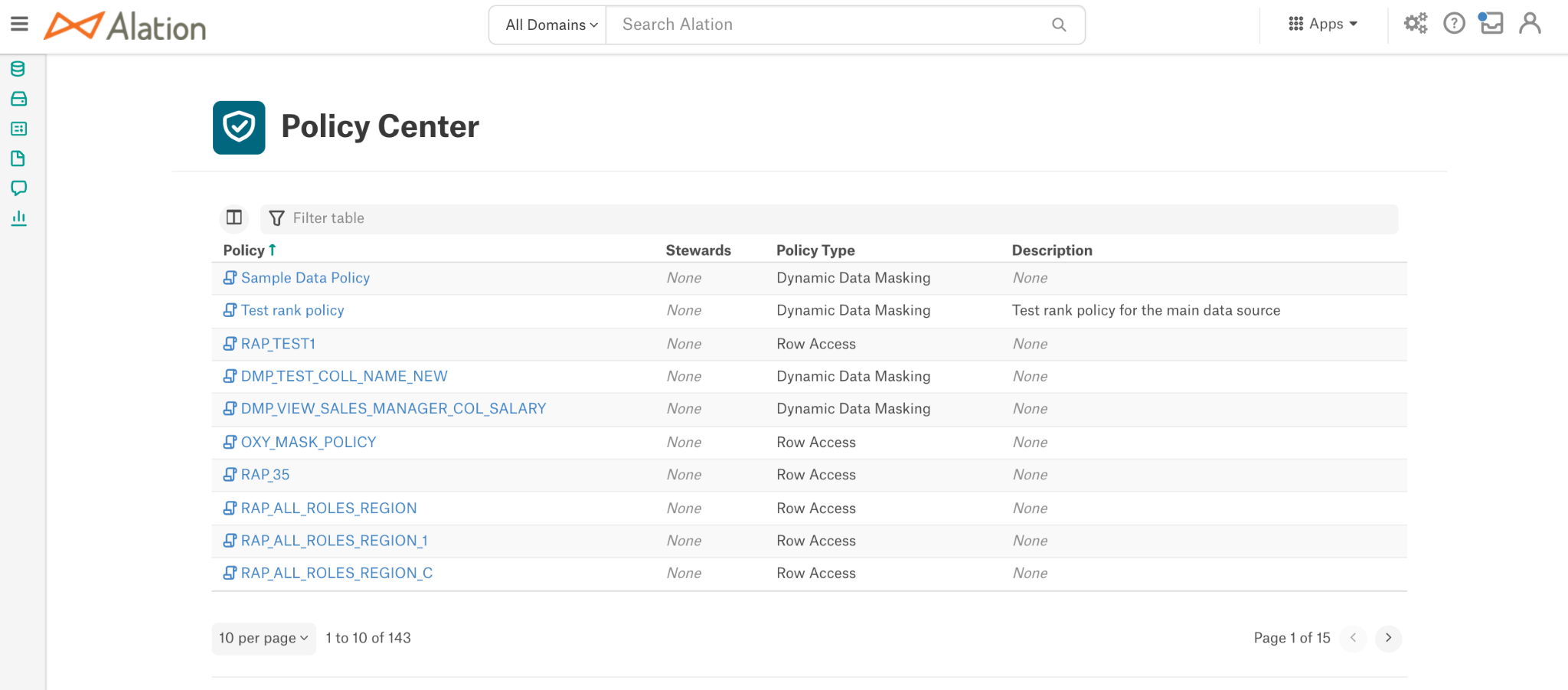
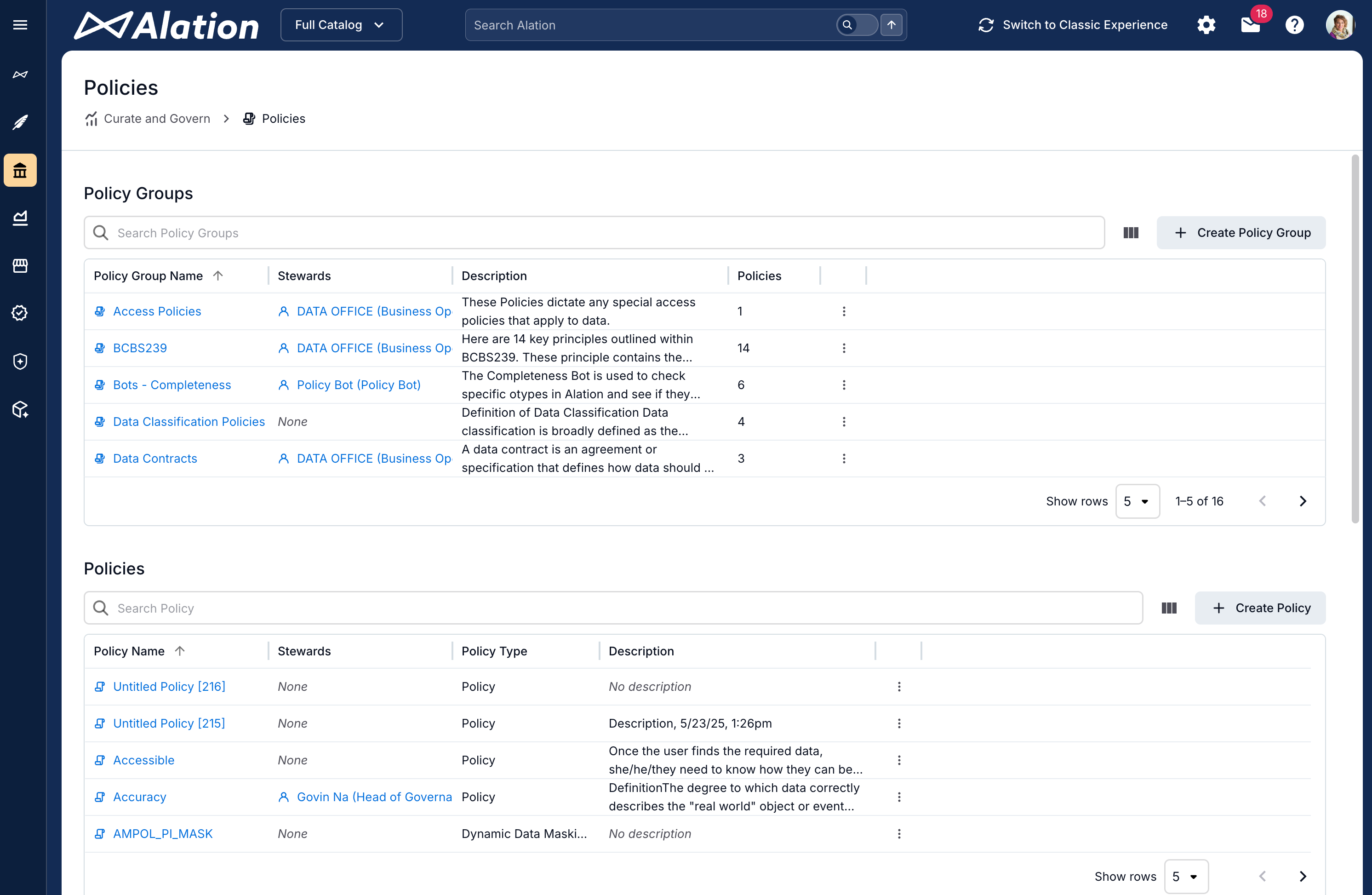
Once the policies are extracted or created, they will be displayed on the Policy Center page as shown below. Users can curate the catalog pages of policy objects from the Policy Center main page. Refer to Curate Data Policies and Business Policies.
Catalog pages of the cataloged policy objects are based on the corresponding catalog template and can be curated like any other catalog page.
Snowflake Data Policies
For Snowflake data sources, Alation surfaces data policies as the result of metadata extraction and ingestion, ensuring that data consumers are aware of their existence. Users can view data policies extracted from Snowflake as well as data objects associated with these policies. They can take advantage of curated information found on dedicated catalog pages of each policy object.
Alation supports extraction for two Snowflake data policy types:
Row Access
Dynamic Data Masking
The Alation catalog also supports displaying masked values in data samples to authorized users only. The users who are not allowed to view the values will only see masked strings.
To access Snowflake policies, Alation requires access to specific schemas and views within Snowflake. You configure policy extraction on your Snowflake data source by granting the service account access to the required views in the ACCOUNT_USAGE schema. See Policy and Tag Extraction for more details.
Business Policies
Business policies are a generic type of policy object that also can be found using search and managed in the Policy Center. When creating a business policy manually, you can link it to other catalog objects using Object Set fields.
Enable Policy Center
Server Admins can enable or disable the Policy Center feature for the entire Alation instance. Once enabled, all users with appropriate permissions can access the Policy Center. See Access to the Governance App for more information on user access to the Policy Center.
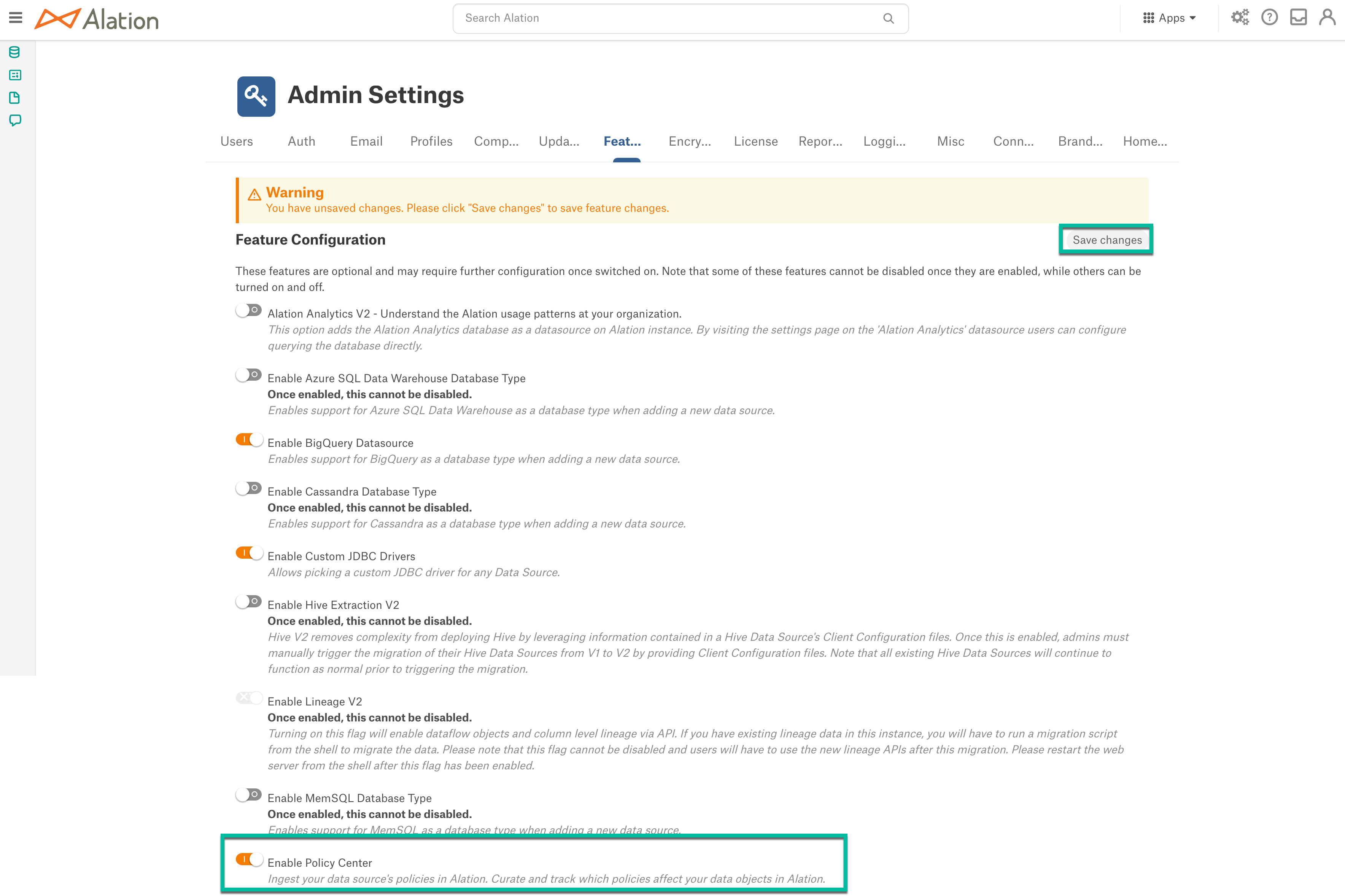
Perform the following steps to enable the Policy Center feature:
Go to Settings > Feature Configuration.
Toggle on Enable Policy Center and click Save changes and save the changes.
After you enable it, the Policy Center icon appears in the Apps menu.
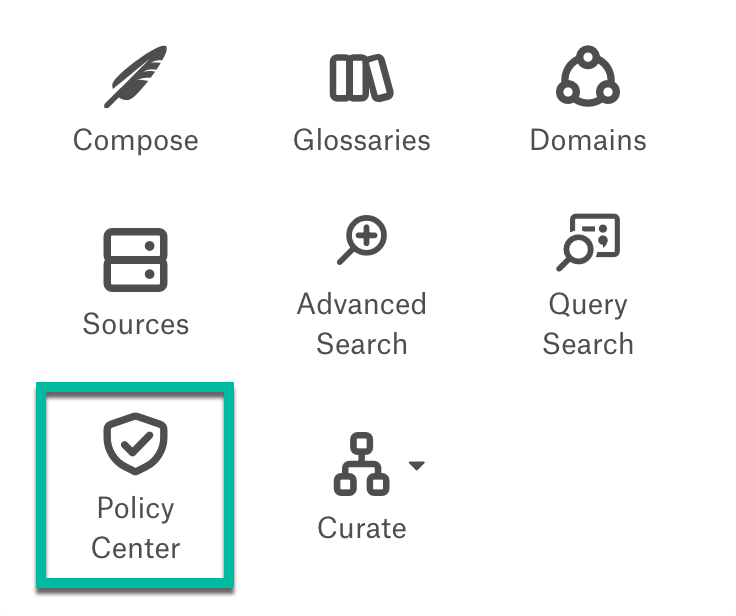
Click the Policy Center icon to view the Curate Data Policies main page.
Click the Settings gear icon in the top-right corner to open the Admin Settings page.
In the Customization section, click the Feature Configuration tile to open the corresponding page.
Toggle on Enable Policy Center and click Save changes to save the changes.
After you enable it, the Policy Center icon appears under Curate and Govern > Govern.
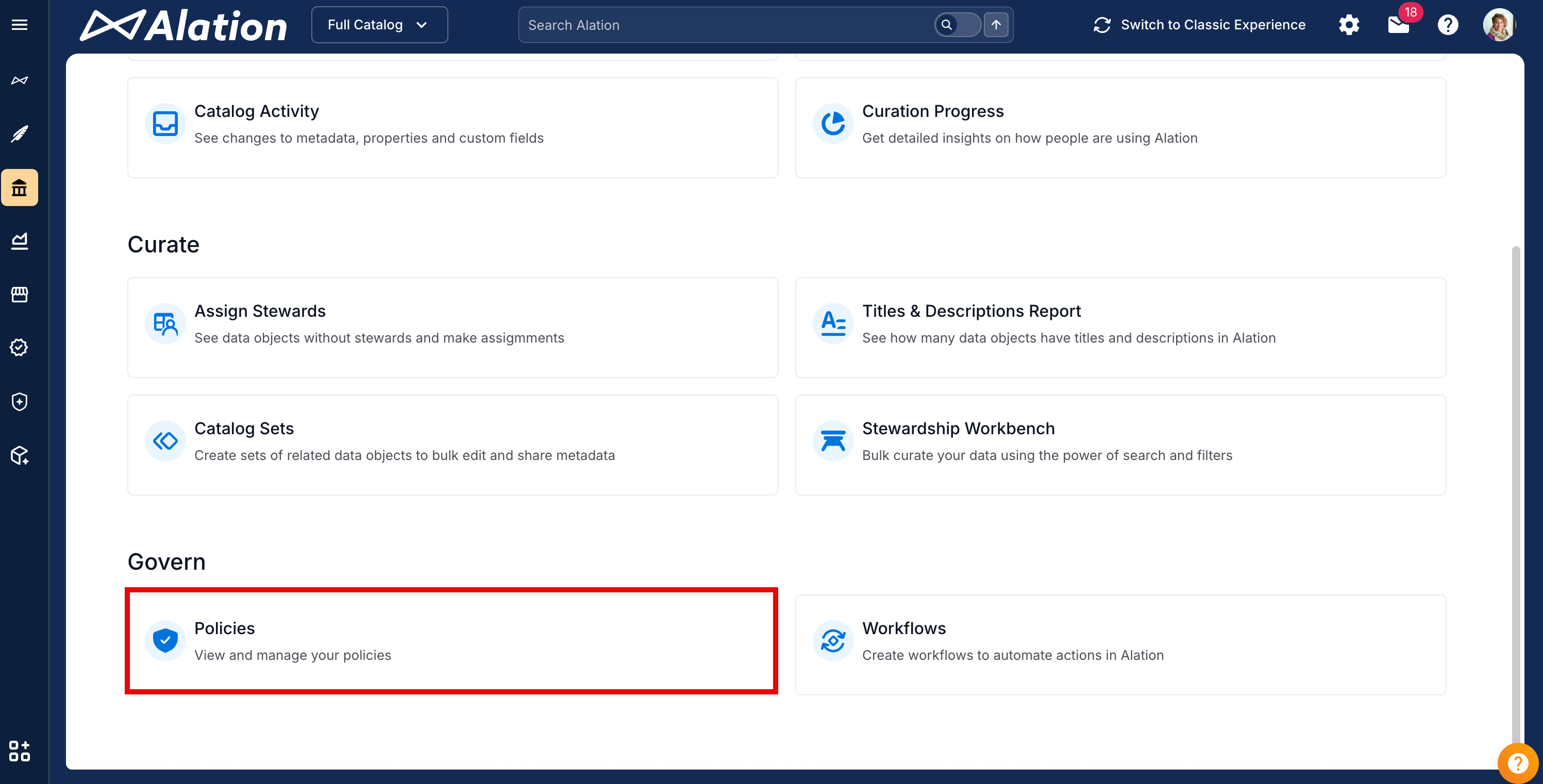
Click the Policy Center file to view the Curate Data Policies main page.
Customize the Policy Catalog Templates
Alation provides the ability to customize policy catalog pages by adding custom fields. The policy object template is available under the Custom Template tab of the Customize Catalog page. For more information, refer to About Templates and Fields.
Configure Policy Workflow
Server and Catalog Admins require the ability to create and deploy change management workflows for policies. Users can configure workflows to manage changes on the catalog pages of policy and data policy objects. Catalog users can suggest a change to the catalog fields for policies or data policies that are enrolled into a change management workflow.
Policy change management workflows are similar to the change request workflows for RDBMS objects, see Managing Workflows for details on creating, renaming, editing, deleting, publishing and unpublishing change request workflows.