
Configure Metadata Extraction
Alation Cloud Service Applies to Alation Cloud Service instances of Alation
Enhanced Connector Enhanced connectors add extended capabilities and require a separate entitlement in addition to your Alation platform license.
This section describes how to configure metadata extraction (MDE) for the Amazon SageMaker Catalog Enhanced connector.
Step 1: Test Access and Fetch SageMaker Projects
Before fetching the list of projects for extraction, Alation tests if the user has all the configurations to run metadata extractions. Ensure that you have completed the steps to set up the SageMaker Catalog connector (Configure Connection to Amazon SageMaker Catalog Source).
Perform these steps to test access and fetch projects from SageMaker Catalog:
On the Settings page of SageMaker source, go to the Metadata Extraction tab.
In the Step 1: Test Access and Fetch SageMaker Projects section, click Run.
The retrieved list of projects appear in the Projects table under the Select projects for extraction section of the Metadata Extraction tab.
Step 2: Select Projects for Extraction
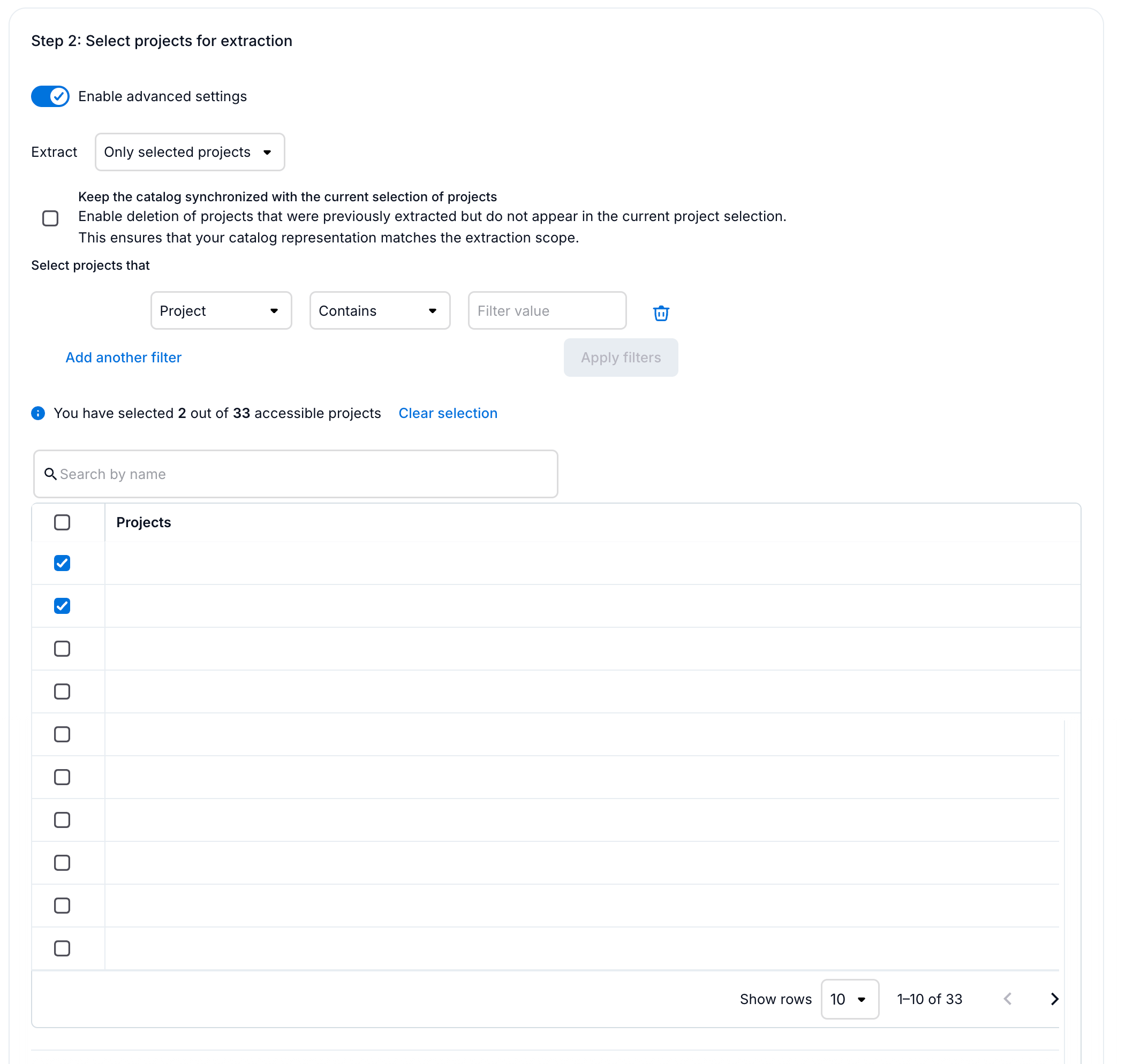
By default, all the projects Alation fetches from the SageMaker source are selected for extraction. You can adjust the selection of projects by:
Important
If you do not select any project manually or using filters, Alation extracts all the projects when you run the metadata extraction.
Select Projects Using Filters
If you want to apply extraction filters, perform these steps:
On the Settings page of your SageMaker source, go to the Metadata Extraction tab.
Under the Select projects for extraction section, turn on the Enable advanced settings toggle.
Select the required extraction filter option from the Extract drop down:
Only selected projects — Extracts metadata only from the selected projects. This is the default value.
All projects except selected — Extracts metadata from all projects except the selected projects.
To delete the projects from previous extraction that are not part of the current projects selection, select the Keep the catalog synchronized with the current selection of projects checkbox.
Create a filter.
From the first drop down, select Project.
Select the filter criteria (Contains, Starts with, Ends with, Regex).
Specify the keyword to look for from the project.
Use this option if you frequently change projects or if you use extensive metadata.
You can add multiple filters by clicking the Add another filter link.
Note
You must use rules if you plan to schedule MDE.
Click Apply filters.
The Projects table displays the selected projects that match the rules that you had set.
Note
After applying rules, you cannot manually adjust the selection of projects.
Select Projects Manually
If you opt to manually select the projects for extraction, perform these steps:
On the Settings page of your SageMaker source, go to the Metadata Extraction tab.
Under the Select projects for extraction section, turn off the Enable advanced settings toggle, if not disabled already.
Select the required projects from the list in the Projects table.
Alternatively, you can select a project by searching for the specific project from the table using either the project name or any keyword or string in the project name.
After you have selected the projects, your selection count is displayed on top of the Projects table.
Step 3: Extraction
Under the Run extraction section (General Settings > Metadata Extraction), click Run Extraction to extract metadata on demand.
The status of the extraction action is logged in the Extraction Job Status table under the MDE Job History tab.
Schedule Extraction
You can also schedule the extraction. To schedule the extraction, perform these steps:
On the Settings page of your SageMaker Catalog source, go to the Metadata Extraction.
Under the Run extraction section, turn on the Enable extraction schedule toggle.
Using the date and time widgets, select the recurrence period and day and time for the desired MDE schedule. The next metadata extraction job for your SageMaker Catalog source will run on the schedule you have specified.

Note
Here are some of the recommended schedules for better performance:
Schedule extraction to run for every 12 hours at the 30th minute of the hour.
Schedule extraction to run for every 2 days at 11:30 PM.
Schedule extraction to run every week on the Sunday and Wednesday of the week.
Schedule extraction to run for every 3 months on the 15th day of the month.
View the MDE Job History
You can view the status of the extraction actions after you run the extraction or after Alation triggers the MDE as per the schedule. Also, you can view the status of the projects retrieved from the Step 1: Test Access and Fetch SageMaker Projects step.
To view the status of extraction, go to Metadata Extraction > MDE Job History on the Settings page of your SageMaker Catalog source. The Extraction job status table is displayed.
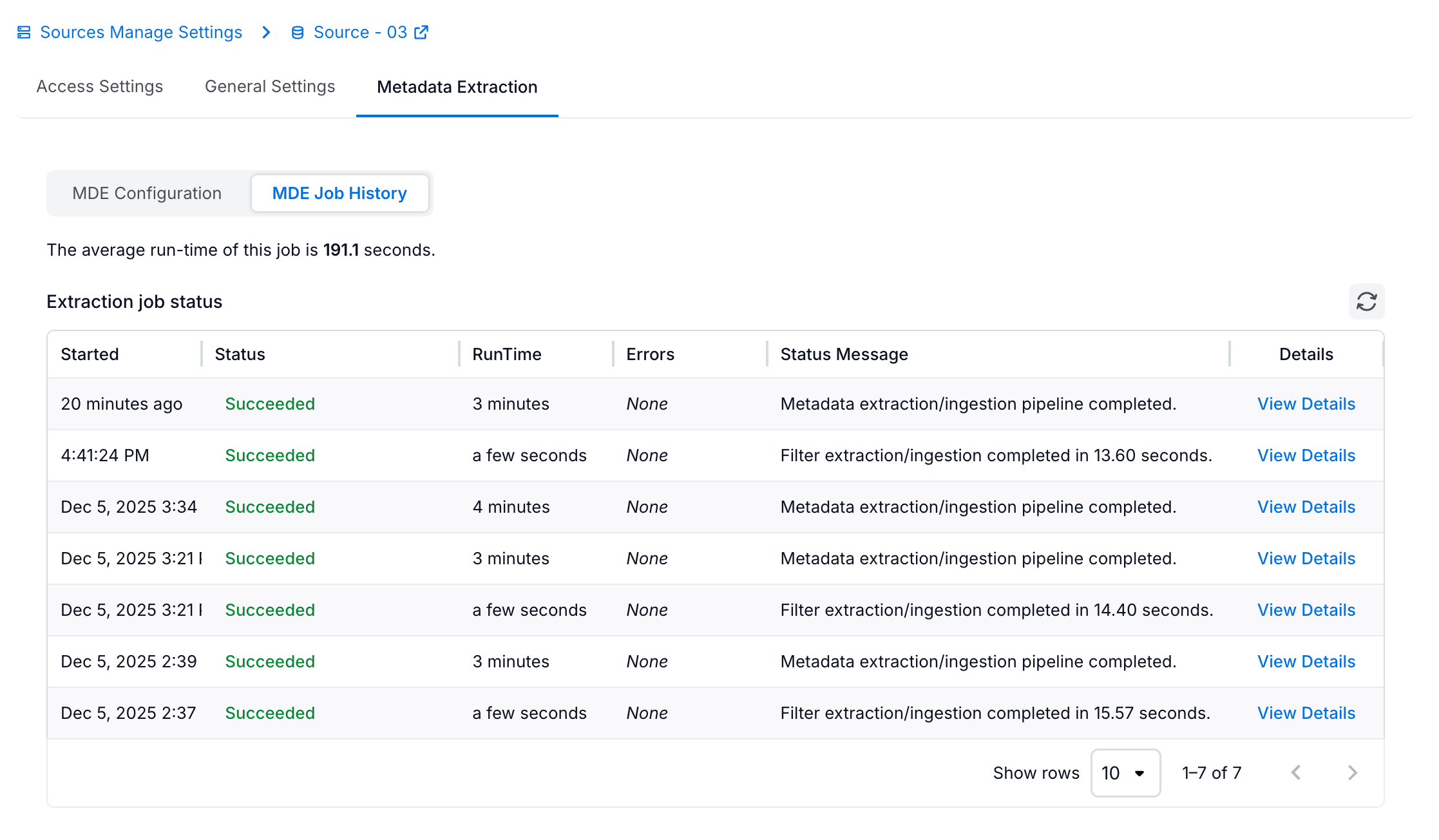
The Extraction job status table logs the following status:
Did Not Start - Indicates that the metadata extraction did not start due to configuration or other issues.
Succeeded - Indicates that the extraction was successful.
Partial Success - Indicates that the extraction was successful with warnings. If Alation fails to extract some of the objects during the metadata extraction process, it skips them and proceeds with the extraction process, resulting in partial success.
Failed - Indicates that the extraction failed with errors.
Click the View Details link to view a detailed report of metadata extraction. If there are errors, the Job errors table displays the error category, error message, and a hint (ways to resolve the issue). Follow the instructions under the Hints column to resolve the error.
In some cases, Generate Error Report link is displayed above the Job errors table. Click the Generate Error Report link above the Job errors table to generate an archive (.zip) containing CSV files for different error categories, such as Data and Connection errors. Click Download Error Report to download the files.