
View Field History
Alation Cloud Service Applies to Alation Cloud Service instances of Alation
Customer Managed Applies to customer-managed instances of Alation
Important
You are viewing documentation for Alation’s Classic User Experience.
Alation tracks and displays a history of edits of the fields on catalog pages, such as Title, Description, Summary, Stewards, and custom fields. Field values can be updated by users in the user interface or via public API, Data Dictionary, or catalog sets.
Note
In field history, values applied by curation rules display source attribution that identifies the rule and whether AI was used. Values changed by public API, Data Dictionary, or other automatic means are attributed to the user whose credentials were used.
View Field History on Object Pages
To view field history on object pages:
Open the catalog page for an object.
Click on the three-dots icon in the top right corner of the page.
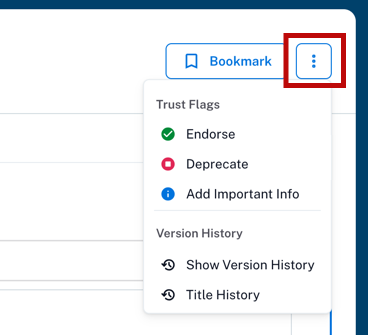
Under Version History, select what history you want to see:
Title History will open a dialog showing the history of the object’s Title field.
Show Version History will add a history icon
 to all fields that have history available. Click the icon to see history of a specific field.
Open the catalog page of a data object.
Click the history icon
 next to the field title.
The field history lists all the values that have been applied to the field by users or the system, along with when the field was changed. The edits appear chronologically, with the newest on top of the list.
Note
If you’re an Alation Cloud Service customer on the cloud-native architecture, the field history feature is in the process of being updated to improve performance. If you have the new field history changes on your instance, you may notice the following:
The history will only show the past 90 days of changes. To get older data, contact Alation Support.
There may be a few seconds of delay before recently changed values will appear in the history.
The history will not show changes from catalog sets. See View Field History of Catalog Set Members for help seeing the history of catalog set fields.
Customer-managed instances and instances that haven’t been migrated to the cloud-native architecture are unaffected by these changes.
Hide Field History
When you’re done viewing field history, the history icons can be hidden again for reduced clutter. To hide field history, click the three-dots icon in the top right corner and select Hide Version History.
View Field History of Catalog Set Members
Fields on catalog pages of objects included into catalog sets can be bulk-edited through the set: when a value is updated for the set, it is automatically propagated to all its members. There are two possibilities for viewing the history of catalog set changes.
The history of edits may show catalog set changes directly. Values changed through a catalog set are marked with an icon, and the history also lists which catalog set was used to make the change.
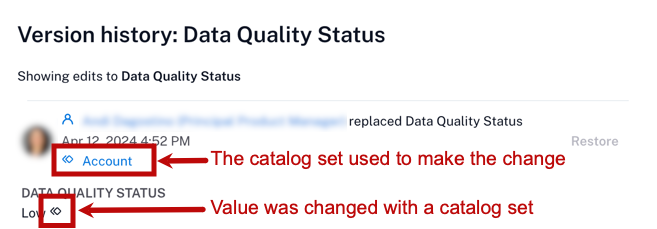
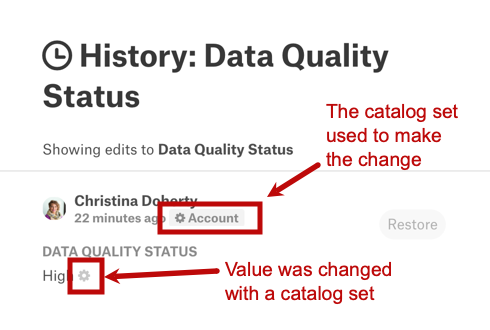
If you’re an Alation Cloud Service customer on the cloud-native architecture, and you have the new history feature, the history will not show changes from catalog sets. To check for changes from catalog sets:
On an object’s catalog page, find the catalog set icon next to the field value. Depending on the type of field, the catalog set name may be shown directly next to the icon, or you may have to hover over the icon to see the name of the catalog set.
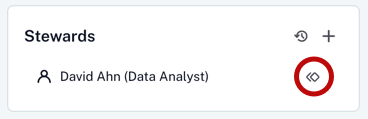
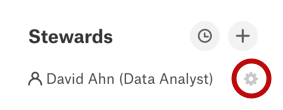
Click the name of the catalog set. The catalog set page will open in the classic user experience.
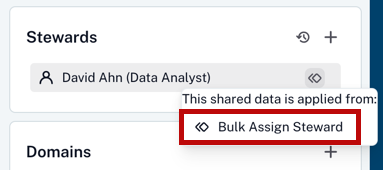
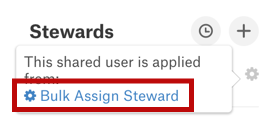
On the catalog set page, select the Shared Fields tab, then click the history icon
for the field whose history you’re looking for.
Note
For catalog objects that are part of a manual catalog set, custom fields values of the child objects can be synchronized. The history of edits to synchronized object set fields may appear as {user} replaced all {field} values.
View Attribution for Curation Automation Values
Applies to Alation Cloud Service customers
Fields populated by a Curation Automation rule display visual attribution to identify the feature or rule that set the value and whether AI generated it.
The sparkle icon indicates that the value was AI-generated. When you hover over the icon, a tooltip displays the following information:
The feature that set the value.
The name of the specific curation rule.
Fields set manually by users or by non-AI curation rules do not display the sparkle icon.
Attribution in Field Version History
When you open a field’s version history, the following indicators show the source of each value:
For AI-generated values: Displays a sparkle icon, Applied by curation rule, the rule name, who applied it, and the timestamp.
For manually generated values: Displays a blue circle with the letter M indicating a value applied by a curation rule using a fixed (manual) value source and other details such as the rule name, who applied it, and the timestamp.
For user-applied values: Displays a user avatar indicating a value applied directly by a user and the user’s name and the action performed.
For information on creating curation rules, see Manage Curation Rules.
When you restore a value from field history, the source attribution is preserved. The restored value keeps its original indicator showing whether AI, a manual rule, and a user who has restored it.
Restore Single-Value Fields
For single-value custom fields, it is possible to restore an old value from the history of field edits.
Values Modified Directly
To restore an old value that was modified directly:
Open the catalog page for an object.
Click on the three-dots icon in the top right corner of the page.
Under Version History, select what history you want to see:
Title History will open a dialog showing the history of the object’s Title field.
Show Version History will add a history icon
to all fields that have history available. Click the icon to see history of a specific field.
Click Restore next to the value you want to restore. That value will be returned to this field.
Open the catalog page of a data object.
Click the history icon
next to the field title.Click Restore next to the value you want to restore. That value will be returned to this field.
Values Modified Through Catalog Sets
For objects that belong to a catalog set, custom field values that are changed through the catalog set can only be restored through that catalog set. You must be a Catalog Admin or Server Admin to change catalog sets.
To restore an old value that was modified through a catalog set:
On an object’s catalog page, find the catalog set icon next to the field value. Depending on the type of field, the catalog set name may be shown directly next to the icon, or you may have to hover over the icon to see the name of the catalog set.
Click the name of the catalog set. The catalog set page will open in the classic user experience.
On the catalog set page, select the Shared Fields tab, then click the history icon
for the field whose history you’re looking for.
Click Restore next to the value you want to restore. That value will be returned to this field for all members of this catalog set.