
Browse the Marketplace
Alation Cloud Service Applies to Alation Cloud Service instances of Alation
The Data Products Marketplace makes it easy for you to discover trusted, reusable data products and put them to use. This section explains how to search for data products, understand what data products you can view, request access, and start using the data.
To find a data product, you use the Search functionality in the Data Product App.
In this topic:
Review an Interactive Walkthrough of the Marketplace Experience
This interactive walkthrough provides a preview of the Marketplace experience and guides you on how to interact with the Marketplace.
Discover Data Products
The Marketplace Home tab helps you discover data products and explore data through an AI-powered chat interface. You can ask general questions in natural language to learn how to get started with data products, understand what is available, navigate the catalog, or manage existing data products. For data products with chat with data) enabled, the Marketplace chat can also query the underlying dataset and return data-driven answers if you are authorized to access that data product.
The Home tab with the chat interface appears on the Marketplace page if the Marketplace Chat option has been enabled in the Marketplace settings. The settings are managed by your Marketplace Admin. See Manage Marketplace for details.
To use the Marketplace Chat:
In the left-side navigation, click the Data Products icon.
The Marketplace Home tab opens by default, displaying the chat interface.
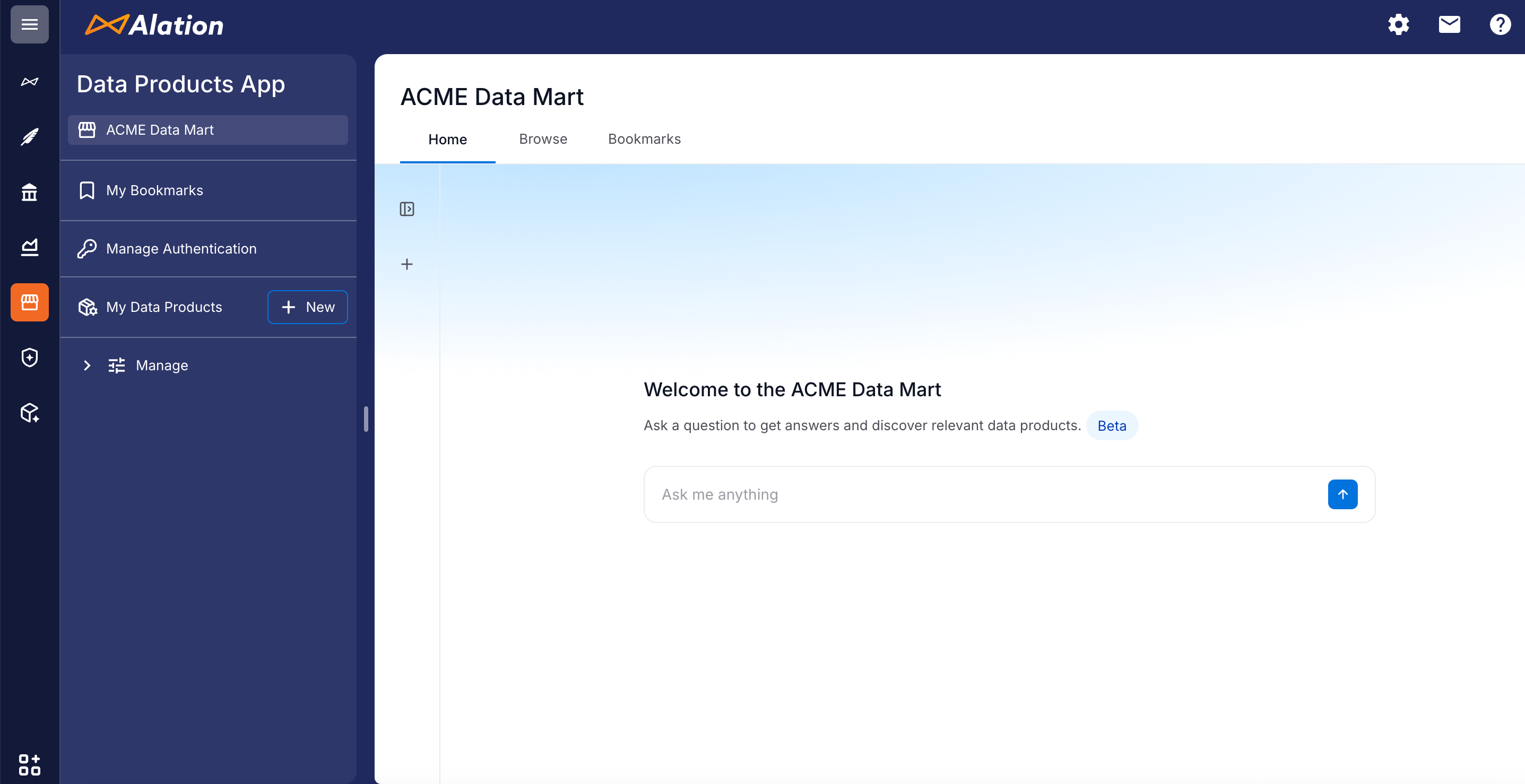
On the Marketplace Home tab, type your question in the chat input at the bottom of the page. You can ask anything relevant to data products.
Here are some examples of questions you can ask:
Example questions related to discovering data products:
“Which data products are available for customer churn analysis?”
“Show me certified products owned by the Finance team.”
“What data products contain information about active subscriptions?”
Example questions related to chat with data (when the data product is authorized for you to access):
“What’s the total revenue from this product in Q1?”
“Show me the top 10 customers by order count.”
“Analyze trends in this dataset over the last 6 months.”
Access Your Chat History
Marketplace Chat saves your conversations, and you can access them anytime from the chat history sidebar on the left side of the screen. Your chat history is preserved across sessions, so you can close your browser and return to your conversations later.
In the Past chats section of the sidebar, click any previous chat to open the chat window. Review the content or connect and continue the conversation as necessary.
To switch to a new chat window from a previous chat, click New Chat at the top of the chat list.
You can increase the available space on the screen for the chat by collapsing the Past chats sidebar. To collapse or expand the sidebar, click the collapse or expand button.
Search and Browse the Marketplace
In the left-side navigation, click the Data Products icon and select the name of the Marketplace.
The following screenshot shows an example Marketplace Browse page with a search bar and data product tiles.
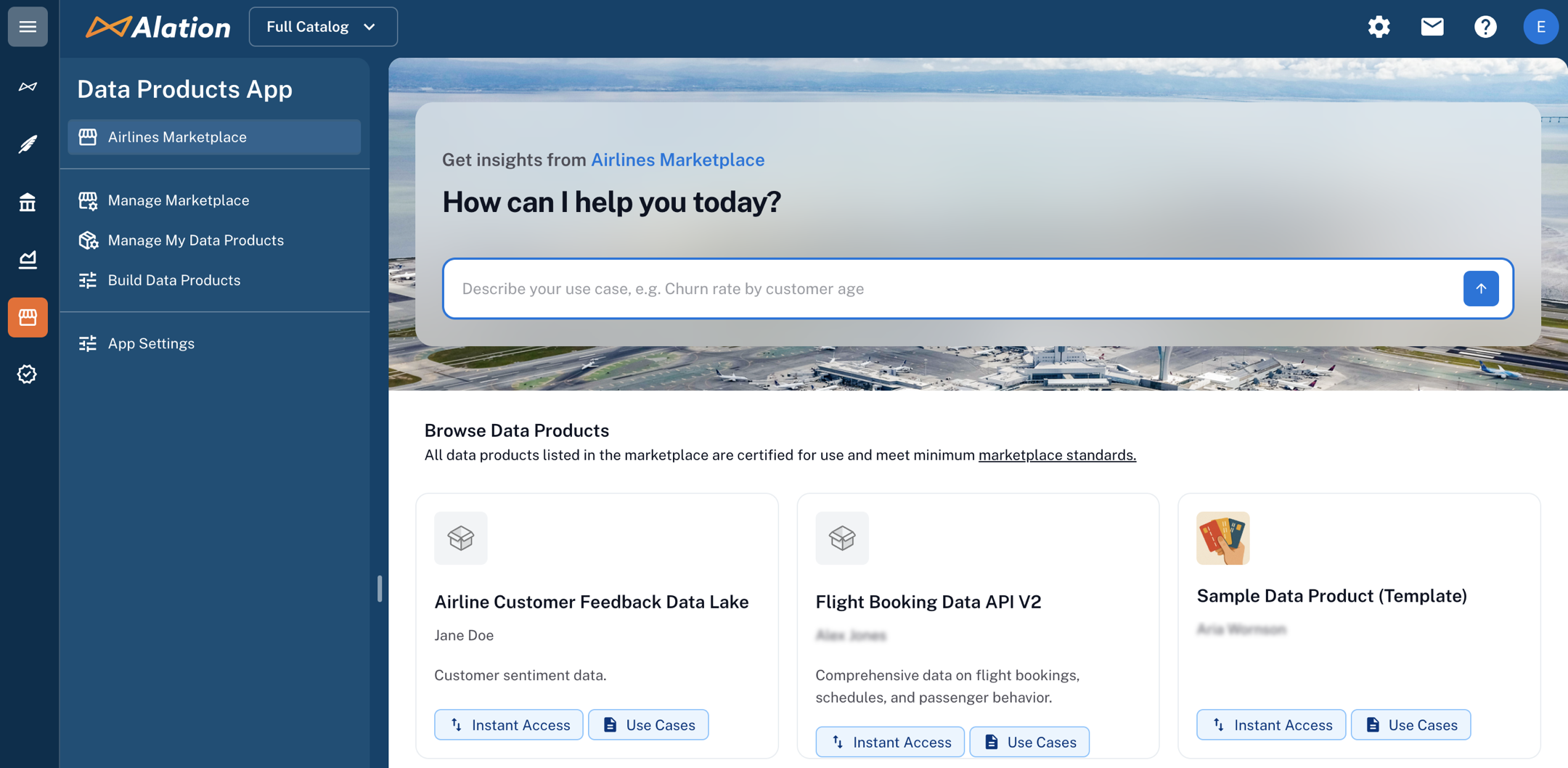
The data products are categorized into two sections: Popular data products and All data products. The Popular section includes data products that are frequently accessed. The All data products section includes all data products available in the Marketplace.
You can click on a data product tile to navigate to the data products page.
In the Search bar at the top of the Marketplace page, enter a use case in natural language. The search uses semantic interpretation rather than keyword matching to find what you need.
Use the Sort dropdown to sort the data products based on different criteria, such as Popular, Recently updated, Recently bookemarked, or in alphabetical order. You can also filter the data products based on the badges applied to them.
Use the filter option to filter based on badges assigned. Badges can help you quickly identify suitable data products. Each Marketplace has its own set of badges, defined by the Marketplace owner. Pay attention to the badges assigned to data products: they can highlight quality, compliance, or other key attributes.
Bookmark Data Products
Bookmark data products to save them for quick access. Bookmarked products appear on your Bookmarks page.
Bookmark a Data Product
To bookmark a data product:
In the Marketplace Browse tab, hover over a data product tile.
Click the Bookmark icon in the top-right corner of the tile.
The bookmark icon appears filled when a data product is bookmarked.
Access Your Bookmarks
To view your bookmarked data products:
In the left-side navigation, click the Data Products icon.
Click My Bookmarks.
You can search and sort your bookmarks using the Sort dropdown. Sort by Recently bookmarked to see your most recently saved products first. You can also sort by Recently updated, Popular, or in alphabetical order. You can also filter based on the badges applied.
Remove a Bookmark
To remove a bookmark:
Hover over the data product tile in the Marketplace or on the Bookmarks page.
Click the Bookmark icon.
Provide Feedback on Search Results
If you can’t find what you need, send feedback on search results:
Click the Didn’t find what you need? button at the bottom of the search results list.
Fill in the feedback form:
Describe the type of data you were looking for
Optionally, add how you intended to use it
This feedback goes to the Marketplace and data product owners to help them improve the Marketplace content.