
Access, Roles, and Permissions
Alation Cloud Service Applies to Alation Cloud Service instances of Alation
Customer Managed Applies to customer-managed instances of Alation
A combination of roles, permissions, and object-level access rules governs access and capabilities within the Alation catalog. Together, these factors determine both your visibility of catalog objects and your ability to interact with them.
This topic provides an overview of the factors that govern object visibility and user actions within the catalog.
Access to Functionality
To control access to functionality, Alation has roles.
When you first join Alation, you are assigned a user role. There are seven roles, as described in Understanding Alation Roles and License Types.
Your user role is the primary access rule that determines what pages you see in the catalog and what actions you can perform. For example, as a Server Admin, you will be able to access the Admin Settings page, which other roles cannot do. As a Catalog Admin, you can create and manage catalog sets and custom fields, which a Composer cannot do.
When a user’s role doesn’t grant the necessary authority for a specific action, the corresponding interface elements appear inactive. Attempting to interact with or hovering over these disabled elements triggers an insufficient permissions message.
Access to Objects
Object access uses granular Privacy settings. These settings can be applied directly to a specific object or inherited automatically from the parent object.
Access to Data Sources, Schemas, and Tables
Data Source Admins manage access to data sources at the individual source level. A user’s ability to view a specific data source is determined by that source’s Privacy settings. Data Source Admins control privacy for each source and grant viewing rights to specific users or groups.
Alation provides basic access controls for data sources by default. Optionally, you can enable advanced access controls and table-level privacy.
Basic access controls are always available and enable you to:
Configure access for an entire data source. All objects in a data source inherit the privacy level of the data source.
Choose between two privacy modes: Public and Private.
Choose between two user permission levels: Data Source Admin and Viewer.
In Alation 2024.3.5 and later, as a beta feature for the Alation Cloud Service, you can apply advanced access controls, enabling you to:
Set custom permissions for individual schemas or allow schemas to inherit permissions from their parent data source
Choose between three privacy modes: Public, Editing Restricted, and Private
Choose between three user permission levels: Admin, Editor, and Viewer
Note
With advanced access controls, the Data Source Admin permission level is renamed to Admin. The name reflects the fact that this permission level doesn’t necessarily have admin permissions for an entire data source, if privacy settings have been overridden on specific schemas or tables.
Optionally, you can enable privacy settings for tables. This allows you to set permissions for individual tables using either the basic or advanced access controls if enabled.
Access to BI Objects
BI Server Admins manage visibility for BI objects at the individual BI server level through Privacy settings. These settings are configured by the BI Server Admin within the BI server configuration menu.
The BI Server Admin determines the accessibility of a BI server by selecting one of two primary privacy states:
Public: The BI server and its associated objects are viewable by all catalog users.
Private: The BI server is restricted. Only specifically authorized users or groups can discover and view the server and its objects within the catalog.
For specific BI sources, such as Tableau, Alation can synchronize user identities between the two platforms. This process, known as Permission Mirroring, ensures that the viewing permissions defined on the BI server are automatically applied to the extracted objects within the Alation catalog. For more information about permission mirroring for BI sources, see Permission Mirroring for Tableau.
Access to File Systems
Access to file systems can be controlled for each individual file system source and granted to individual users.
Access to file system sources is governed by one of two visibility states:
Public: The file system and its contents are visible to all Alation users.
Private: Visibility is restricted. Only users or groups explicitly granted access can discover and view the file system in the catalog.
Access to Document Hubs, Folders, and Documents
Document hubs are always visible to all users of the catalog, as long as they are published. By default, folders and documents are accessible to everyone, but you can limit access if desired. Documents inherit permissions from their parent folder by default. You can control access to a folder and all its documents by setting permissions on the folder. You can also set permissions on each document individually. Document permissions override folder permissions. See Document Hub Permissions for more details.
Access to Glossaries and Terms
The Glossary Hub is always visible to all users of the catalog. By default, glossaries and terms are accessible to everyone. Terms inherit permissions from their parent glossary by default. You can control access to a glossary and all its terms by setting permissions on the glossary. You can also set permissions on each term individually. Term permissions override glossary permissions. See Glossary Permissions for more details.
Access to Queries
Query objects have access settings too. Your access to a query is determined by a combination of whether you have access to the underlying data source and whether you have individual permission to the specific query. By default, queries can be viewed and run by anyone who has access to the relevant data source. Users with edit or owner access can grant permission to view, run, or edit a query for individual users and groups. Unpublished queries may be hidden, depending on your Alation configuration. See Share and Access Queries - 2023.1 and Later for more information.
Note
In 2022.4 and earlier, your access to view and run a query depends primarily on whether you have access to the underlying data source. You can view any query for data sources you have access to using Search. If the Viewer role is not enforced, you can also run any query. You can view both published and unpublished queries by default. Unpublished queries may be hidden, depending on your Alation configuration. To edit a query, you need to explicitly request edit access to that query. See Share and Access Queries - 2022.4 and Earlier for more information.
Managing Object Visibility with Manual Catalog Sets
Catalog Admins may choose not to include specific data objects into Search results using visibility settings in manual Catalog sets. This is another reason why specific objects may be hidden from Search.
Access to Catalog Fields
Whether or not users can edit custom fields on catalog objects as part of the curation effort can be controlled with custom field permissions. If the editing capabilities on a field appear disabled to you, this means field permissions are enforced and editing may only be allowed for a specific group of users.
Access to Data
Alation provides the ability to view a small sample of real data directly in the catalog. This means Catalog users may see examples of real data on the respective pages of tables and columns under Samples.
There are several ways Data Source Admins can control access to data:
Per-Object Parameters
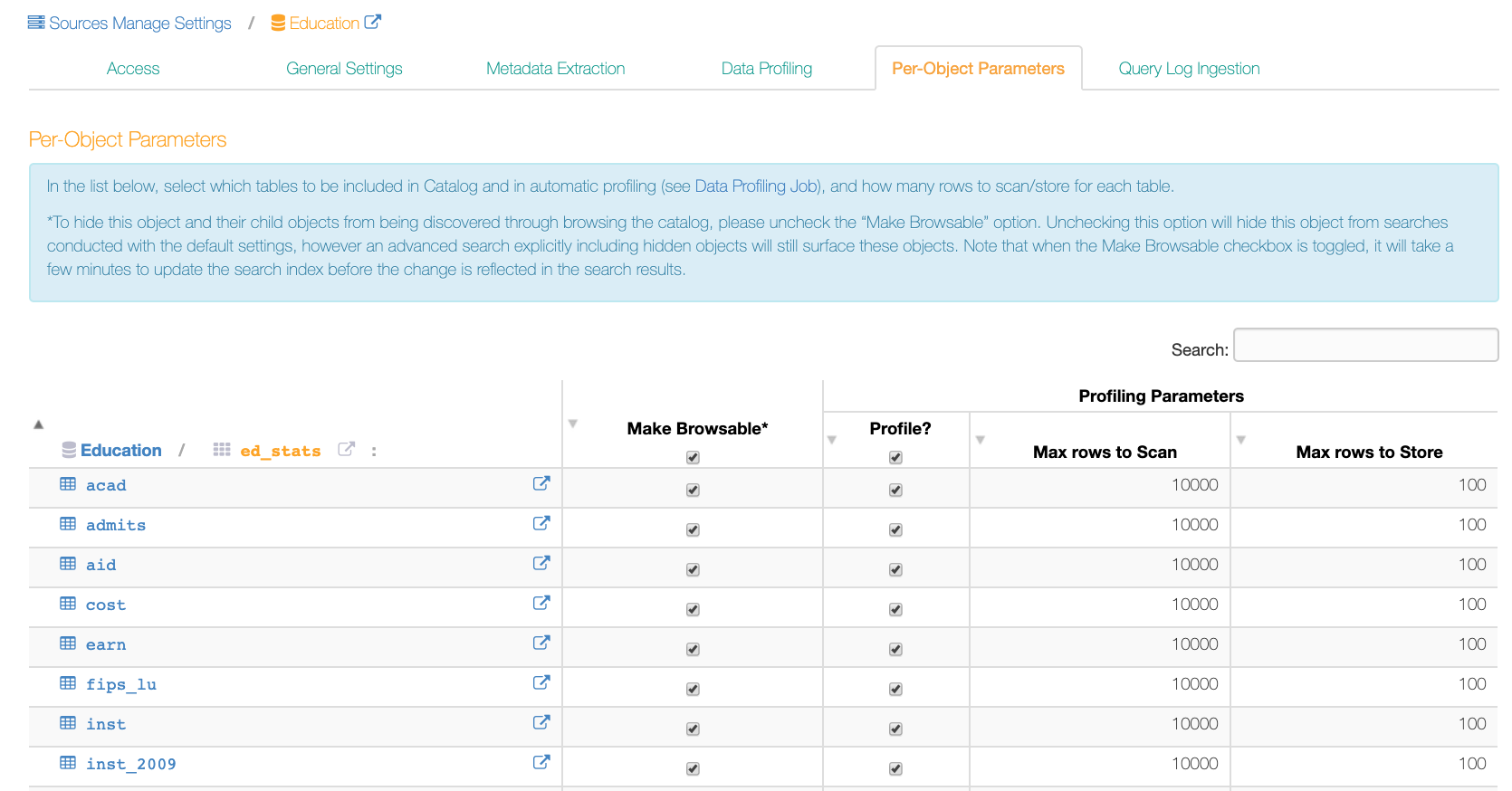
It is possible to specify which objects in a data source should not be browsable using the left-side navigation panel and should not be sampled. To do so, a Data Source Admin can use the settings on the Per-Object Parameters tab of a data source settings page:
Sensitive Data Setting
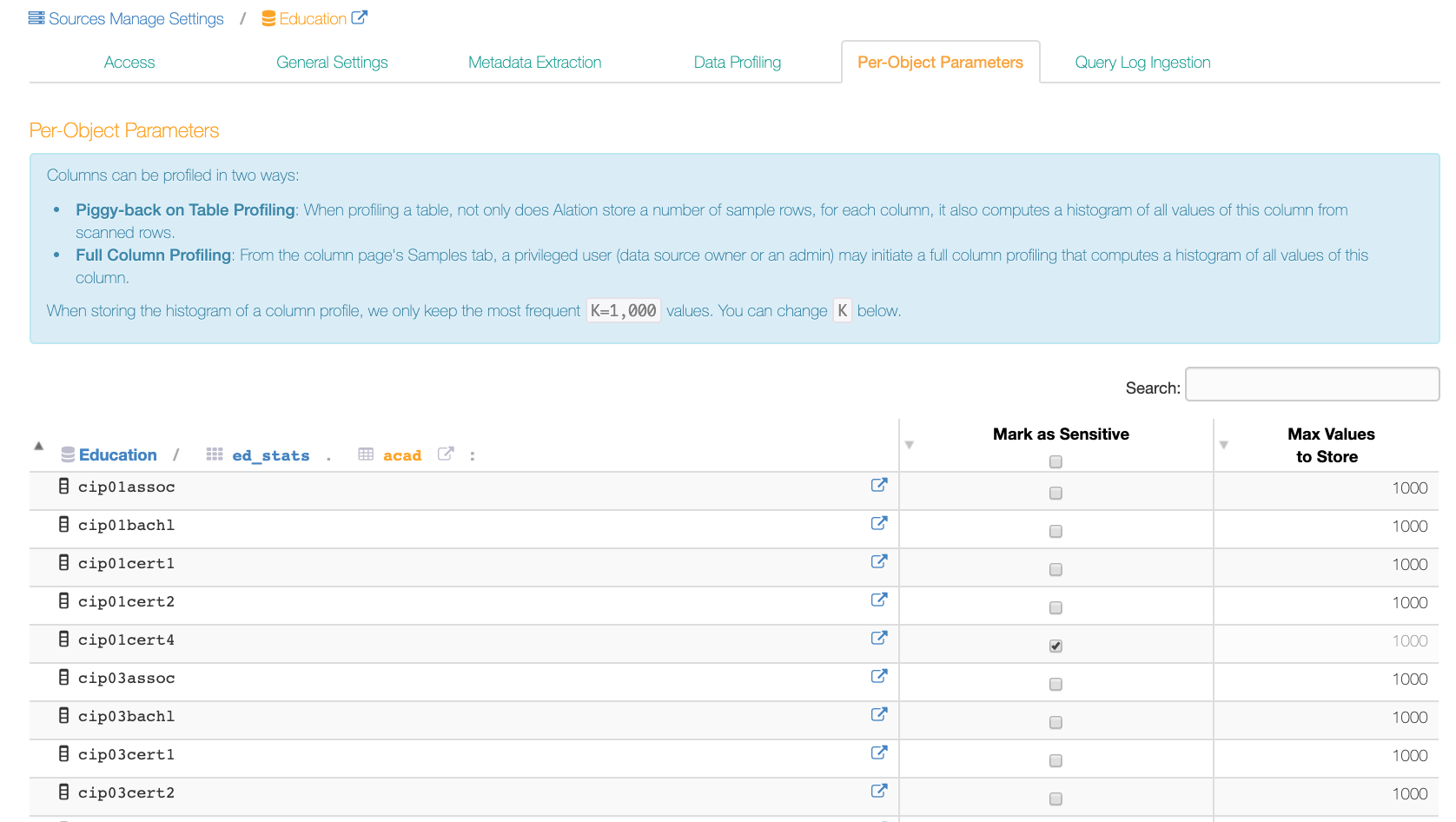
It is possible to mark data as sensitive on the column level, on the Per-Object Parameters tab of a column catalog object. Values of sensitive columns will not be sampled:
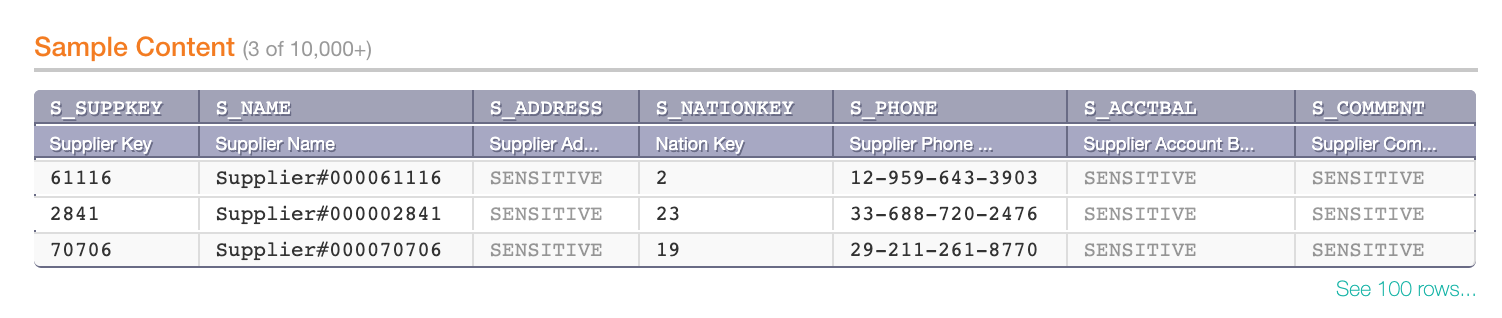
Sensitive columns in the Sample Content table on a table object page:
Dynamic Sampling
An admin can turn on Dynamic Sampling on the General Settings tab of a data source settings to require users to enter their own credentials before they can run a table or a column profile. They will only be able to see the data they have access to on the database. Sample data will only be visible to the user who performs profiling:

For help working with credentials, see Working with Data Source Connections.
Obfuscate Literals
To protect sensitive data in queries, you can turn on Obfuscate Literals on the General Settings tab of a data source settings. When this setting is turned on, Alation will replace literal values in SQL queries with placeholder values wherever the query appears in Alation. Query authors will still be able to see the original query. This affects both ingested queries and queries written in Compose.
When Obfuscate Literals is turned on, literal values like strings, numbers, and dates are replaced with <var#> placeholders in the catalog. The number in the placeholder is based on a count of how many literals are in a given statement. For example, if the first literal in a statement is the string Leslie, it will be replaced with <var1>. If the second literal is the number 123, it will be replaced with <var2>. In Compose, literals are replaced with query form variables, for example ${var1} and ${var2}.
To detect literal values, Alation uses a SQL parser. This has the following effects:
The parser strips all code comments that occur before the
SELECTkeyword in each statement. Non-authors viewing an obfuscated query will not see these comments.If the SQL parser fails to process the query, you may see the following message: This query cannot be displayed with current data source settings.
If there are multiple statements and the parser fails to process one of the statements, you may see the following message in place of the statement: SQL parsing failed for this statement. This can happen when a statement contains only comments.
Access to Compose
In Compose, before users are able to run queries on a data source and retrieve any real data, they will need to authenticate with their database credentials:
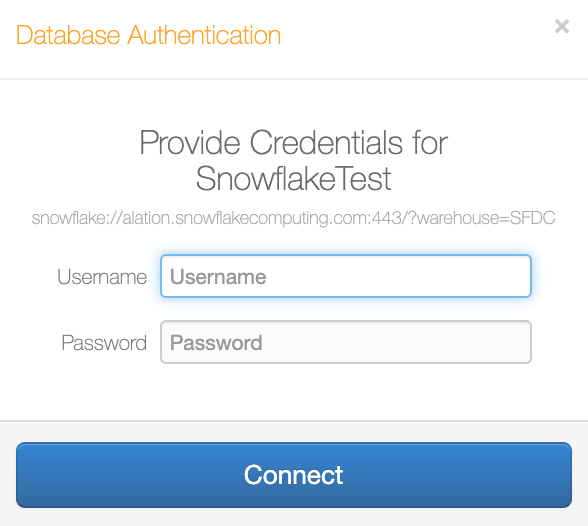
This ensures that users only retrieve data they are granted access to on the database.
Access to Articles
Note
Articles are a legacy feature and are being gradually phased out. Alation recommends using Document Hubs for all long-form catalog content. Find more information about the deprecation of articles on Alation Community: Articles to Document Hubs Migration Timeline (requires a login).
Articles have access settings of their own. You can make your article private and not findable by other users in Search, you can share it with specific users, or keep it public and accessible by everyone in Alation. Your ability to find and read an article in your Catalog depends on the access settings for this specific article, as described in Sharing and Access.