Prerequisites
Alation Cloud Service Applies to Alation Cloud Service instances of Alation
Customer Managed Applies to customer-managed instances of Alation
Enhanced Connector Enhanced connectors add extended capabilities and require a separate entitlement in addition to your Alation platform license.
ACS Customers
If you are an Alation Cloud Service customer, ensure you have Alation Agent installed and running. The Agent is mandatory for this connector in ACS deployments.
On-premise / Self-managed Alation Customers
Check Alation Connector Manager (ACM) is installed and running. ACM is mandatory for OCF connectors.
Credentials
The connector supports OAuth authentication using Client ID and Client Secret which are generated in the Qlik UI by an administrator. Follow these steps to prepare Qlik to be accessed by the Alation connector:
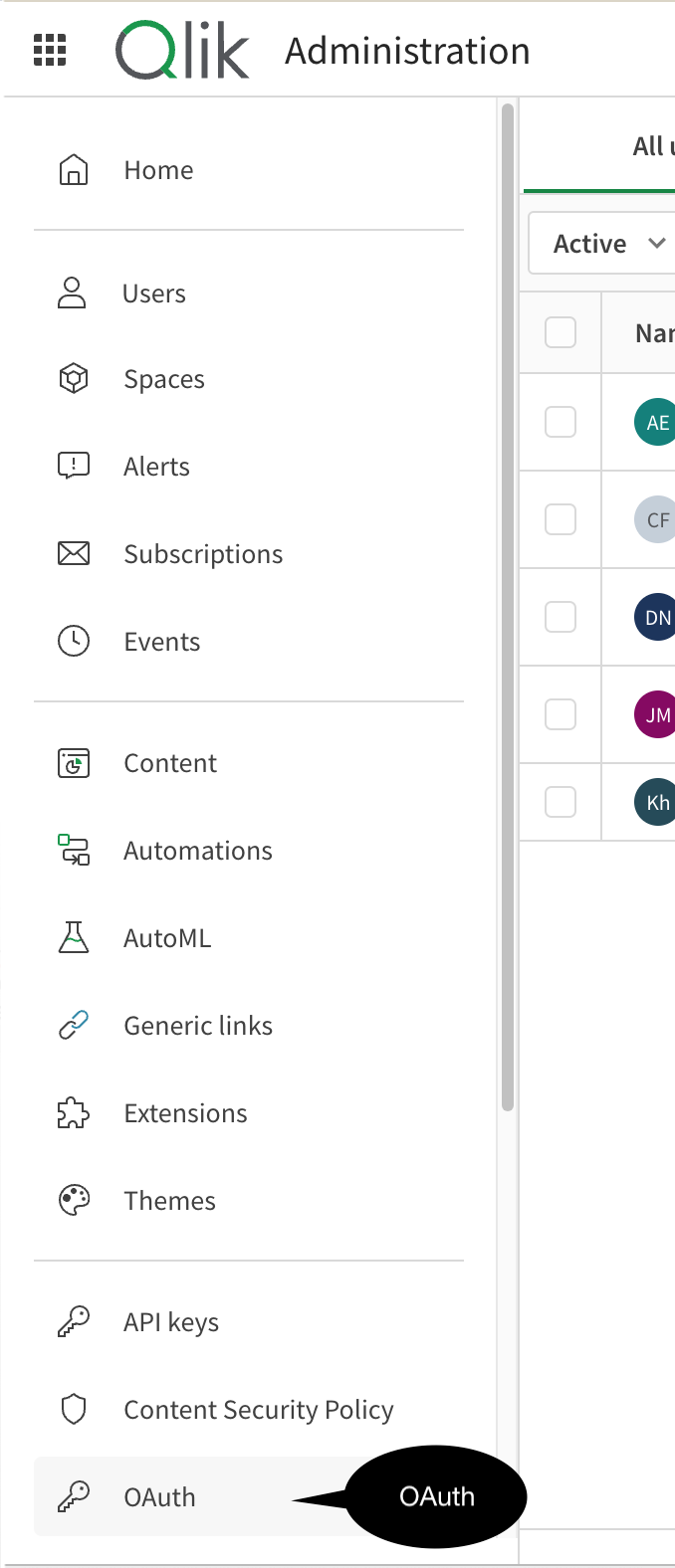
- Navigate to the Qlik Management Console or click the green menu button (top left) and choose Administration. Then choose the OAuth option:
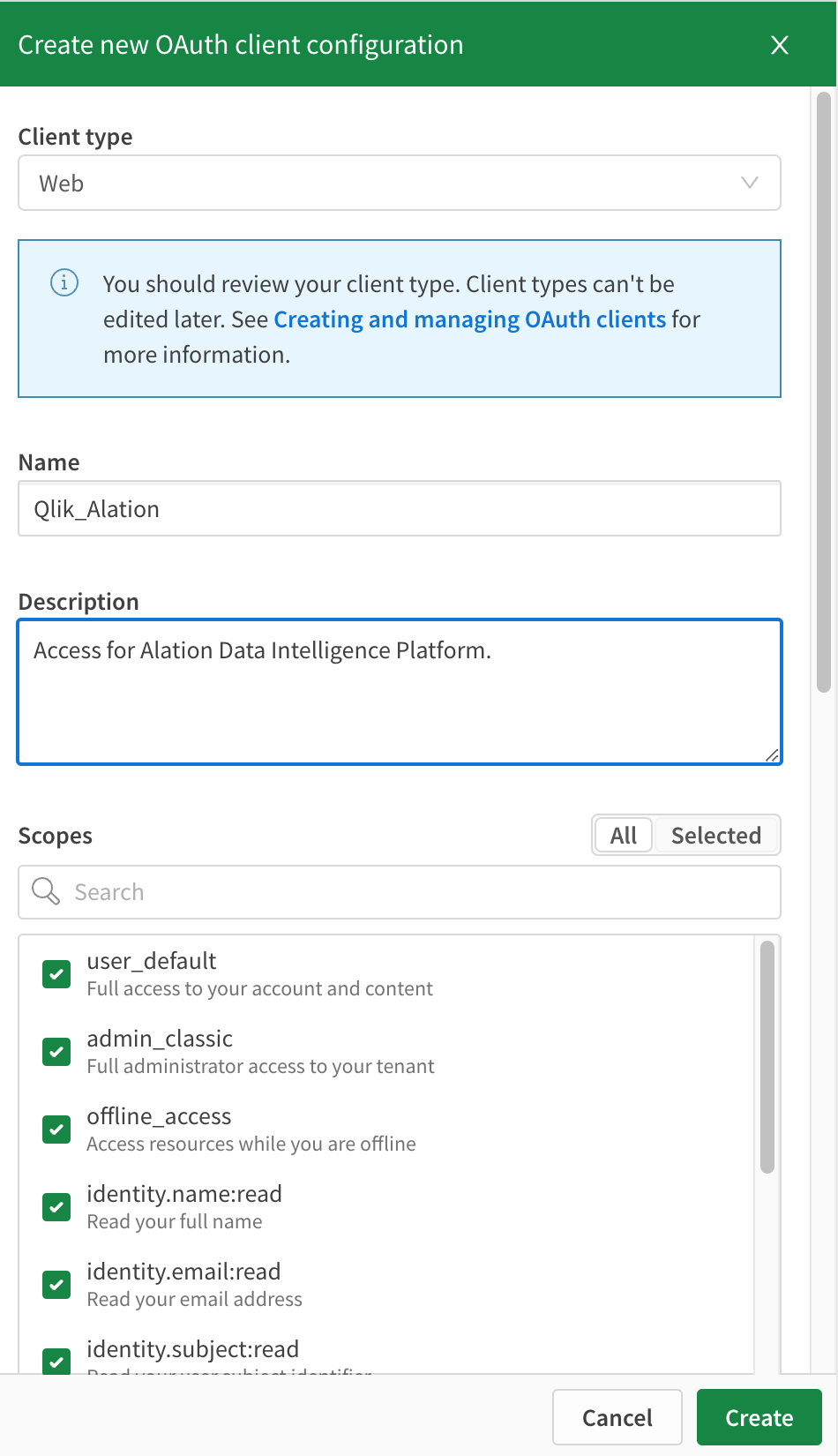
- Click “Create new” to display the OAuth client configuration panel. Choose a Web client type and set name, description and scopes. See the table below for scope requirements.
Qlik Scopes
The minimum permissions needed by the connector to perform the desired metadata extraction are as follows:
# |
Scope Name |
Description |
|---|---|---|
1 |
user_default |
Full access to your account and content. |
2 |
Spaces.shared |
Read and manage your shared spaces |
3 |
spaces.shared:read |
Read access to shared spaces. |
4 |
spaces.managed |
Read and manage your managed spaces |
5 |
spaces.managed:read |
Read access to managed spaces. |
6 |
identity.email:read |
Read access to the user’s email address. |
7 |
identity.name:read |
Read access to the user’s full name. |
8 |
Admin.apps |
Read and manage all apps in the tenant |
9 |
Admin.apps:read |
Read all apps in the tenant |
10 |
Apps |
Read and manage your apps |
11 |
apps:read |
Read your apps |
12 |
Admin.spaces |
admin.spacesRead and manage all spaces in the tenant |
13 |
admin.spaces:read |
Read all spaces in the tenant |
14 |
spaces.data |
Read and manage your data spaces |
15 |
spaces.data:read |
Read your data spaces |
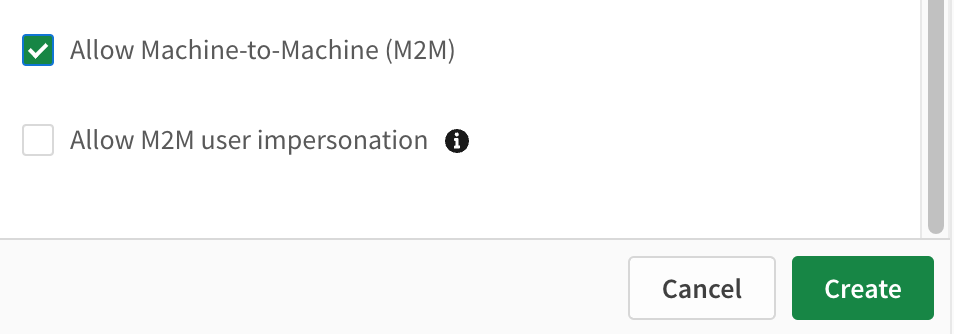
- Ensure “Allow Machine-to-Machine (M2M)” is checked
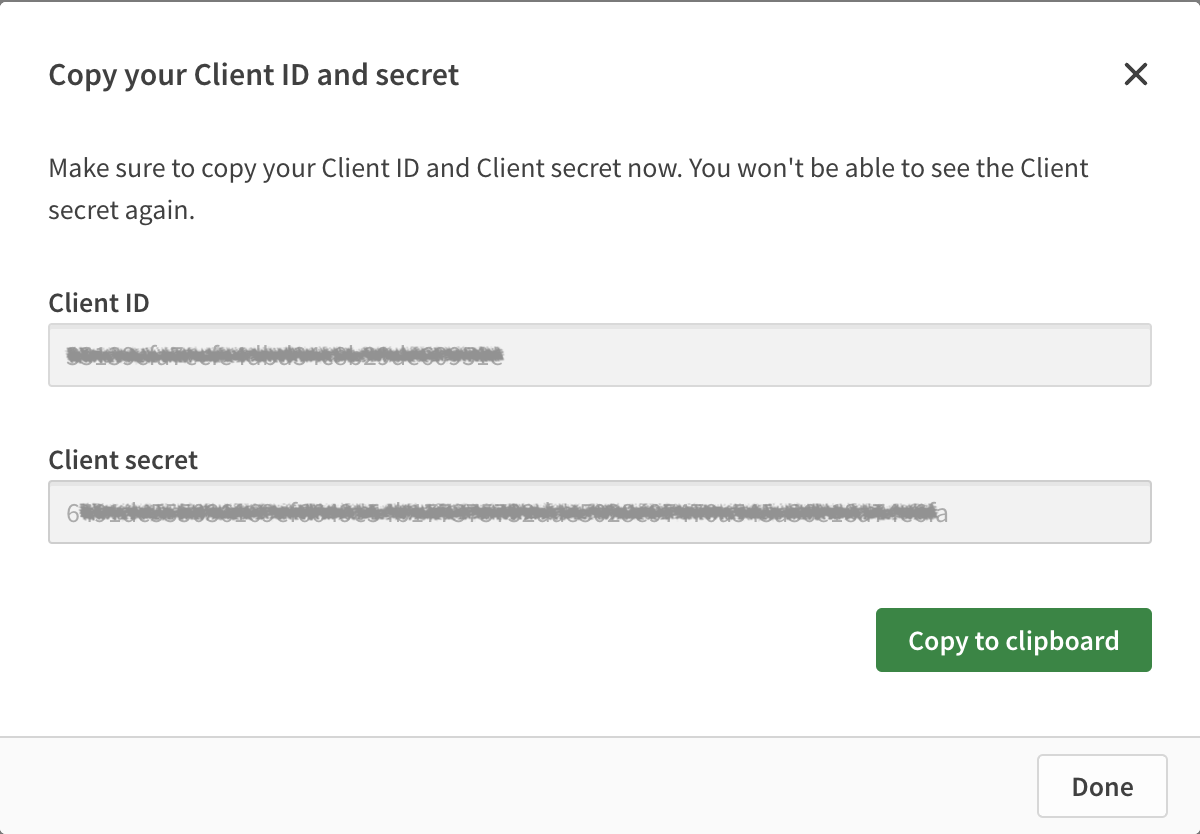
- Click “Create” and make a note of the Client ID and Client Secret displayed in the UI:
- Click the “…” button on the newly created configuration and choose “Change consent method”:
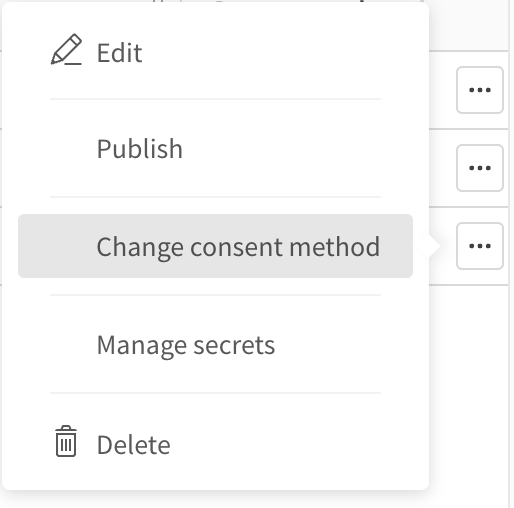
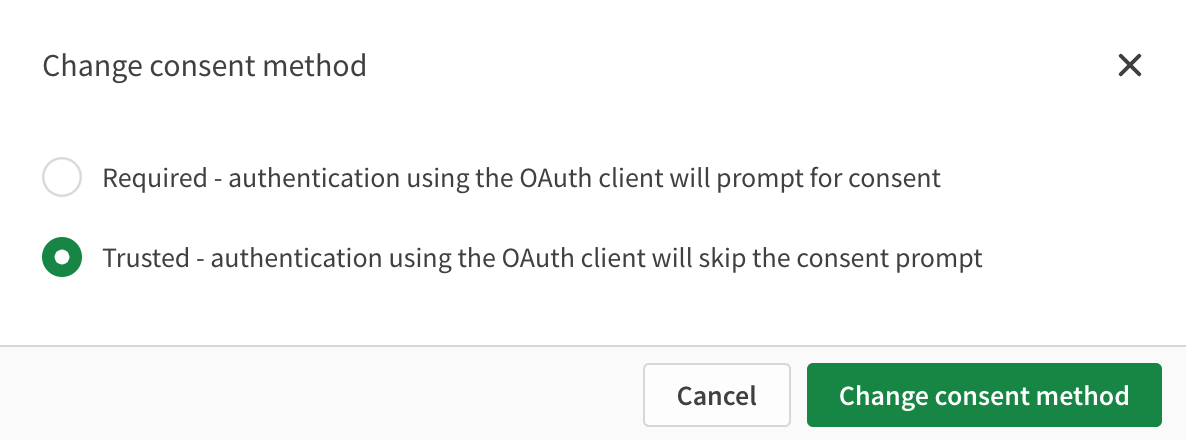
- Set the consent method to Trusted: