
Get Started with Creating Data Products
Alation Cloud Service Applies to Alation Cloud Service instances of Alation
In this topic:
Understand a Data Product’s Structure
A data product is made up of metadata that defines its structure and purpose. When you create a data product, you configure these components to give consumers the context they need to understand the underlying data and how to use it.
Some data product components are required, while others are optional. The optional components are still important, but they often require a more advanced understanding of data product design. You start by adding the required components and then enrich the data product by adding the more advanced ones.
Alation provides AI assistance to help you design data products. As you create a data product, Alation automatically generates certain required properties. Based on the data assets you select, Alation generates:
Business context: An extended description that explains what the data product is for and the business purpose it serves.
Example questions: Sample questions that users might ask in the data product chat or use to guide their analysis with the dataset.
Product details: A short description for the Marketplace and a description for the Overview page to help users understand the value of the data product.
These AI-generated properties give you a starting point, which you can review and refine as needed.
Important
You can create data products only after setting up the Marketplace. See Set Up Data Products Marketplace if you haven’t done this yet.
To create data products, you must have at least the App User role in the Data Products app. For more information on the Data Products App permissions, refer to Configure Access in the Data Product App.
Review a Quick Demo
The following walkthrough illustrates the steps to create a data product using the Data Product wizard.
Open the Data Products Wizard
Access the Data Products App, then get started in one of the following ways:
From App Navigation
Expand the left-side navigation panel.
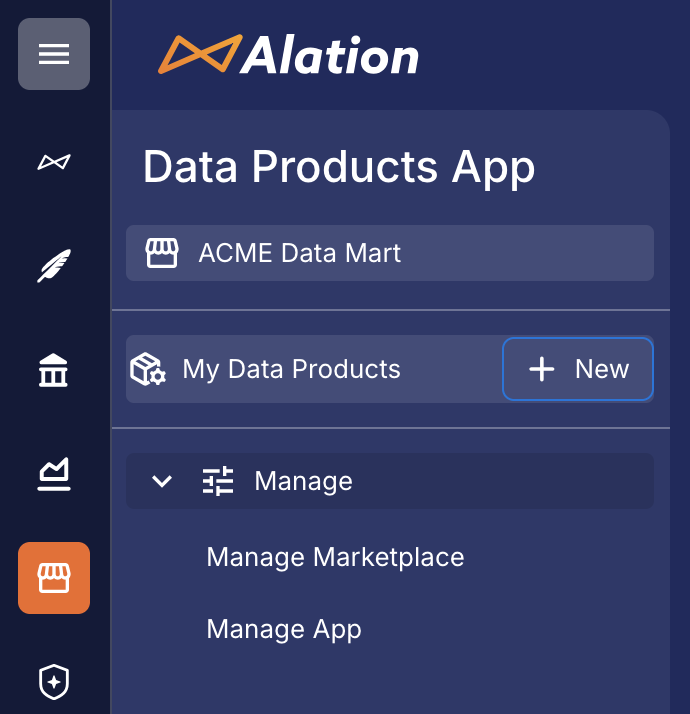
Click + New next to My Data Products. The data product wizard opens.
From Manage My Data Products
In the left-side navigation, click My Data Products. The Manage My Data Products page opens. This page lists the data products you own or manage. If you haven’t created any data products yet, this page is empty.
Click + Add New Data Product in the top-right corner. The data product wizard opens.
Follow the steps in the wizard to create a data product.
Step 1: Set Up Data Product
The first step establishes the foundation of your data product with basic information that guides AI generation in later steps:
In the Data product name field, enter a unique, descriptive name for your data product. The system automatically generates a URL-friendly slug from this name. If you leave the name empty, it defaults to New Data Product.
In the Describe what you want to build field, describe the purpose of the data product and the primary problem-solving or analytical use case it is designed to support. Explain what business question it answers, what decisions it informs, or what type of analysis users will perform with it. The description is crucial as it helps the AI generate better business context and example questions in a later step.
Click Add Table to select an initial table to include in your data product, click Add BI Dashboard to select a BI report (see Using BI Reports as a Starting Point), or click Add Semantic View to import a Snowflake Semantic View YAML file (see Using a Snowflake Semantic View as a Starting Point).
Important
Creating data products from BI reports is only supported for Tableau and Looker BI sources.
Click Next to proceed to the next step. At this stage:
The data product is created in the Draft state
It becomes visible in My Data Products with a draft indicator
You can save progress at any point and resume later
Note
Click Discard to close the wizard without creating a data product. This discards all information you may have provided in step 1 so far.
Using BI Reports as a Starting Point
You can create a data product using a BI report (the bi_report object type in Alation) as a starting point. This lets you use existing BI content, such as a Tableau or Looker dashboards, to automatically discover the underlying database tables and columns that the BI report depends on.
The BI report serves only as a discovery mechanism and has no persistent connection to the finished data product. The result is a standard table-based data product, identical in structure and capabilities to one created directly from a data source.
Note
When you select a BI report in Step 1, Alation analyzes the column-level lineage of the report to trace the BI report’s fields upstream to the corresponding RDBMS columns and their parent tables. The result is a list of suggested tables and columns drawn directly from the cross-source lineage information.
This discovery process does not use AI and involves no AI model calls. The loading state that appears during this step reflects the time the lineage API call takes, not any generative process.
Prerequisites for BI Report Dataset Discovery
Verify the following:
Selecting dashboards from a Tableau or Looker BI source. Other BI systems aren’t supported yet.
The BI source and upstream RDBMS data source are configured and have completed metadata extraction in Alation.
The BI report you select must have column-level cross-source lineage connecting its fields to tables and columns in a cataloged data source. Table-level lineage alone is not sufficient.
To verify the availability of lineage, check the Lineage tab of the BI report and confirm that upstream data source tables appear.
Note
Cross-source lineage between a BI source and an RDBMS data source can be established in two ways:
Automatic matching: During BI source extraction, Alation captures the database connection string from the BI source’s Connections page. If this connection string matches an already-cataloged RDBMS data source by base URL or connection host, Alation resolves the cross-source lineage automatically.
Manual configuration: Automatic matching can fail if the connection string is empty, contains SQL that Alation cannot parse, or matches multiple cataloged data sources. In these cases, configure the upstream RDBMS data source on the Lineage Settings page of the BI source settings. For details, see Configure Cross-Source Lineage.
Using a Snowflake Semantic View as a Starting Point
You can create a data product by uploading a Snowflake Semantic View YAML file in Step 1 of the wizard. Alation reads the definition to pre-populate tables, columns, business context, and product details across the wizard steps, reducing the manual configuration required.
Prerequisites for Snowflake Semantic View Import
Verify the following:
The Snowflake data source containing the tables referenced in your semantic view is cataloged in Alation and has completed metadata extraction.
The tables referenced in the semantic view exist in the Alation catalog. Alation resolves tables by matching the fully qualified name (
database.schema.table) against the catalog. Tables that cannot be matched are skipped and listed in a warning.
Upload a Semantic View
In Step 1 of the wizard, click Add Semantic View. A file upload area opens.
Drag and drop your Snowflake Semantic View YAML file onto the upload area, or click Upload YAML to browse for the file.
When the upload succeeds, the wizard displays the name of the uploaded semantic view as confirmation.
After a successful upload, Alation uses the semantic view definition to pre-populate the remaining wizard steps:
In Step 2, tables that Alation resolves against the catalog appear pre-selected. Columns matching the dimensions, time dimensions, facts, metrics, and relationships defined in the semantic view are pre-selected for each resolved table. If Alation cannot match one or more tables, a warning lists their names. You can continue without the unresolved tables or add them manually.
In Step 3, Alation imports the semantic view’s verified queries as example questions, but only those marked with
use_as_onboarding_question: true. Verified queries without theuse_as_onboarding_questionset totrueare skipped.How the imported example questions appear in Step 3 depends on whether you let the AI context generation run:
If you cancel the context generation, the example questions list contains only the imported verified queries.
If you let the context generation to complete, the imported verified queries are appended to the AI-generated list of example questions.
The business context text in Step 3 is still generated by AI from your description and selected data assets — uploading a semantic view does not replace it.
In Step 4, the product name and description are pre-populated from the semantic view definition. You can edit them before finishing.
Step 2: Add Data Assets
Step 2 focuses on selecting and configuring the tables and columns that will be part of your data product.
If you haven’t selected a table in Step 1, select tables now in Step 2. Based on your description and any BI dashboards you selected in Step 1, the system may suggest tables that align with your data product’s purpose. If you selected BI dashboards, the wizard uses their lineage information to recommend tables and columns from those dashboards. These suggestions help you discover relevant data assets you might not have considered.
If you have selected a table, you start with selecting the relevant columns from this table.
To add a table and columns:
Under Select a table, use the search bar to find and add relevant tables from your data catalog. The search includes:
Table names and descriptions
Popularity metrics to help identify commonly used tables
Metadata from the Alation catalog
Click View Columns to select the columns for the table you want to add to the data product. This opens the list of the columns.
Select the columns relevant to your data product’s purpose or check the Select all columns on top of the list option to include all columns.
Once you’ve selected all columns, click Confirm selection on top of the list. A record of your selected table will appear in the Selected tables card on the right.
Repeat the process to add multiple tables. You can add as many tables as needed for your data product. Each table has its own column selection allowing for granular control over what data is included.
You can modify your selection as necessary. See Update Columns for a Table and Remove a Table from the Selection below.
Once you’ve selected all the tables and columns you’d like, click Next on the bottom right to proceed to Step 3.
Click Save and exit to save the data product draft. The draft is accessible from My Data Products page.
Update Columns for a Table
In the Selected tables card on the right, click the pencil icon for a table. This opens the list of selected columns. Update the selection as needed and click Confirm selection on top of the list.
Remove a Table from the Selection
In the Selected tables card on the right, click the cross icon for a table to remove it from the data product.
Note
You can’t remove a single table.
Step 3: Add Business Context
Step 3 leverages AI to generate meaningful business context based on the information and data assets from Steps 1 and 2.
The AI generation starts automatically when you proceed to Step 3. The system performs:
Context Analysis: The system analyzes your product description and selected data assets
Content Generation: AI generates business context and example questions (typically takes under 15 seconds)
Display Results: Generated content appears with editing capabilities
Note
To skip the business context generation, click Cancel Context Generation at the bottom of the page. This option disappears soon after the context is generated. If you cancel this step, you can still proceed to Step 4, but the business context and example questions won’t be generated for you.
Edit AI-Generated Content
All AI-generated content in Step 3 is fully editable:
Use the markdown-supported editor to refine content
Add formatting, links, and structured information
Edit existing questions to better match your use cases
Add new questions based on known business needs
Remove questions that aren’t relevant to your audience
Note
The business context and example questions are important for helping data consumers understand the value and potential uses of your data product.
Once you’re satisfied with the content, click Next on the bottom right to proceed to Step 4.
Click Save and exit to save the data product draft. The draft is accessible from My Data Products page.
Step 4: Finalize Product Details
The final step completes your data product with comprehensive metadata and prepares it for publication.
Step 4 uses AI to generate and to auto-populate final product elements based on all previous steps:
Summary: A concise executive summary that captures the key value proposition of your data product.
Description: An expanded version of your initial description that incorporates context from your selected data assets.
An icon: A visual identifier created based on your product description that represents the theme and purpose of your data product.
URL Slug: A unique, web-friendly identifier automatically generated from your product name.
Contact Information:
Your name appears as the default contact name.
Your email is set as the contact email for access requests.
Your profile avatar becomes the default product contact image.
Data product permissions:
You’re automatically assigned as the Data Product Admin.
You have full editing permissions.
You can grant additional permissions to other users.
Review and Finish
Review and customize the generated content:
Product Name: Ensure the name clearly represents your data product.
Summary and Description: Edit the generated content to ensure accuracy.
Icon: Click Edit on the icon to select an alternative color and image.
URL Slug***: Click Edit next to the slug to update it as necessary. The system checks slug uniqueness in real-time. The URL slug cannot be changed after the data product is created, so ensure the slug is correct before finishing.
Contact: Confirm contact information is correct.
On the bottom right, click Finish to complete the creation of your data product. Completing the wizard transforms your draft into a published data product.
Click Save and exit to save the data product draft. The draft is accessible from My Data Products page.
Once your data product is published, add more advanced configurations and list it on the Marketplace. For details, see:
Manage Drafts
Save and Exit
The Save and Exit button in the wizard saves all your current progress in a Draft version of the data product.
Resume Work
To locate your drafts:
Navigate to My Data Products in the Data Products App.
In the Data Products table, locate products with the Draft state indicator.
To resume the work:
Click the Edit button next to the draft data product. The Getting Started wizard reopens at the step where you left off.
Continue from where you saved the last time.
Troubleshooting
Slow AI Generation
Wait up to 15 seconds for content generation to complete
Edit content manually if AI generation isn’t suitable for your needs
Slug Conflicts
The system automatically suggests alternatives if the slug you provided is non-unique.
Choose a more unique product name to avoid conflicts.
Modify the suggested slug while maintaining URL compatibility.
Draft Issues
Refresh the browser if draft data doesn’t load properly.
Clear browser cache if experiencing persistent issues.