
Set Up the Sigma BI OCF Connector
Alation Cloud Service Applies to Alation Cloud Service instances of Alation
Customer Managed Applies to customer-managed instances of Alation
Enhanced Connector Enhanced connectors add extended capabilities and require a separate entitlement in addition to your Alation platform license.
Install The Connector
Alation On-Premise
Important
Installation of OCF connectors requires Alation Connector Manager to be installed as a prerequisite.
To install an OCF connector:
If this has not been done on your instance, install the Alation Connector Manager: Install Alation Connector Manager.
Ensure that the OCF connector Zip file is available on your local machine.
Install the connector on the Connectors Dashboard page using the steps in Manage Connectors.
Alation Cloud Service
Note
On Alation Cloud Service instances, Alation Connector Manager is available by default.
Depending on your network configuration, you may need to use Alation Agent to connect to databases.
Connection via Alation Agent
Ensure that Alation Agent is enabled on your Alation instance. If necessary, create a Support ticket with Alation for an Alation representative to enable the Alation Agent feature on your instance and to receive the Alation Agent installer.
Install the connector on the Connectors Dashboard page using the steps in Manage Connectors.
Connection Without Agent
To install an OCF connector:
Ensure that the OCF connector Zip file is available on your local machine.
Install the connector on the Connectors Dashboard page using the steps in Manage Connectors.
Create a New BI Server Source
Log in to the Alation instance and add a new BI Server source.
In the Classic UI click Apps > Sources > Add > BI Server.
In the new UI click Business Intelligence in the left navigation. Then click the + Add BI Server button.
The Register a Business Intelligence Server screen will open.
On this screen, from the Select a Business Intelligence Server type list, select the Sigma OCF Connector by Alation connector name.
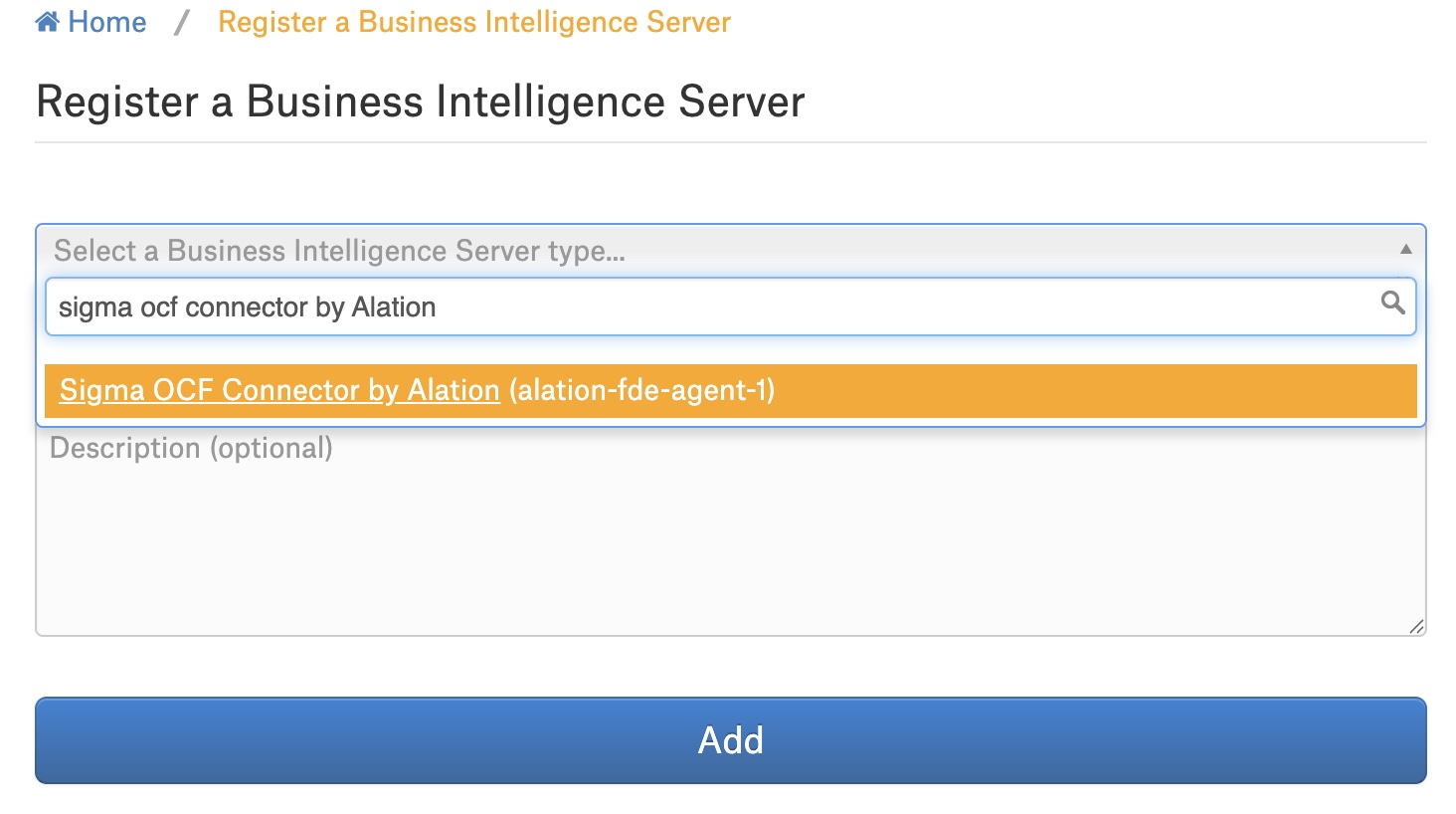
Provide the Title and a Description (optional) for your Sigma data source.
Click the Add button.