
Use Data Products
Alation Cloud Service Applies to Alation Cloud Service instances of Alation
This topic provides information on how to use data products and provide feedback to data product owners:
Understand the Data Product Catalog Page
Each data product has its own catalog page, which provides the information you need to determine whether the product is suitable for your task.
You’ll see a page similar to the following:
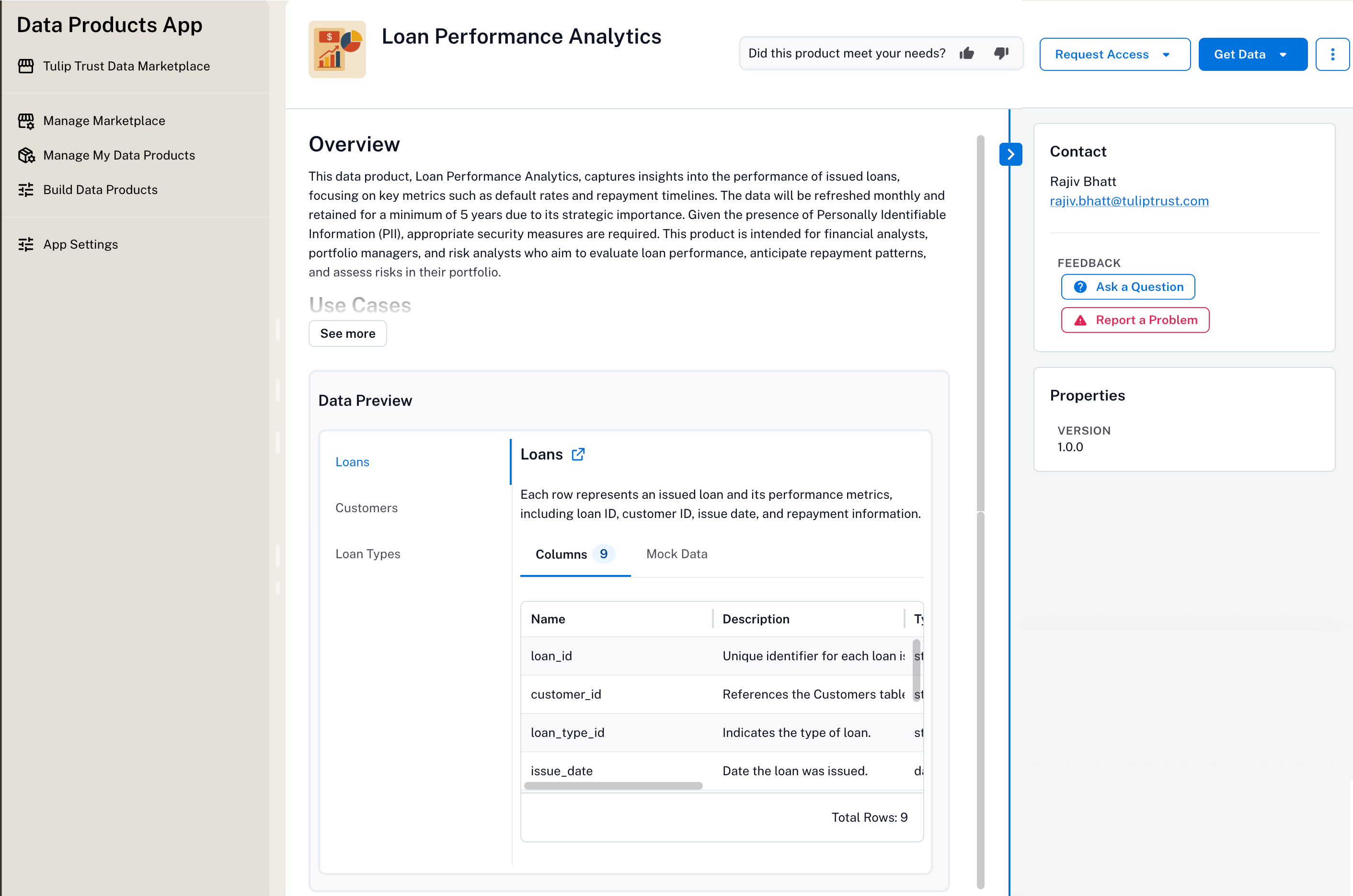
A data product page includes the following tabs: Overview, Description, Business context, Data assets, and Related Products. As you navigate the page, you can either select a tab directly or scroll through the content. The active tab updates automatically to match the section you’re reading.
On the right side of the page, you can rate the data product and find contact information in the User Ratings and Contact sections. If chat is enabled, a Chat with <Data Product Name> button appears at the bottom of the page. For information on using chat, see Chat with Data Products.
The following table briefly describes the sections of the data product catalog page:
Section |
Description |
|---|---|
Page Header |
Displays the data product name, version, data source, badges, bookmark icon, Request Access, Get Data, and an action menu (three-dots) that allows you to:
|
Contact Info |
Who to contact if you have questions. |
Request Access Get Data |
Use the Request Access and Get Data buttons to get access to the data included in the data product. The Get Data button allows you to copy the connection string for the data product. For details, see Request Access to a Data Product and Use a Data Product. Note These buttons appears only if delivery systems are specified in the data product definition YAML file. |
Feedback |
Use User Ratings to provide your feedback. Report issues with the Report a Problem button. |
Overview |
The Overview tab provides a brief summary of the data product along with a count of tables, columns, metrics, and joins included in the data product. |
Description |
The Description tab provides a full description of the data product. |
Business Context |
The Business context tab provides a background on how the data product is intended to be used. For example, for a banking-related data product, you might find sections such as customer segmentation, risk assessment, or revenue optimization. It also includes an Example questions list. Click a question to open the chat window with the question pre-populated, when chat is enabled for the data product. Note If the data product owner had cancelled the generation of business context during the data product creation, the Business context tab won’t appear on the catalog page. |
Data Assets |
Lists the data assets in the product across the Tables, Metrics, and Joins sub-tabs. For each table, the Columns sub-tab shows column display name, description, and column name; the Mock data sub-tab shows a sample of the data. |
Related Products |
Lists data products related to the current product based on shared custom field values (such as domain or business area), shared data sources, or the same Marketplace. The Related Products tab is displayed only when Alation identifies at least one related product. It displays only those data products that you are authorized to access. The tab displays up to ten products, sorted by popularity over the last 30 days. |
Chat with Data Product |
A floating Chat with <Data Product Name> button appears at the bottom-right when chat is enabled for the data product. See Chat with Data Products. |
Request Access to a Data Product
To request access perform the following steps:
Important
If the data product owner has configured the access request information in the data product YAML file, the Request Access button appears on the product catalog page. If not, you may need to contact the product owner directly.
On the data product’s catalog page that requires access, click the Request Access button.
Follow the instructions displayed on the Data Access Request dialog.
Note
If no access instructions are shown, contact the product owner or submit feedback.
Use a Data Product
Once you have access, here’s how to use the data:
Open the data product’s catalog page.
Click Get Data in the top-right corner of the page header.
Note
This option appears only if the data product owner has specified the delivery systems in the data product definition YAML file.
The Get Data dialog displays the connection string for each delivery system.
Click the copy icon to copy the connection string. Use this connection string to connect to the data product from your preferred tool, such as a SQL client or a BI tool.
Provide Feedback on a Data Product
If you have used the product and want to suggest improvements or report an issue:
Open the data product catalog page.
On the right side of the page, locate the Contact section.
Click Ask a Question to send a question to the product owner, or click Report a Problem to report an issue. Enter your message in the dialog and submit it.
You can also rate the data product using the User Ratings section. Click the thumbs-up or thumbs-down icon in Did you find this data product helpful? to rate the data product and enter additional details about your rating in the text area that appears.
The User Ratings section also displays the total number of users who found the data product helpful.
Your feedback goes directly to the product owner. You can share the following information:
Suggestions for improvements
Notes about data quality
Requests for additional fields
Any problems with access or usability
Chat with Data Products
For some data products, you can interact with the data using an AI-assisted chat. This chat experience lets you ask questions in natural language and get responses based on the data in the product, helping you explore and understand the data more easily.
Chat availability is configured by the Data Product Admin when the data product is created. If Chat is enabled, a Chat button appears in the top-right corner of the data product page.
To use chat, you must be authenticated to the underlying data source. This means you need access to the database that stores the data. If you don’t have access, you can request it from the data product owner before using chat.
The chat experience is similar to other AI chat tools you may already be familiar with, such as ChatGPT or Google Gemini.
A Chat conversation is a chat session you start while you’re logged in. You can have multiple conversations during the same session. These conversations are saved and may be reviewed by Data Product Admins if you send feedback about your Chat experience. See Provide Feedback on Chat Responses below.
For more on chatting with a data product, see: Using Chat with a Data Product.
Provide Feedback on Chat Responses
You can share feedback with Data Product Admins about your chat experience to help improve the quality and usefulness of chat responses.
Note
When you submit feedback, the Chat conversation associated with that feedback becomes visible to Data Product Admins. Admins who manage feedback for the data product can review the full chat session that generated the feedback, including both your questions and the chat responses.
To give feedback on a Chat response:
In the Chat window, click the thumbs-up or thumbs-down icon below the response you want to rate. The Add details text area opens.
(Optional but recommended) Enter additional details about your rating. Providing details is especially helpful if you select thumbs down, as it helps Data Product Admins understand why the response didn’t meet your needs.
Note
You can submit feedback without adding details, but including comments makes your feedback more actionable.
Click Submit Feedback.
After you submit feedback, it is sent to the Data Product Admins who manage the data product. For more information on how Data Product Admins review and act on feedback, see Manage Chat Feedback.