
Prerequisites
Alation Cloud Service Applies to Alation Cloud Service instances of Alation
Customer Managed Applies to customer-managed instances of Alation
Enhanced Connector Enhanced connectors add extended capabilities and require a separate entitlement in addition to your Alation platform license.
Alation Cloud Service Users
If you are an Alation Cloud Service customer, ensure you have Alation Agent installed and running. The Agent is mandatory for this connector in ACS deployments.
Customer-Managed Users
Check Alation Connector Manager (ACM) is installed and running. ACM is mandatory for OCF connectors. If you need to do so, install Alation Connector Manager using the steps in Install Alation Connector Manager.
Ensure the server where ACM is installed can reach your respective Sigma API URL over port 443.
Obtain Your Sigma API URL
You must determine which cloud provider your instance of Sigma is running on. This will determine which Sigma API URL to utilize in the Connector Configuration.
This information is listed in the Administration Portal under Account > General Settings > Site > Cloud.
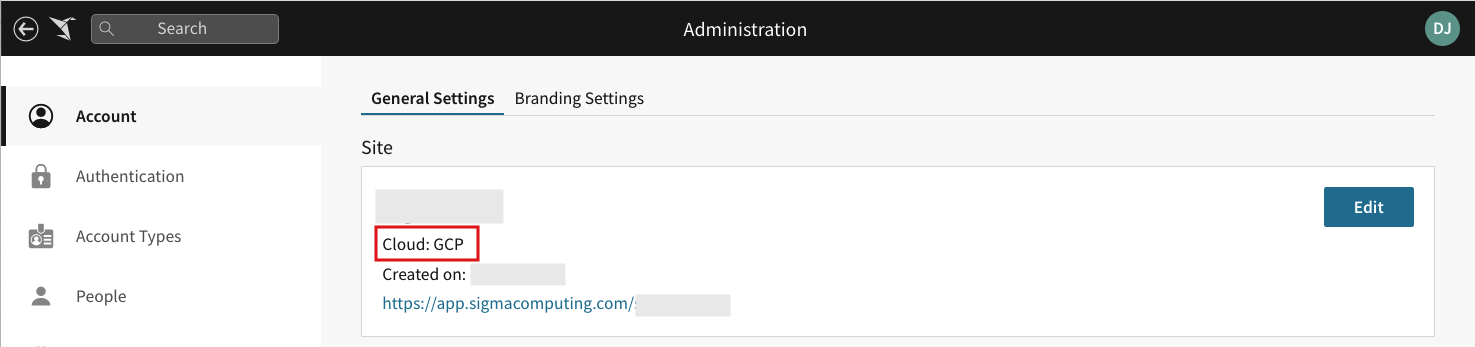
Your Sigma Administrator can provide the Sigma cloud provider to the Alation Administrator.
Sigma OCF Connector File
After purchasing the Sigma connector you will receive the Sigma OCF Connector zip file. There is no license key required to activate this connector.
Sigma API Token Generation
A Sigma Administrator should perform the following steps to obtain the Sigma Client ID and Secret.
Open your Sigma Admin Portal.
On the left side of the page, click API & Embed Secrets to open the API & Embed Secrets page.
On the API & Embed Secrets page, click the Create New button.

This will open the Create New API Token or Embed Secret modal. The API Token option will be selected by default.
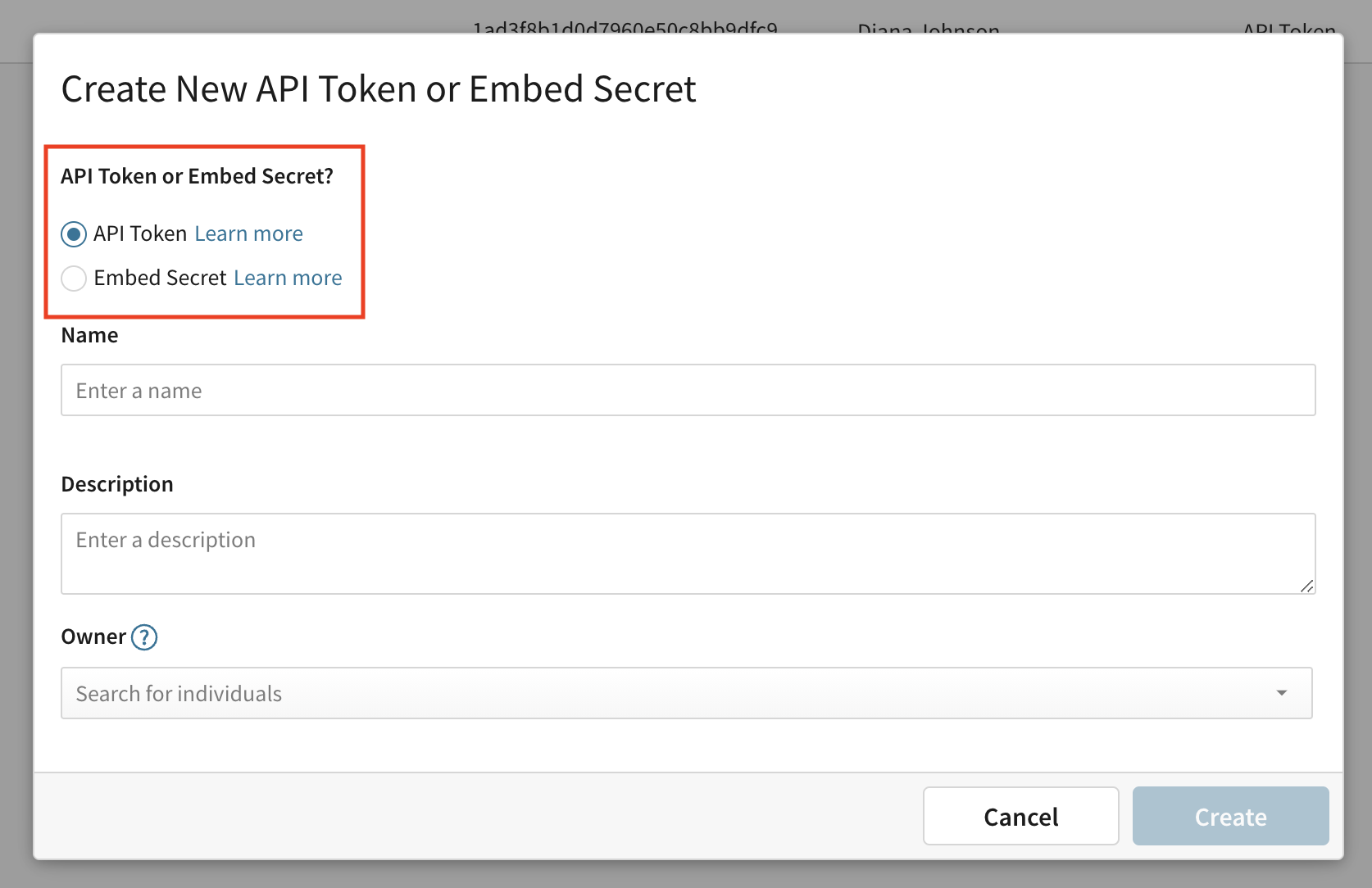
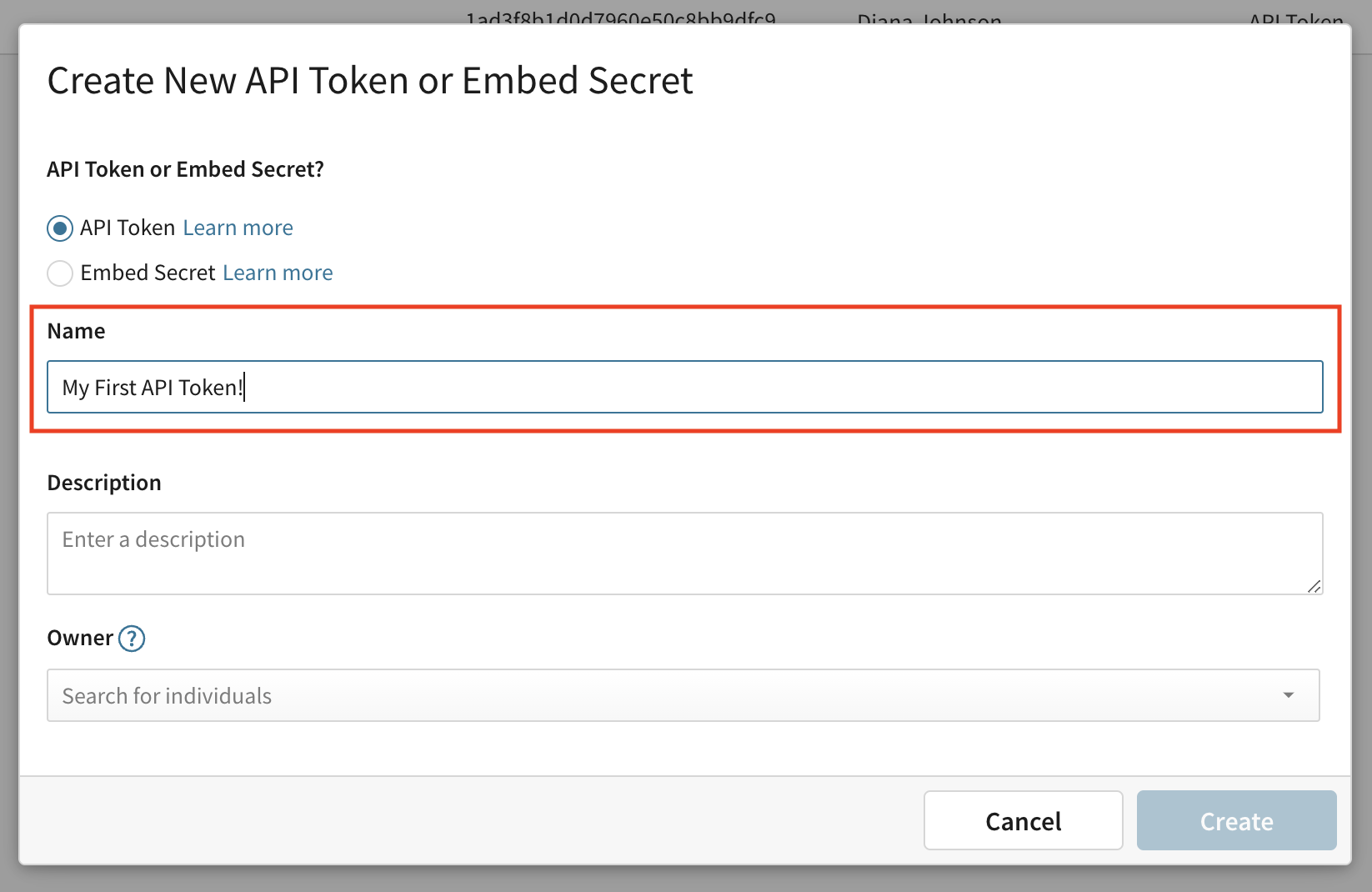
Enter a Name to identify the specific API Token. Example: Alation OCF API Token
[optional] Enter a description.
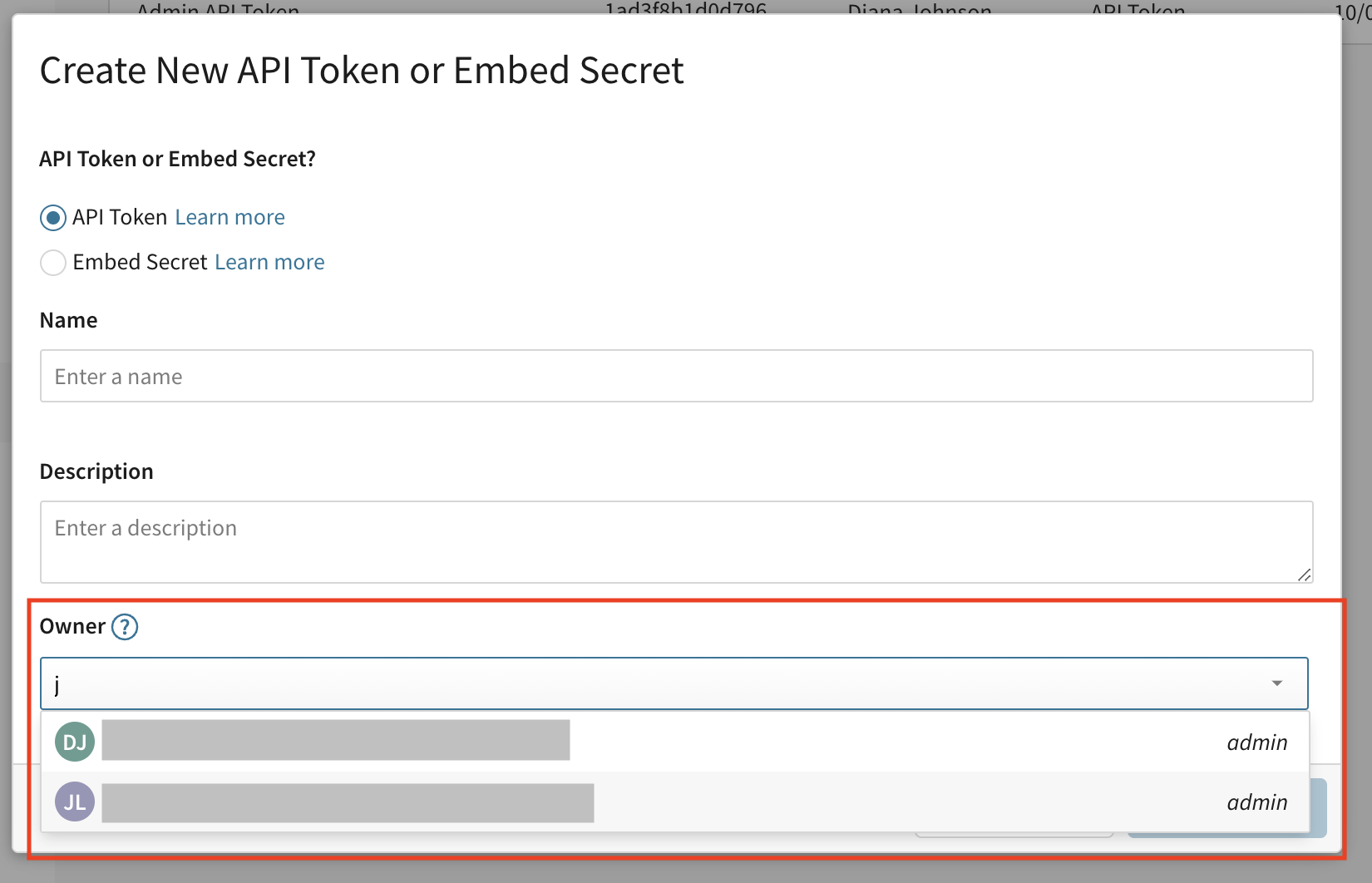
Under Owner, select the user account you want to associate with the token. Note: Account type permissions assigned to the selected Sigma user will automatically carry over into the Sigma API Token. The Sigma OCF Connector requires choosing a user with Admin privileges.
Click Create.
An API Key Secret modal will appear. Click Copy and immediately paste the secret in a secure location. The Client Secret is required when configuring the Sigma OCF Connector. Important: The secret cannot be retrieved once this modal is closed.
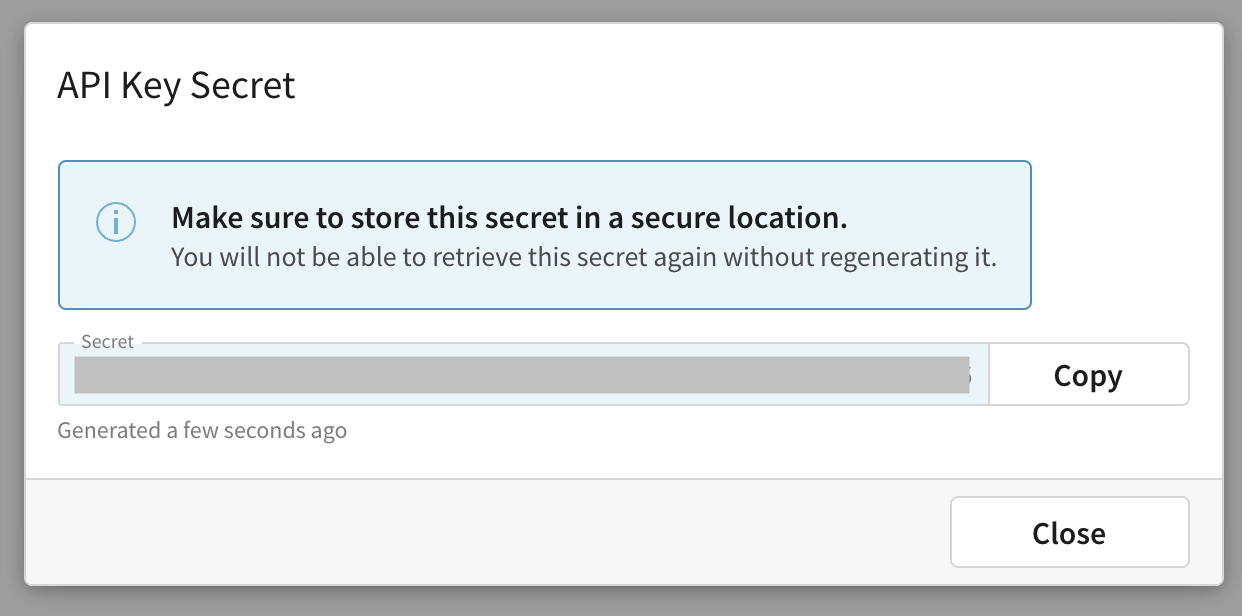
Click Close.
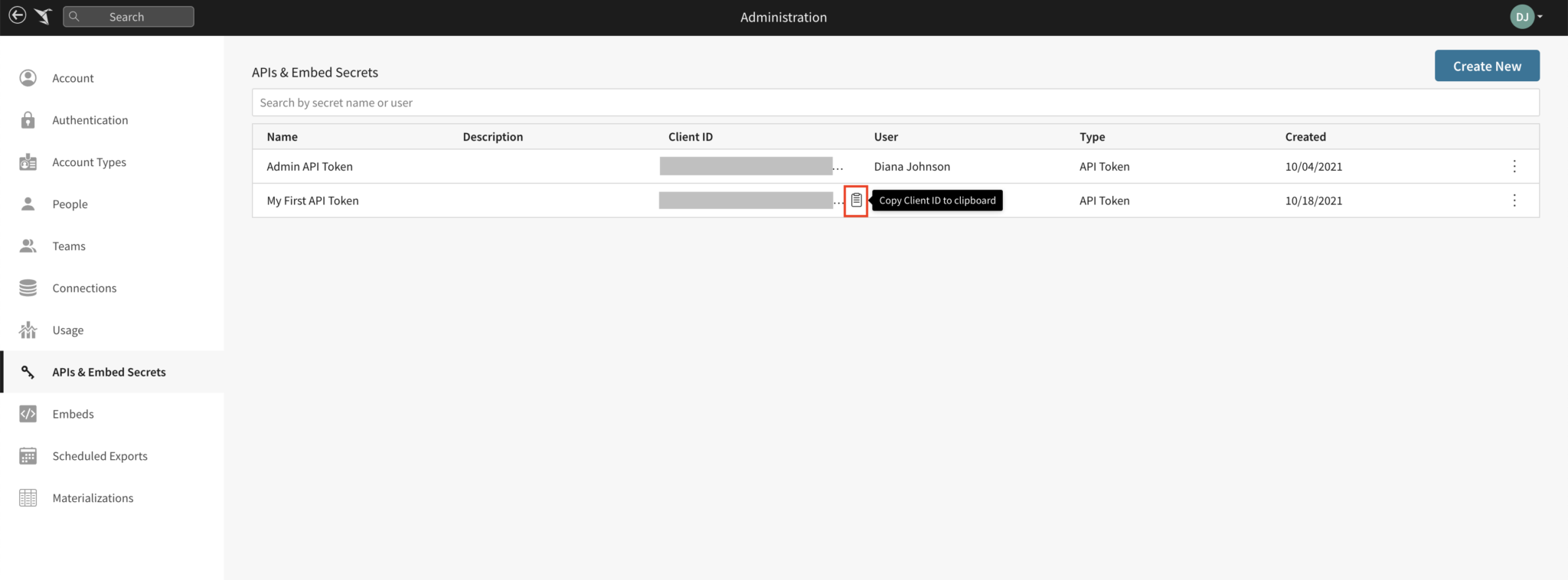
Your newly created Sigma API Token will be listed in the APIs & Embed Secrets panel. Hover over the token’s Client ID and click copy. The Client ID is required when configuring the Sigma OCF Connector.
API Token Permission Requirements
The API token permissions depend on which connector features you want to use:
Feature |
Token Level |
Description |
|---|---|---|
Basic Metadata Extraction |
Any user |
Extract workspaces, workbooks, pages, and elements. |
Permission Mirroring |
Admin |
Mirror Sigma permissions to Alation. Requires Admin token. |
Full Member Discovery |
Admin |
Access all members’ files and folders across the organization. |
Workspace Grants |
Admin |
Extract permission grants for workspaces. |
Object Preview Export |
Any user |
Export workbook preview images. |
Note
For most deployments, using an Admin-level API token is recommended to ensure full metadata extraction and permission mirroring capabilities.
Network Requirements
Ensure the following network connectivity:
The Alation Connector Manager (or Alation Agent for ACS) must be able to reach the Sigma API URL over port 443 (HTTPS).
If using a proxy, configure the proxy settings in the connector configuration.
Sigma API URLs by cloud provider:
GCP:
https://api.sigmacomputing.com/AWS US:
https://aws-api.sigmacomputing.com/AWS Canada:
https://api.ca.aws.sigmacomputing.com/AWS Europe:
https://api.eu.aws.sigmacomputing.com/Azure:
https://api.us.azure.sigmacomputing.com/
Metadata Extraction Prerequisites
The behavior of metadata extraction depends on the combination of Permission Mirroring and CSV Identity Mapping settings:
Configuration |
Behavior |
|---|---|
Permission Mirroring = OFF |
Login User Name is required and the extraction will run only for the specified user. |
Permission Mirroring = ON, CSV Identity Mapping = OFF |
Login User Name is ignored. The connector processes all users discoverable through permission mirroring (Alation–Sigma common users + admins). |
Permission Mirroring = ON, CSV Identity Mapping = ON |
Login User Name is ignored. The connector processes only the users defined in the uploaded CSV mapping file (the CSV is authoritative for which users are processed). |
Note
When CSV Identity Mapping is enabled, permission mirroring must also be enabled. In that mode the connector does not limit extraction to a single login user—it processes the CSV’s mapped users instead.
Align Sigma and Alation Users
For permission mirroring to work correctly, Alation must be able to match user identities between both systems. Typical approaches:
Use the same authentication method for both systems (for example, SSO/SAML) so identifiers align.
If different authentication methods are used, ensure usernames or email addresses match exactly between systems or use CSV Identity Mapping to reconcile differences.
Examples:
Matching:
jsmith@company.comin both Sigma and Alation → permissions sync correctly.Mismatch:
jsmith@company.com(Sigma) vsjohn.smith@company.com(Alation) → user will not see Sigma objects unless mapped.
Note
Matching is case-insensitive (capitalization differences are ignored). If CSV Identity Mapping is used, supply accurate network_id → sigma_email mappings so the connector can validate and apply permissions correctly.
API Concurrency Level
The API Concurrency Level controls the number of parallel threads used by the connector when calling Sigma APIs during metadata extraction.
Default: 3
Allowed range: 1–10
Increasing the concurrency level can improve extraction speed for large Sigma environments. However, higher values may increase load on the Sigma APIs and affect stability depending on network conditions and API limits.
To configure this setting, go to General Settings > Advanced Connector Features in the Alation UI.
Recommendations:
Use 3–5 for shared Sigma instances.
Use up to 10 for dedicated Sigma instances with higher API limits.