Prerequisites
Alation Cloud Service Applies to Alation Cloud Service instances of Alation
Customer Managed Applies to customer-managed instances of Alation
Core Connector Core connectors are included with all Alation platform tiers (subject to each tier’s connector limits) and are fully supported by Alation.
Before you install the Power BI Scanner OCF connector, ensure that you have performed the following:
Enable Network Connectivity
Open outbound TCP port 443 on the Power BI server for the REST API communication.
Set Up the Power BI Scanner
Setting up the Power BI Scanner involves these steps:
Register an Application with Microsoft Entra ID
To register an application with Microsoft Entra ID, refer Register app with Microsoft Entra ID for more information.
Log in to the Azure portal as Cloud Application Administrator or Application Administrator. If the creation of registered applications is not enabled for the entire organization, any one of the roles is required.
Select Microsoft Entra ID.
Click App registrations (on the left pane) > New registration.
Specify a name for your client application in the Name field. Retain the default values in the Supported account types and Redirect URI sections and then click Register.
From the App registrations screen, copy the value of Application (client) ID and store it in a secure location.
From the Overview screen of the new app, copy the value of Tenant ID and store it in a secure location.
Click Certificates & secrets from the left menu on the new app.
On the Certificates & secrets page, in Client secrets section, click + New client secret.
In the Add a client secret screen, specify the following information:
Description for your client secret.
Expiry
Click Add.
Copy the client secret value displayed under the Value column and store it in a secure location.
Set API Permissions
The Power BI Scanner OCF connector requires only Tenant.Read.All on the Power BI Service. Microsoft Graph permissions such as Directory.Read.All are not required. Perform the following steps to set API permissions for the application you registered in Microsoft Entra ID:
After you Register an Application with Microsoft Entra ID , click API permissions on the Azure portal (Microsoft Entra ID > App Registrations > <your app> > Manage > API Permissions).
We recommend that you retain the default values in the API permissions table under the Configured permissions section.
Click API permissions and select Power BI Service.
Click Application permissions and search and select the
Tenant.Read.Allpermission.Click Add permissions.
Skip Granting Admin Consent
Do not grant admin consent for Tenant.Read.All. The status should remain Not granted for {your organization} in the Configured permissions table. Granting admin consent has been observed to cause preflight checks to fail, which blocks workspace fetching and metadata extraction.
The connector accesses Power BI through workspace-level access granted to the service principal, not through tenant-wide consent, so admin consent on Tenant.Read.All is unnecessary.
Create a Security Group for Power BI Scanner
Log in to the Azure portal as Cloud Application Administrator or Application Administrator.
Select Microsoft Entra ID.
Go to Manage > Groups.
Click the New group button.
Set the following values:
Set the Group type to Security.
Enter a Group name and a Group description.
Select the No members selected link in Members.
For Service Principal authentication, search the application that you created in Register an Application with Microsoft Entra ID and click to select it.
Click Select.
Click Create.
Assign Workspace Permissions
Grant the application you created in Step 1 member-level access to the workspaces you plan to catalog in Alation. Member-level permissions enable the connector to extract report dimensions and dataflows. For steps, refer to following Power BI documentation:
Important
You must assign member-level access either directly to individual workspaces (service principal) or implicitly through the security group method (recommended). The Power BI connector’s pre-flight validation explicitly checks for at least one workspace access provided via either method.
To assign a Microsoft Power BI workspace role to the security group:
Open the Microsoft Power BI homepage.
From the left menu, click Workspaces and select your workspace.
click Access.
In the resulting panel, specify the email addresses and the name of the security group.
Depending on your workspace settings, set the following values:
For workspaces that do not have any parameters defined: Select Viewer from the dropdown.
If your workspace has any semantic models with parameters defined: Select Contributor from the dropdown to bring in the parameters to Alation. You must do this for all the existing workspaces for which parameters are defined.
To crawl and generate lineage for dataflows, in addition to crawling defined parameters for semantic models: Select Member from the dropdown.
Click Add.
Enable Power BI Scanner Service Admin Settings
For an Azure application to be able to access the Power BI content and APIs, a Power BI admin needs to set Enable service principal access in the Power BI admin portal.
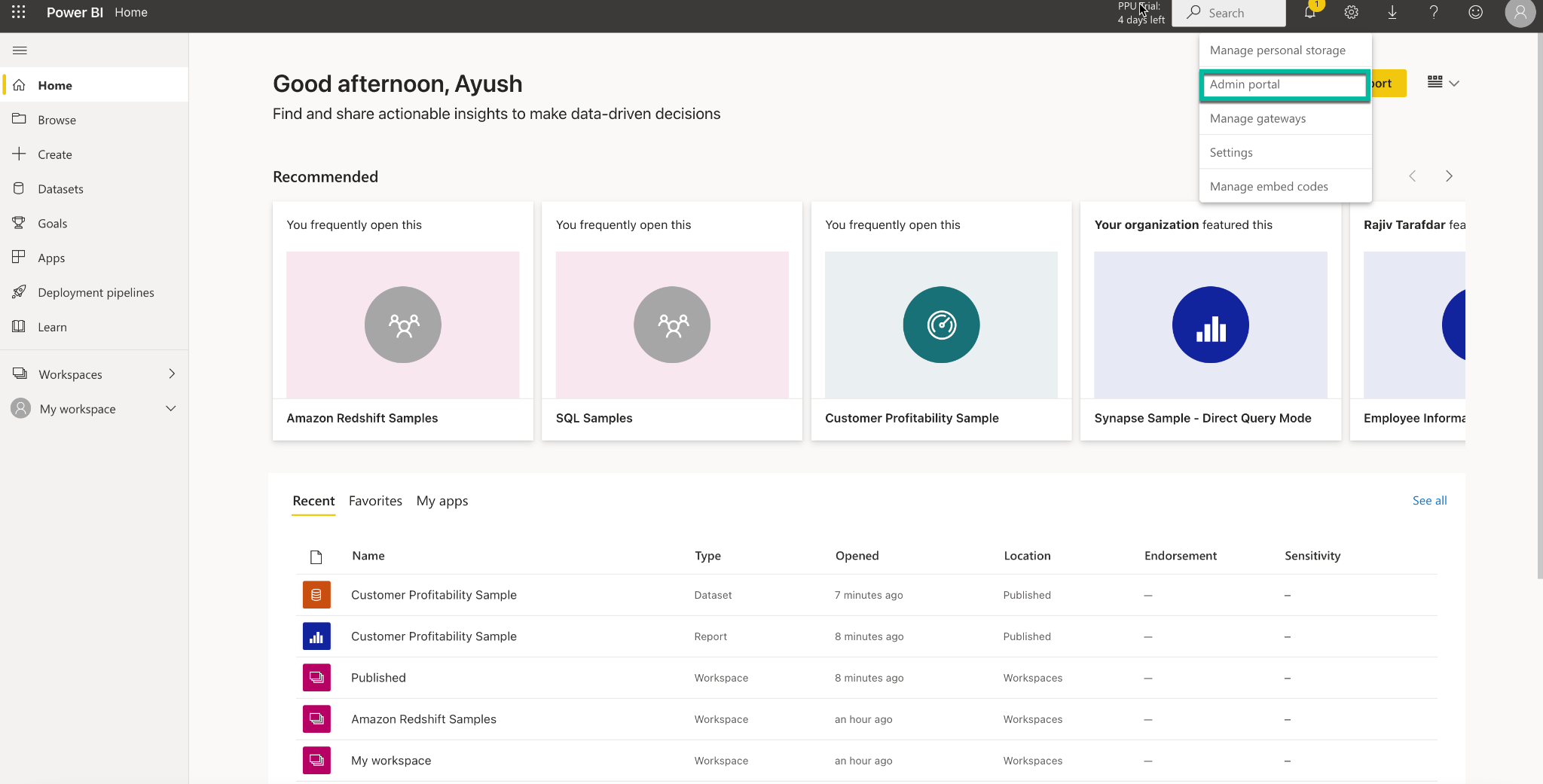
Login to Power BI.
From the Settings icon, select the Admin portal under the Governance and administration section.
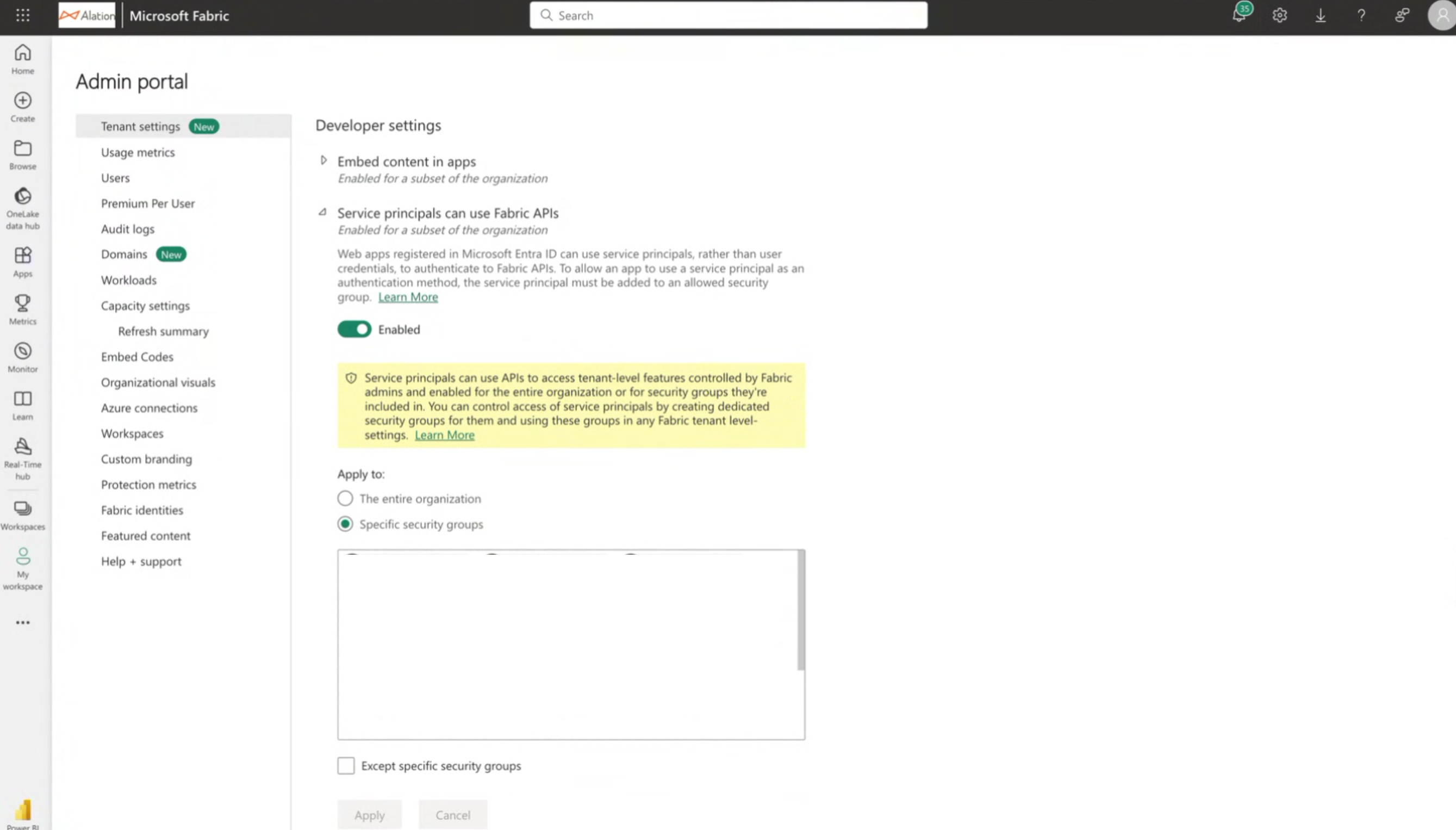
Select Tenant Settings the left navigation pane and perform the following configuration:
3.1 Enable Service principals can use Fabric APIs.
3.2 Select the Specific security groups and select the security group created in Step 3.
3.3 Click Apply to apply the settings.
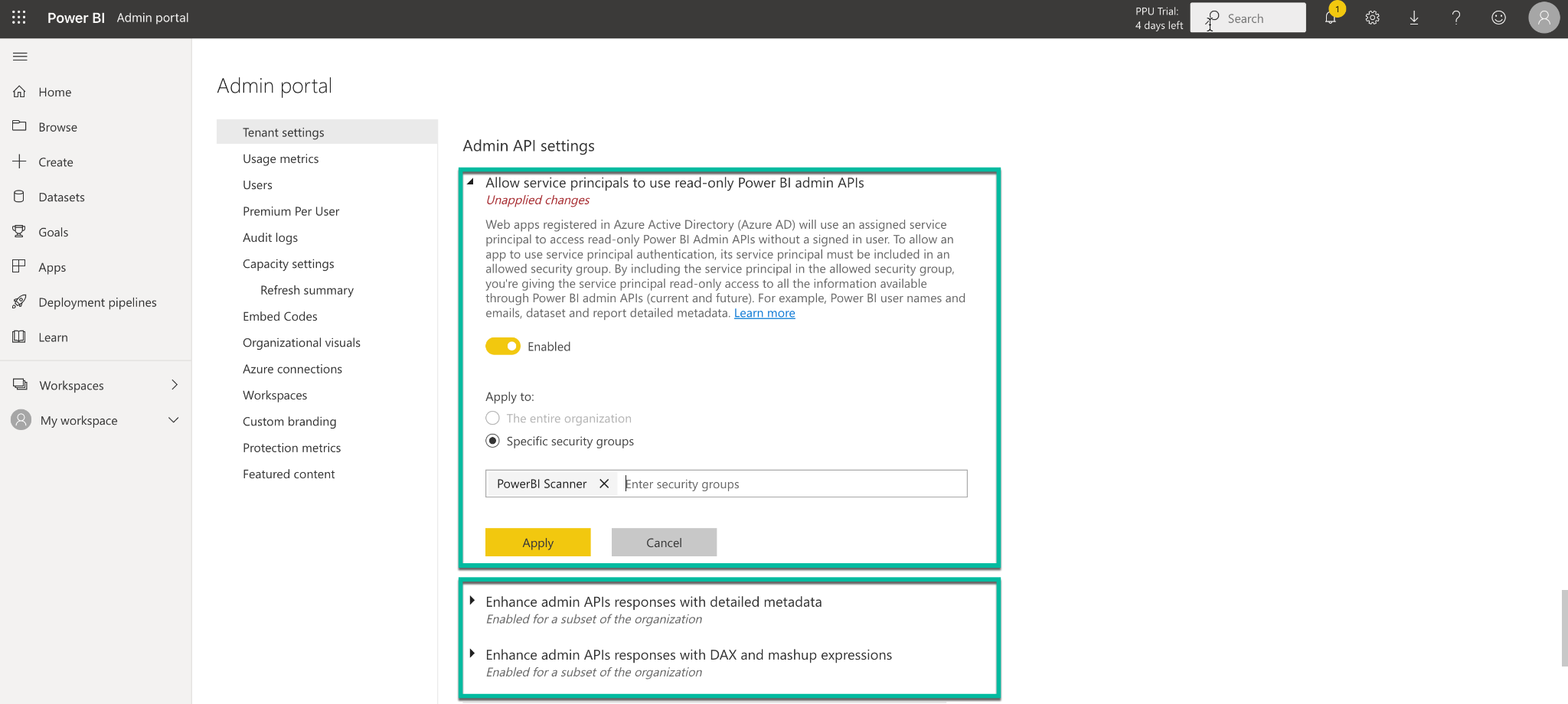
Navigate to Tenant Settings > Admin API Settings and perform the following configuration:
4.1 Enable Allow service principals to use read-only Power BI Admin APIs.
4.2 Select the Specific security groups and select the security group created in Step 3.
4.3 Click Apply to apply the settings.
4.4 Similarly, enable the following flags:
Enhance admin APIs responses with detailed metadata
Enhance admin APIs responses with DAX and mashup expressions
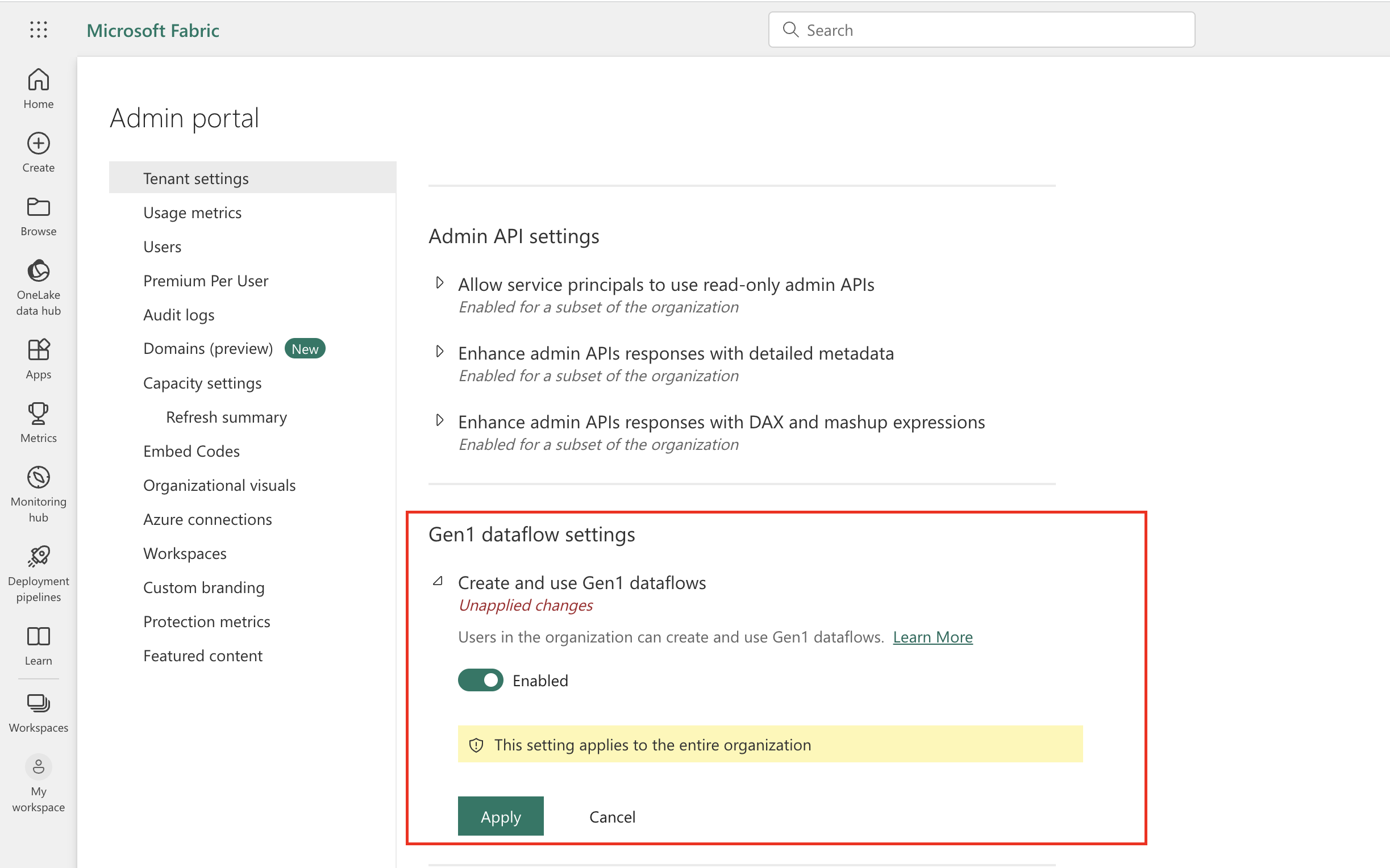
In Tenant Settings, navigate to Gen1 Dataflow Settings:
5.1 Enable Create and use Gen1 dataflows to extract the dataflow objects in Alation.
5.2 Click Apply to save the settings.
Note
The service principle requires member-level access to workspaces in Power BI to extract dataflows. The dataflow connection missing error may occur during extraction when workspace permissions are not available.
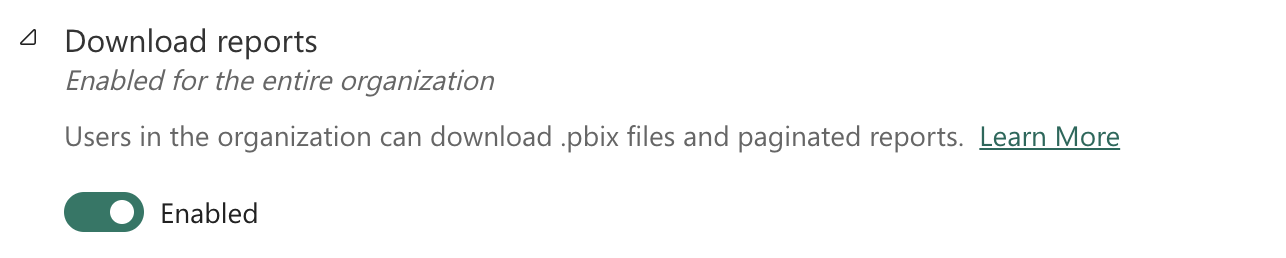
Under Tenant Settings, navigate to Download Reports:
6.1 Enabling Download Reports enables you to extract report fields into Alation. It is also required for Column Level Lineage.
6.2 Click Apply to save the settings.