
Chat with Data Product
Alation Cloud Service Applies to Alation Cloud Service instances of Alation
With Chat with Data Product, you can explore your data product by asking questions in natural language. Instead of writing SQL, you describe what you want to know, and the chat returns reports, summaries, and other data-driven insights based on the underlying dataset. You connect using your own database credentials, so you only see data you’re authorized to access in the cataloged data sources.
Data product creators and users with Data Product Admin access can enable Chat for the data products they manage.
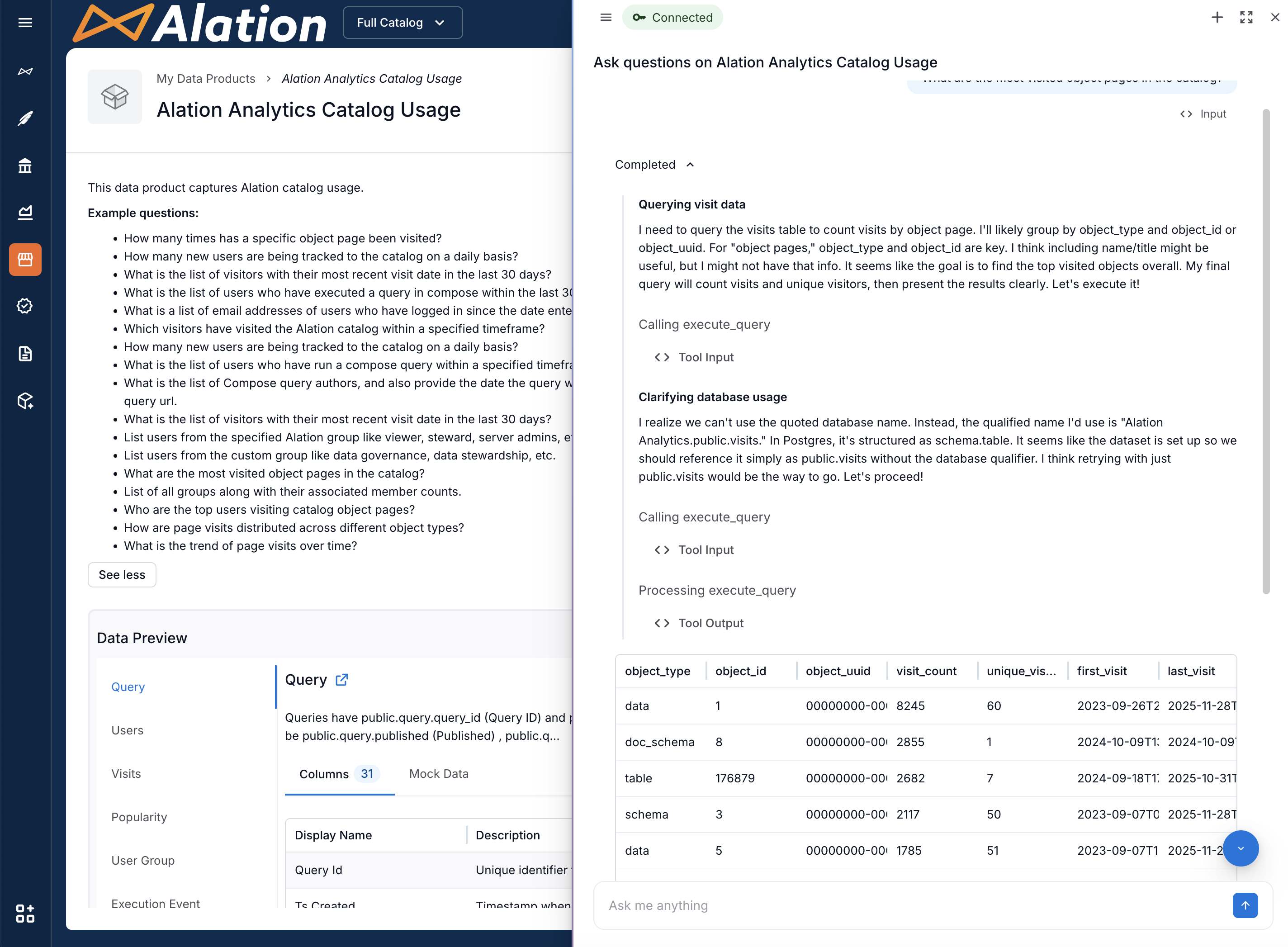
For example, consider a data product built on the Alation Analytics database to analyze user activity across the Alation catalog. This data product might include tables related to page visits and Compose query usage. The Chat can help answer questions such as:
How many times was a specific catalog object page visited?
How many new users accessed the catalog daily?
Which visitors viewed catalog pages within a specified timeframe?
Which users executed Compose queries within a date range?
What is the trend of page visits over time?
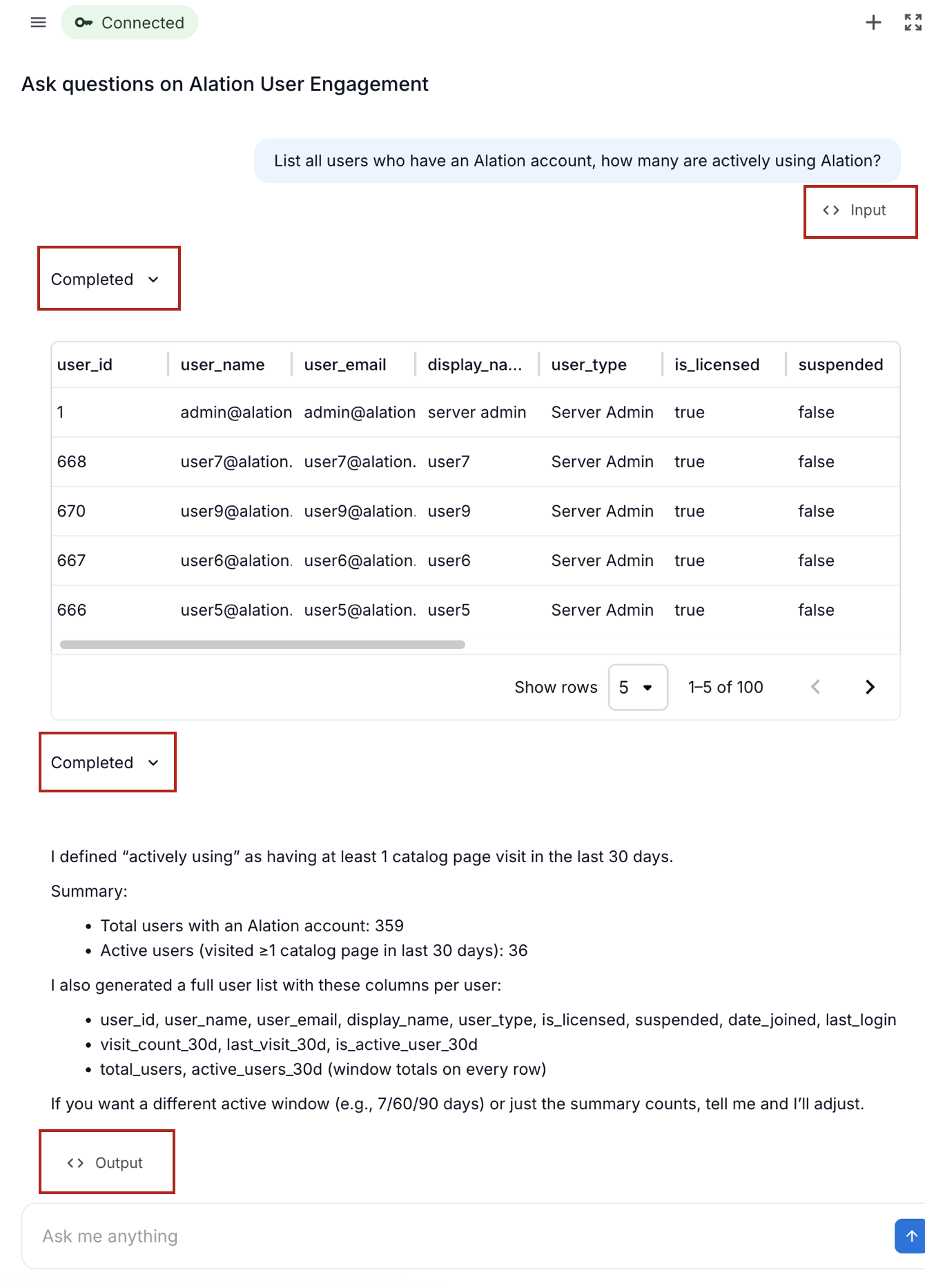
The responses are delivered as ready-to-use reports enriched with AI-generated summaries. Users can expand each response to see the AI thought process and the generated SQL.
The screenshot below demonstrates how Chat returns a data-driven response to a user’s question.
In this topic:
Verify the Connection URI
Before enabling the Chat, validate the deliverySystems Property in the Data Product specification.
Every data product must define the delivery system (deliverySystems) for the data, which represents the source database connection.
If datasets are added through the data product builder UI, these entries are generated automatically when you add tables to the data product.
Before enabling Chat, ensure that delivery systems are present and correct.
The following YAML example shows how the deliverySystems property is defined in a data product configuration:
deliverySystems:
  chat_with_postgresql:
    type: sql
    uri: postgresql://st-example.cluster.us-east-2.rds.amazonaws.com:5432/t_product_analytics
    accessRequestInstruction:
      type: manual
      instruction: Connect to the PostgreSQL database using the provided connection URI.
    postgresql:
      type: sql
      uri: postgresql://st-example.cluster.us-east-2.rds.amazonaws.com:5432/t_product_analytics
Configure Chat Authentication
Data Source Compatibility for Chat
Data Product Chat is supported for a specific subset of data sources. See Data Source Compatibility for Data Products for information on data sources compatible with the Data Product Chat.
Snowflake OAuth
If your data product is built on Snowflake and you want to use SSO authentication for Chat, configure Snowflake OAuth before enabling the Chat. See SSO with Snowflake for Data Product Chat for more information.
Basic Authentication with Other Supported Data Sources
Before users can interact with the data sources via the Data Product Chat, ensure the following conditions are met:
Database-Level Permissions
Users must have the appropriate privileges within the source system to read the data included in the data product. At a minimum, users typically require:
CONNECTpermissions to the database.USAGEpermissions on the relevant schemas.SELECTpermissions on all tables or views included in the data product.
Valid Credentials
Users must have an active account (username and password) on the target system.
Teradata users: You may use standard database credentials or LDAP credentials.
Databricks users: Ensure you are using a personal access token or database-native credentials as configured by your workspace admin.
Link Authentication to the Data Product
To apply the authentication to your data product:
Open the Data Products App and select My Data Products.
In the Data Products table, locate your data product.
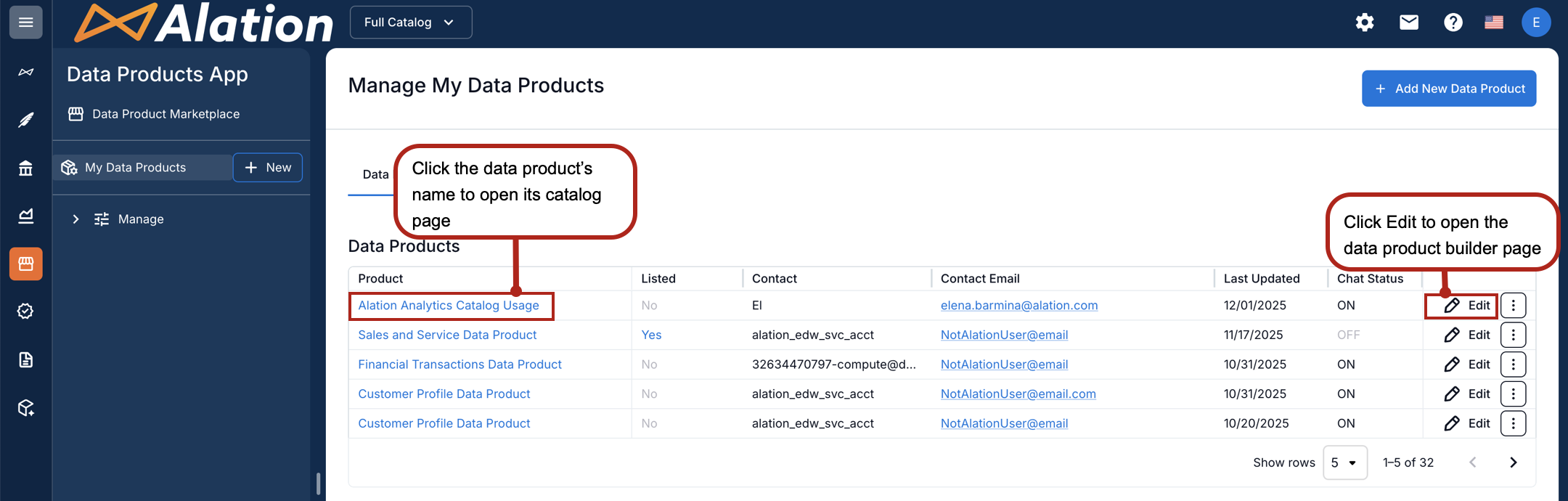
In the rightmost column, click Edit for this data product. The data products editor opens.
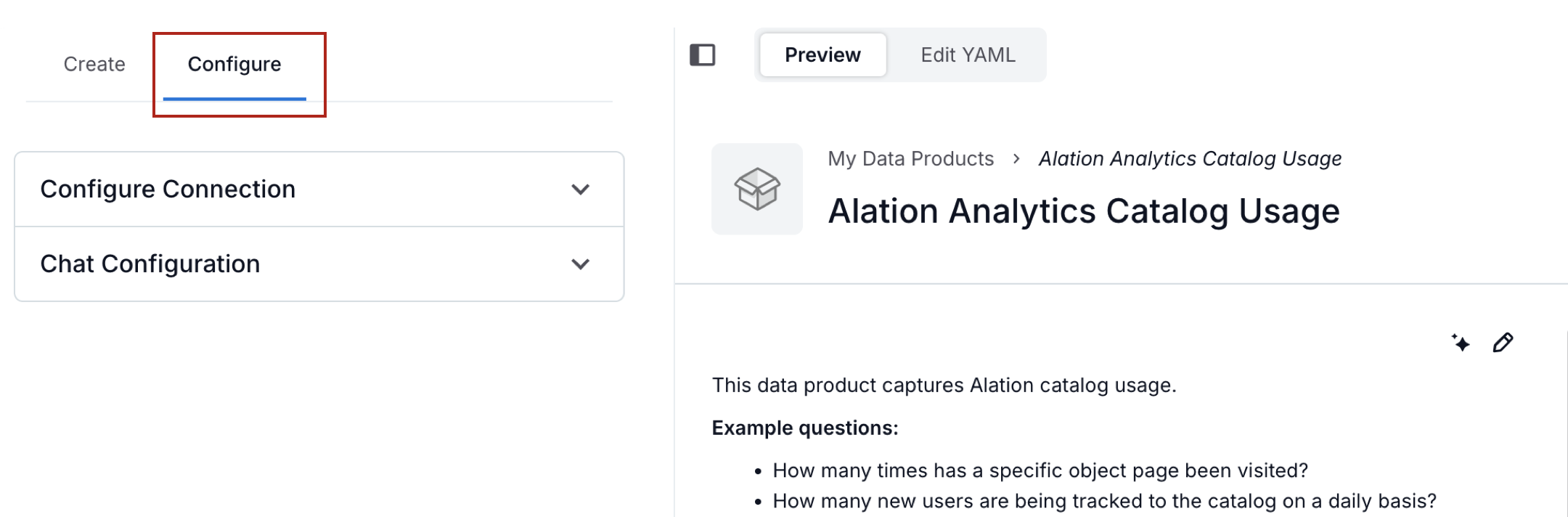
Select the Configure tab on top left.
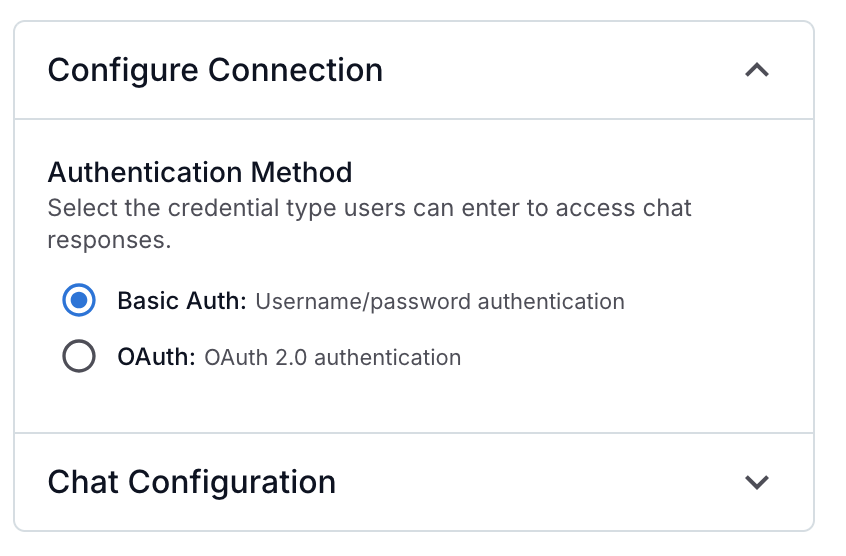
Under Configure Connection, select Basic Authentication (Username/Password).
Evaluate Data Product Chat before enabling it for your users.
Evaluate Data Product Chat
Before enabling the Chat for your data product, you can assess the quality of the responses and verify that the experience is ready for users. See Evaluate Data Product Chat.
Enable the Chat for a Data Product
To enable the chat:
Ensure you’ve verified the connection URI and configured authentication.
Navigate to the Data Products App from the left-side navigation.
Select My Data Products.
Locate the data product to configure.
Choose one of the following paths:
From the Data Products table, click the Edit icon for the data product to open the data product builder page.
From the Data Products table, click the data product name. The catalog page of the data product opens. Click the three-dot menu on the top right and select Configure Chat.
On the right side of the data product builder page, select the Configure tab.
Under Configure, expand Configure Connection:
Select Basic Auth or OAuth, depending on the data source authentication you’re using.
Note
If your data product uses Snowflake with SSO authentication, select OAuth. OAuth SSO is supported only for Snowflake and must be configured beforehand.
Expand Chat Configuration.
Click the Enable Chat toggle to enable the chat. The Chat button appears on the data product catalog page for all authorized users.
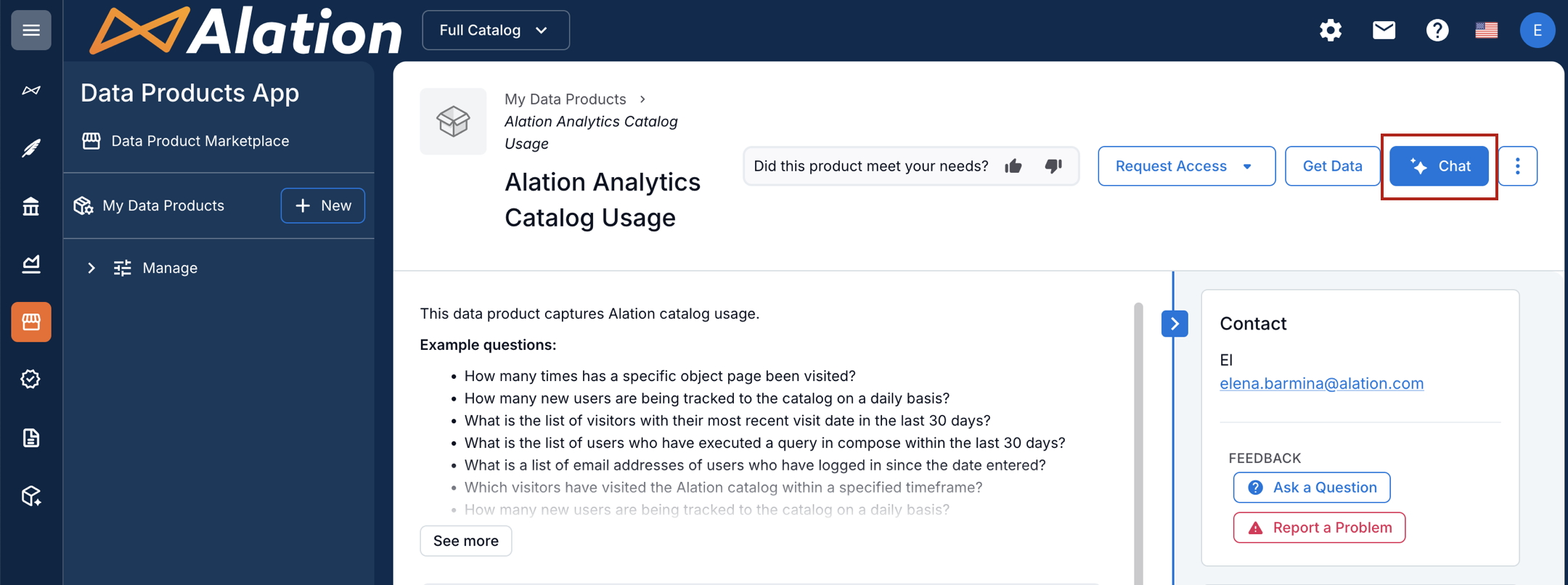
Using Chat with a Data Product
When the Chat is enabled, any user with access to the data product can start using it to explore the underlying data. Chat is an AI-assisted feature that processes questions in natural language and uses an AI agent with several built-in AI tools to generate answers as reports and summaries. Each user has their own chat session and must authenticate to the database to see results, ensuring that responses respect their individual access rights.
To chat with a data product:
Open a data product from the Marketplace or My Data Products.
Click the Chat button on the top right. The chat panel opens on the right.
At the top of the panel, a connection indicator shows the current status:
Missing connection (red): authentication required.
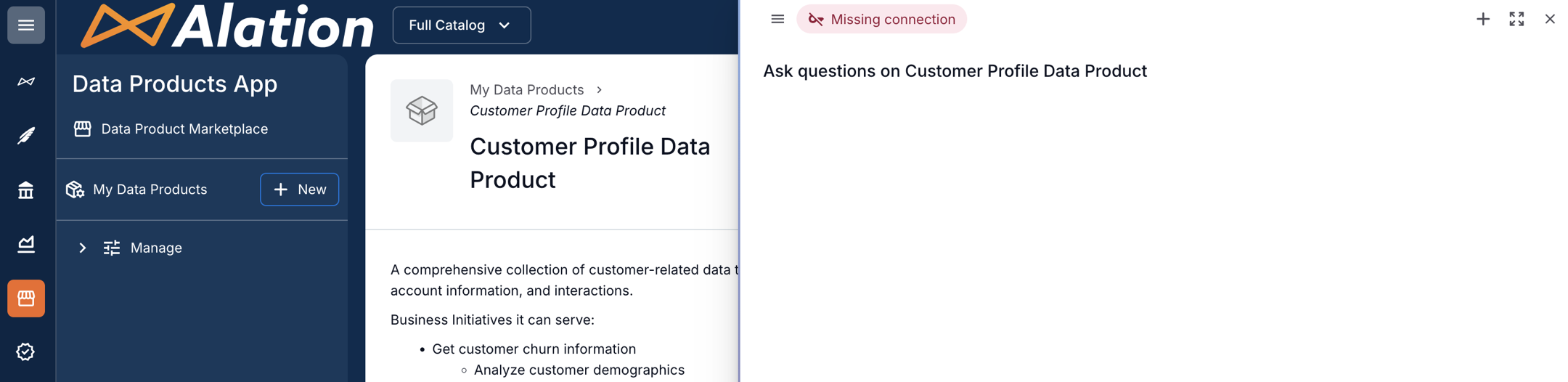
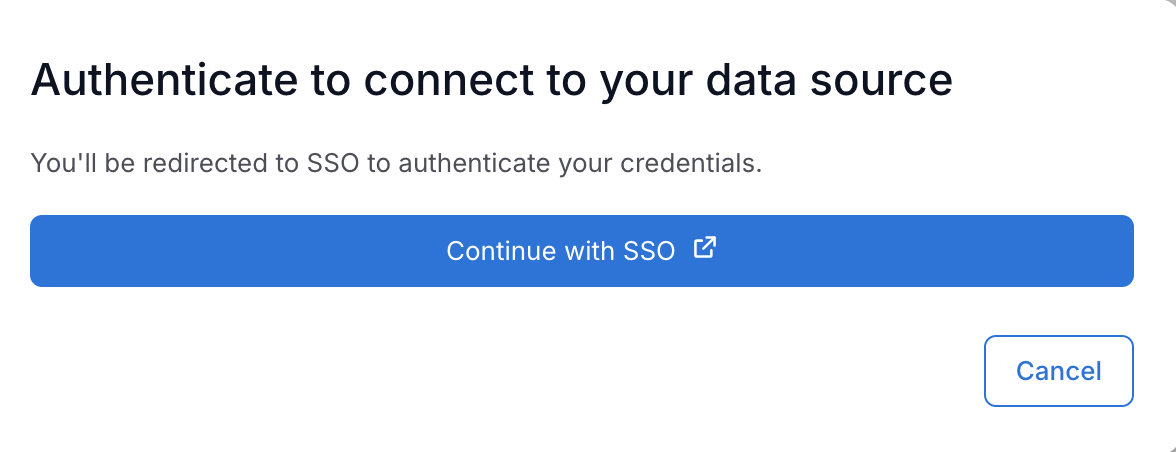
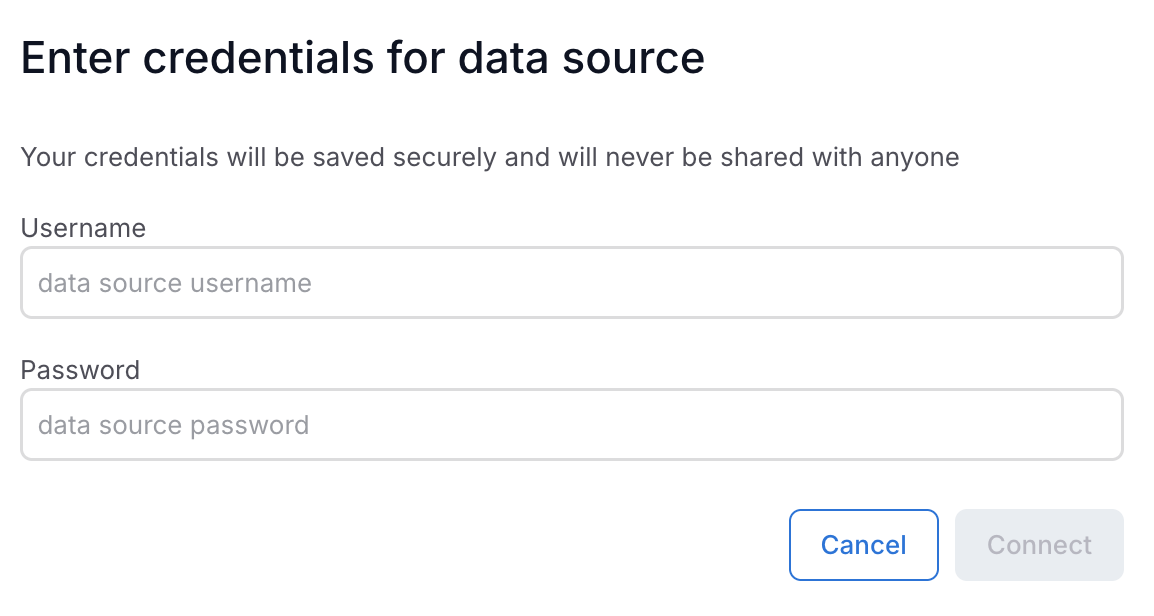
Click the indicator to begin the authentication flow:
SSO (Snowflake): A dialog appears to authenticate via your configured identity provider. Click Continue with SSO to authenticate.
Basic Auth: A dialog appears to enter database credentials.
Once authenticated, the indicator turns Connected (green).
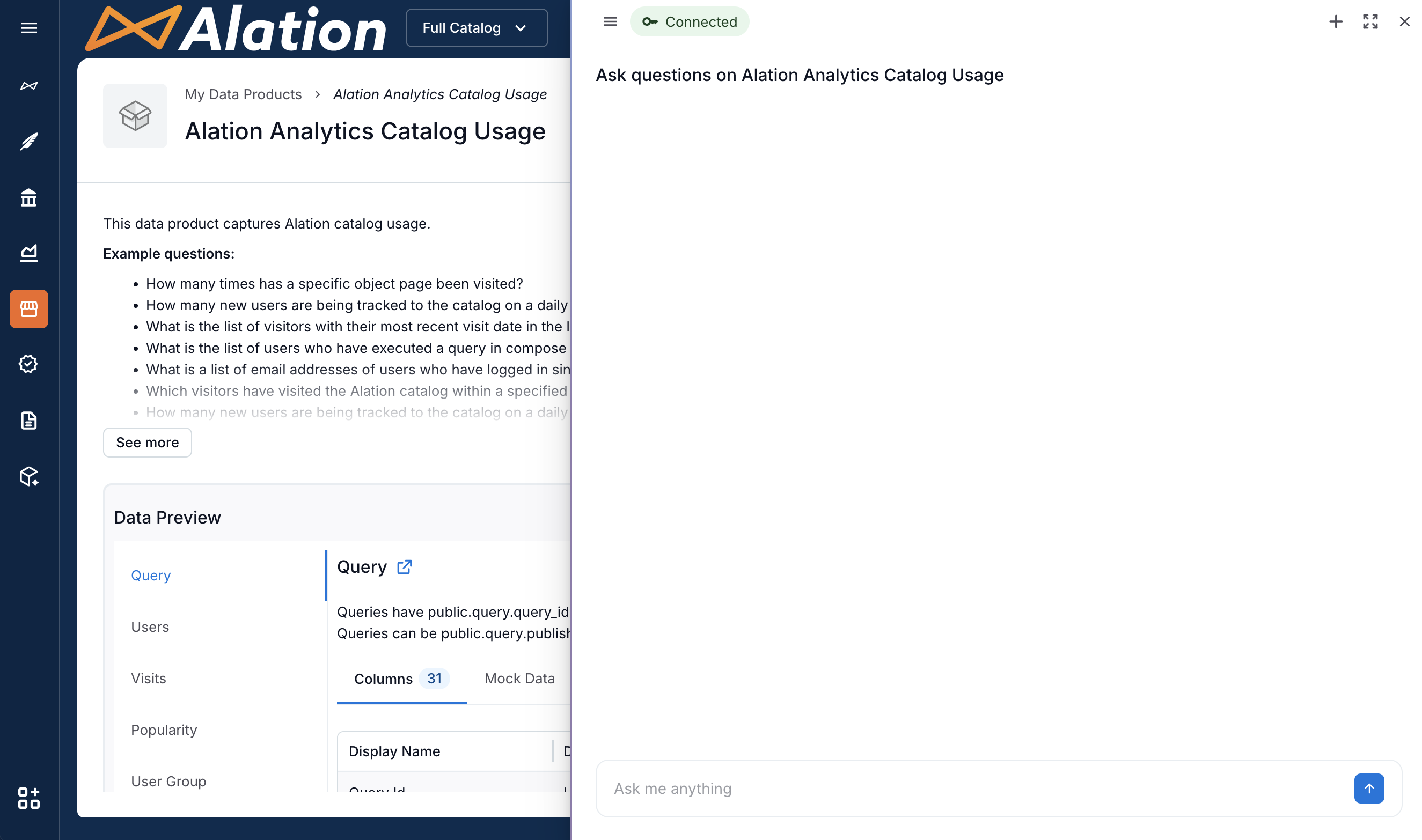
Once you authenticate, you can ask questions about the data set of the data product. Type your question at the bottom of the panel and click the Send icon. The screenshot below shows a connected Chat that is ready for user input.
Chat Actions and Controls
Review the AI Thought Process
For each AI answer, you can review:
Input
Output
Completed Summary
These allow visibility into query generation and reasoning.
Click on the expandable shortcuts Input, Output, and Completed in the chat window to review the content. The screenshot below shows an expanded response with the AI thought process.
Expand Chat to Full Screen
To expand the chat to full screen, click the Expand icon on the top right of the chat window.
Open a New Chat Window
To open a new chat window, click the New Chat icon (the plus icon).
Close the Chat Window
To close the chat window, click the Close icon (X) on the top right of the chat window.
The screenshot below shows where to find the Expand, New Chat, and Close icons.

Review Chat History
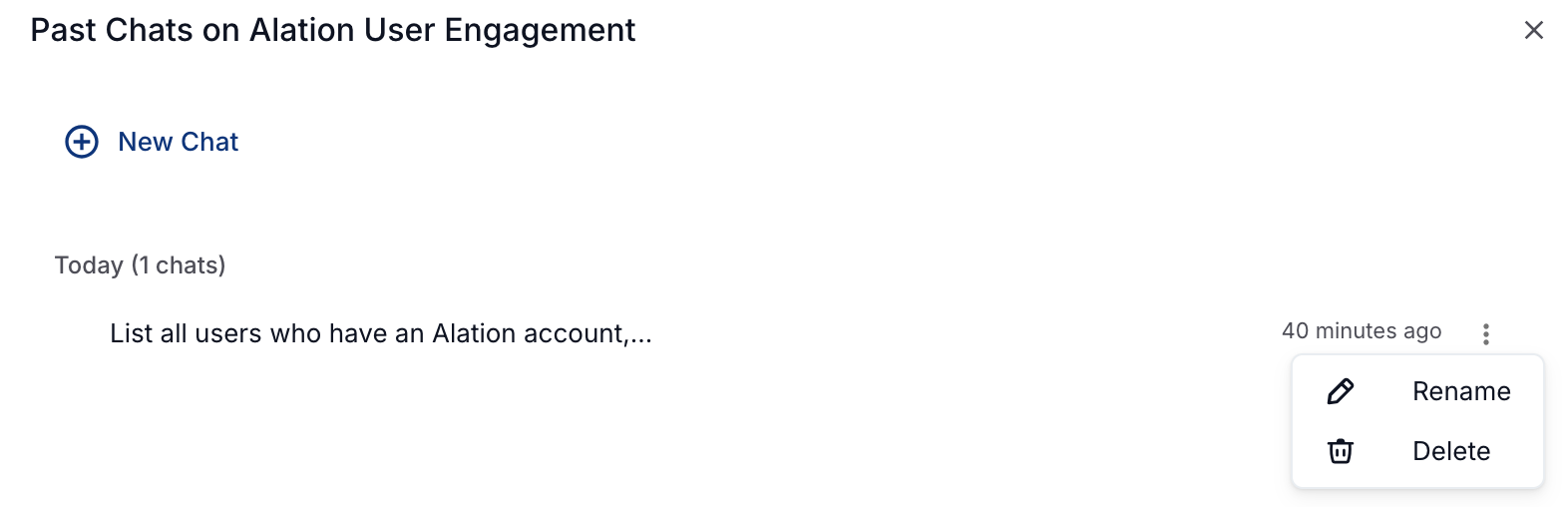
To review chat history, click the hamburger menu on the left side of the authentication indicator. The chat history panel opens, displaying previous chat interactions.
You can rename or delete chat interactions using the Rename and Delete options for each.
Work with Chat Feedback
Data product consumers may choose to send feedback about their chat experience to Data Product Admins. See Manage Chat Feedback on how to review the feedback.