
Evaluate Data Product Chat
Alation Cloud Service Applies to Alation Cloud Service instances of Alation
Before enabling Chat for data product users, you can assess the quality and accuracy of responses using the Evaluate Data Product Chat feature. Evaluation helps validate that AI-generated answers and SQL queries meet your expectations and reflect the intended value of the data product.
Evaluate Data Product Chat is an AI-assisted feature that allows you to:
Define evaluation questions
Provide expected SQL queries or use AI to generate them
Run all evaluation questions in bulk
Review pass/fail results
Download a detailed CSV report
Evaluation ensures that the chat experience is reliable before being released to users.
In this topic:
Prerequisites
Before using Evaluate:
Define the delivery system in the data product definition.
The data product definition must include
deliverySystemswith validurivalues.Configure authentication for the data product.
You should be able to establish a working connection to the underlying data source (Basic Auth or OAuth SSO).
Find more details in Prerequisites for enabling the data product Chat.
Access Evaluate Data Product Chat
There are two ways to open the Evaluate Data Product Chat window.
From My Data Products, click the three-dot menu next to the data product you want to evaluate, and then select Evaluate Data Product Chat.
From the data product’s catalog page, open the data product, then click the three-dot menu in the top-right corner of the page and select Evaluate Data Product Chat.
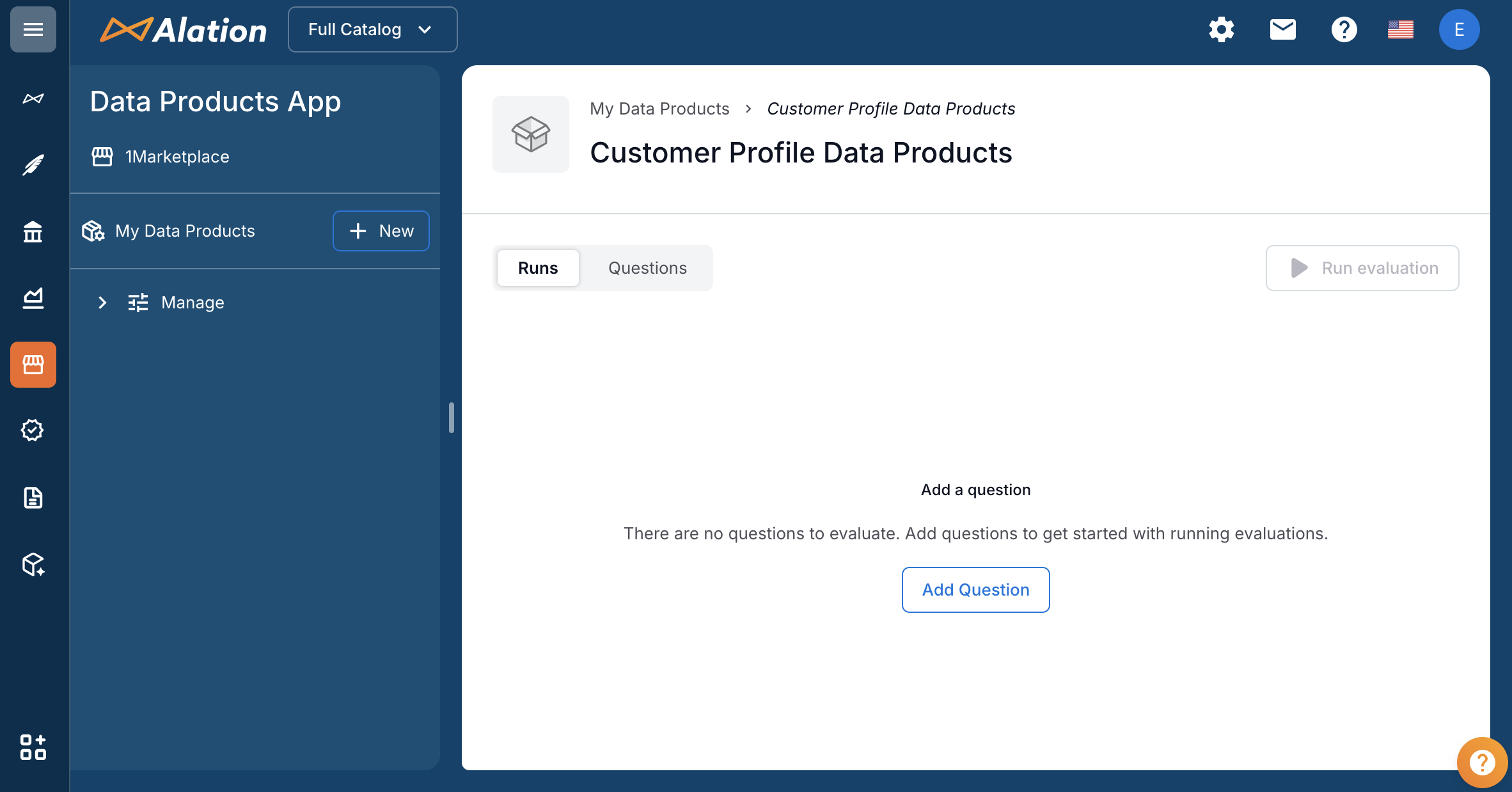
The screenshot below shows the Evaluate Data Product Chat window when no evaluation questions have been added yet.
Connect to the Data Source from Chat
In the Evaluate Chat window, click Add Question.
Expand the right-hand panel of the Evaluate window.
Click Missing connection.
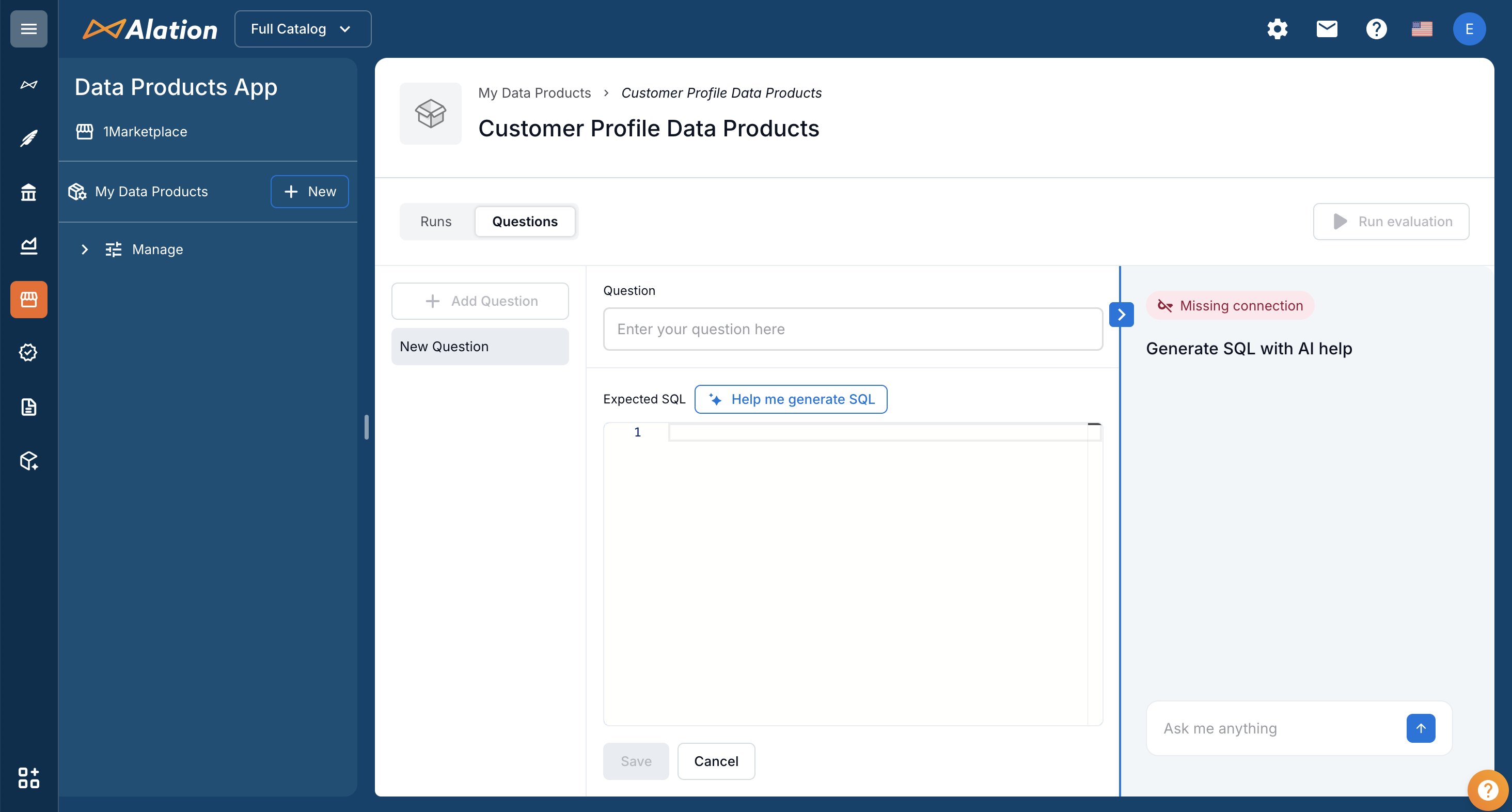
Authenticate to the database by either entering the database credentials or using the SSO flow.
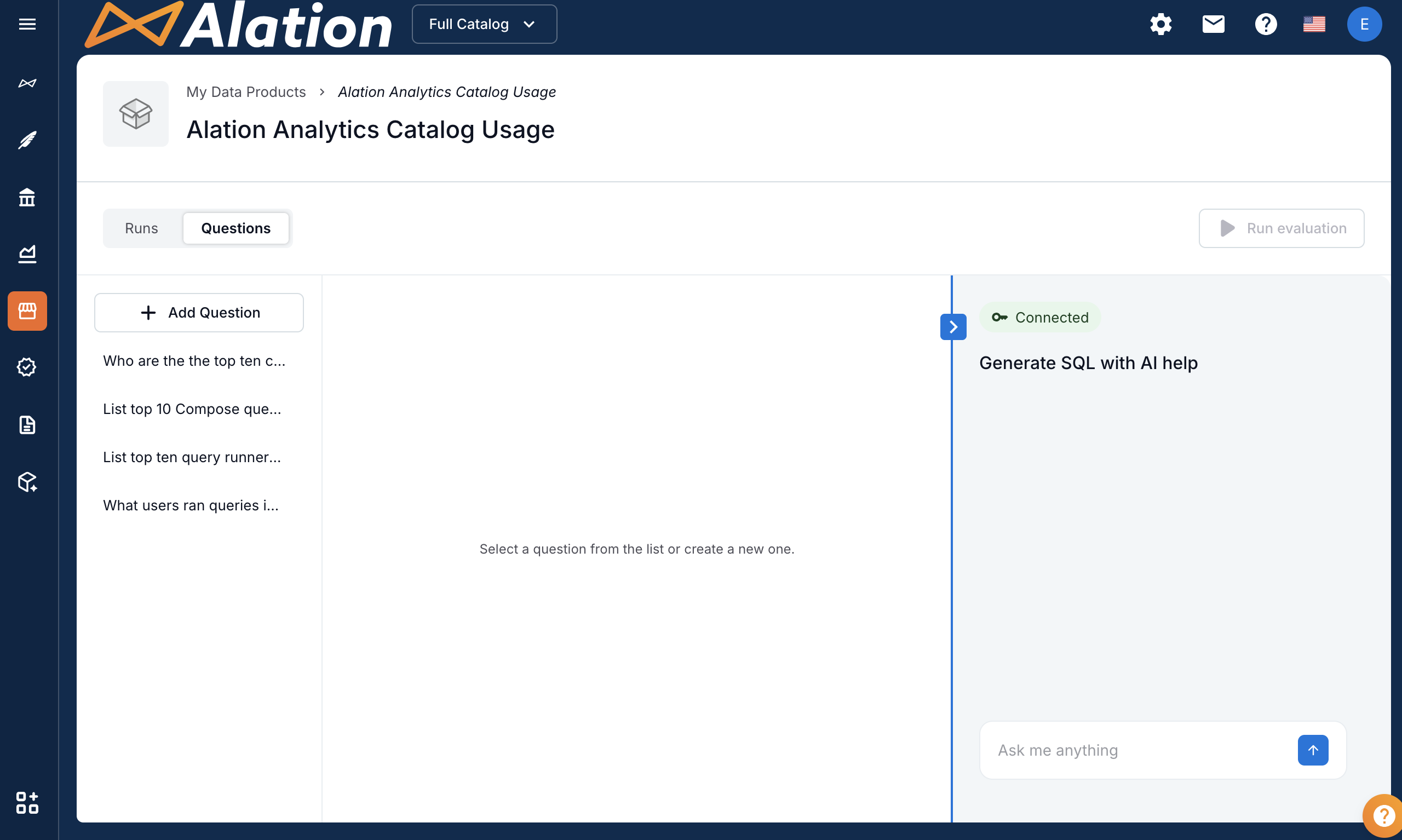
The indicator turns Connected (green). The screenshot below shows the Evaluate window after a successful connection with the green Connected indicator.
Add Evaluation Questions
In the Evaluate Chat window, click Add Question to open the question editor.
Enter a natural-language question in the Question field.
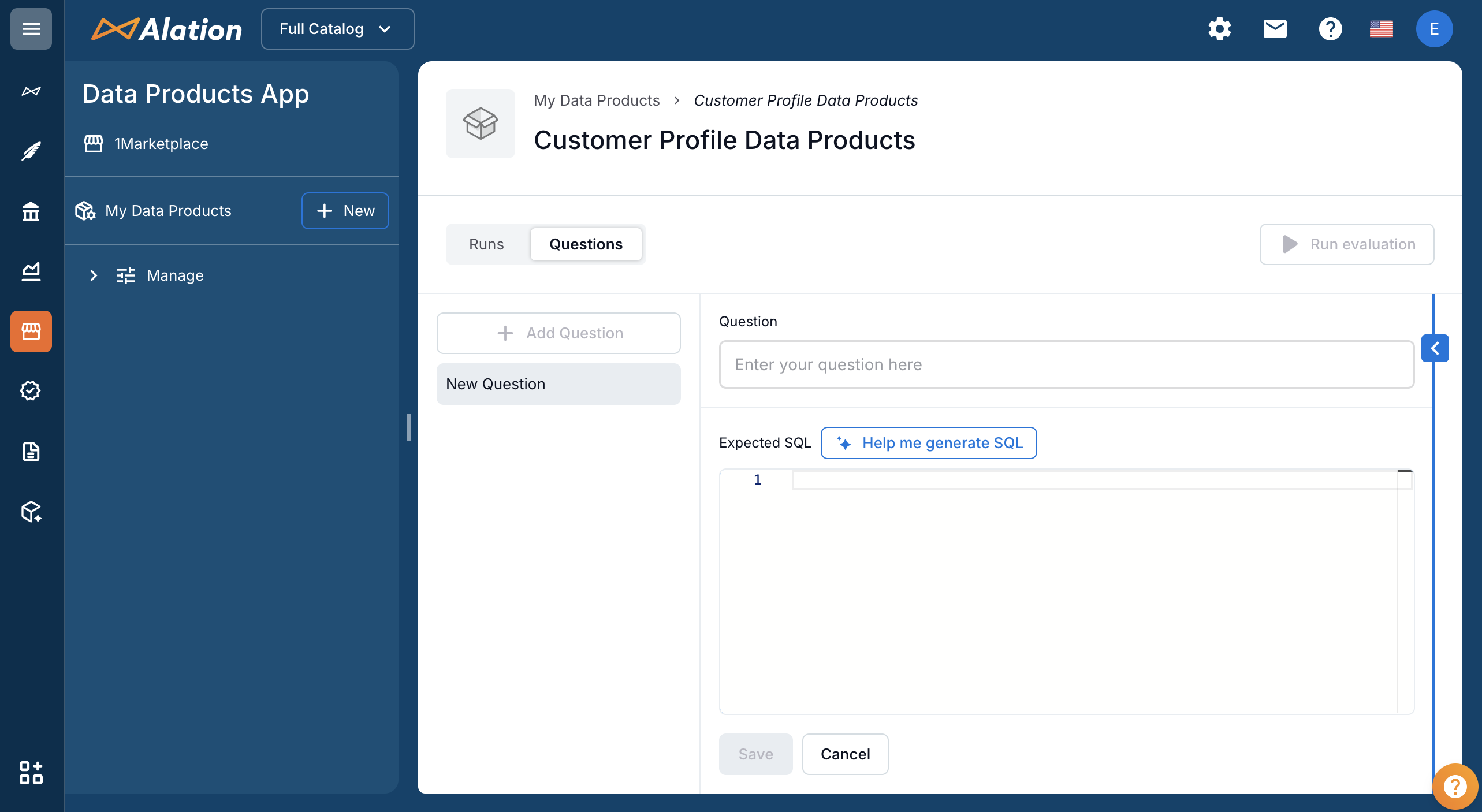
Provide SQL in the Expected SQL field.
Generate SQL Using AI
You can use the integrated AI assistant to generate a SQL query for the question:
Next to Expected SQL, click Help me generate SQL.
AI generates SQL with full reasoning, visible in the Chat panel on the right side of the Evaluate window.
Iteratively refine the query if needed.
Click Add as expected SQL to populate the SQL field in the question editor. The next screenshot shows an example of AI-generated SQL that was added to the Expected SQL field.
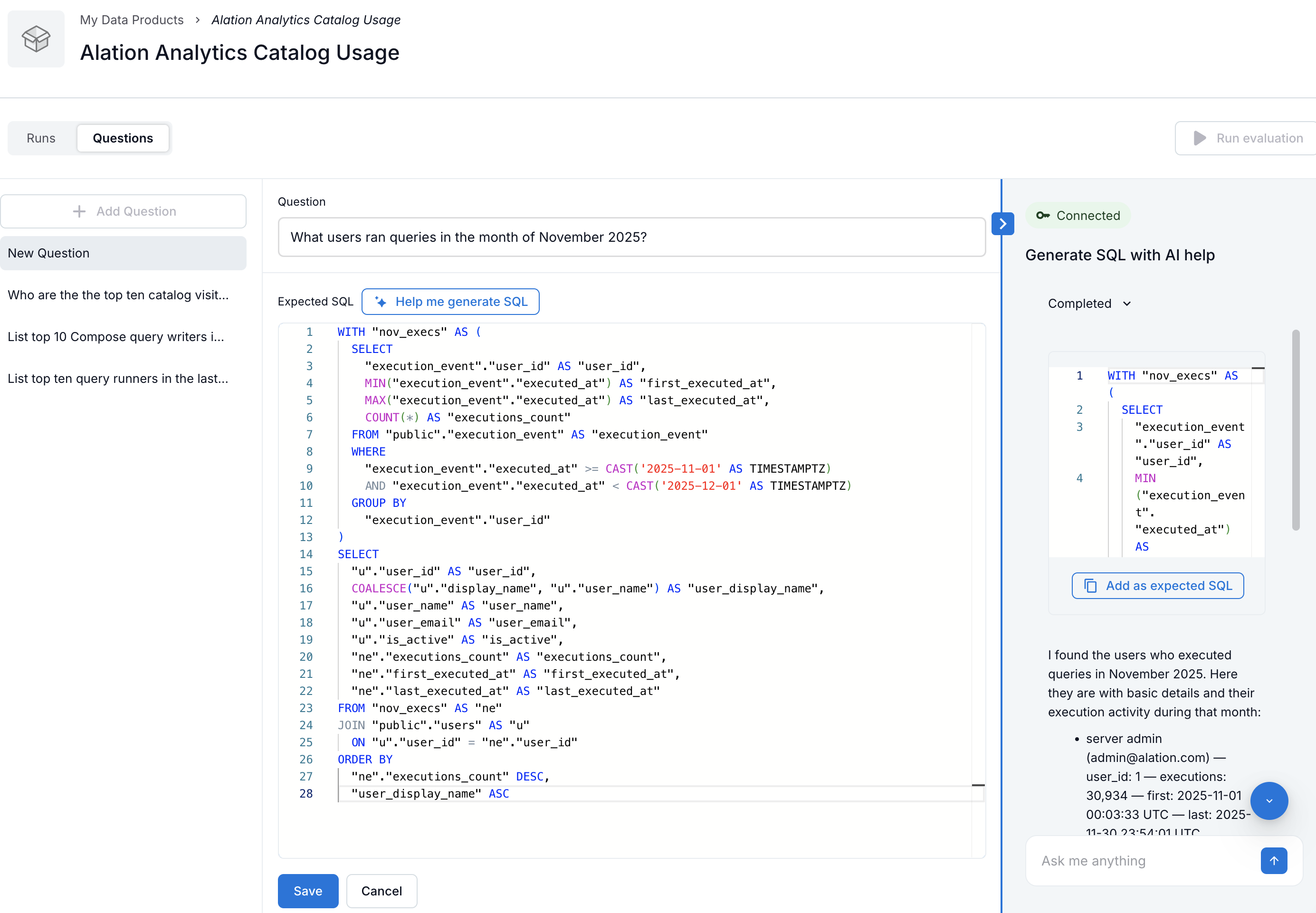
After reviewing and refining your SQL, click Save.
Repeat the process to add multiple questions.
Run an Evaluation
Once you have created the evaluation questions and the queries, click Run evaluation on the top right. The system executes each question’s SQL and compares results to Chat responses.
Monitor Run Status
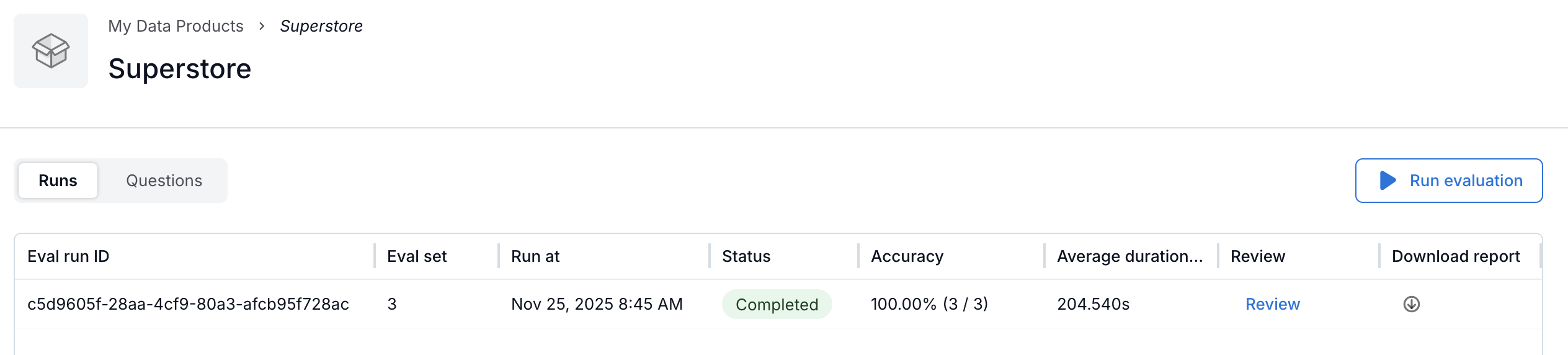
On the Runs tab of the evaluation window:
In-progress evaluations show a progress indicator.
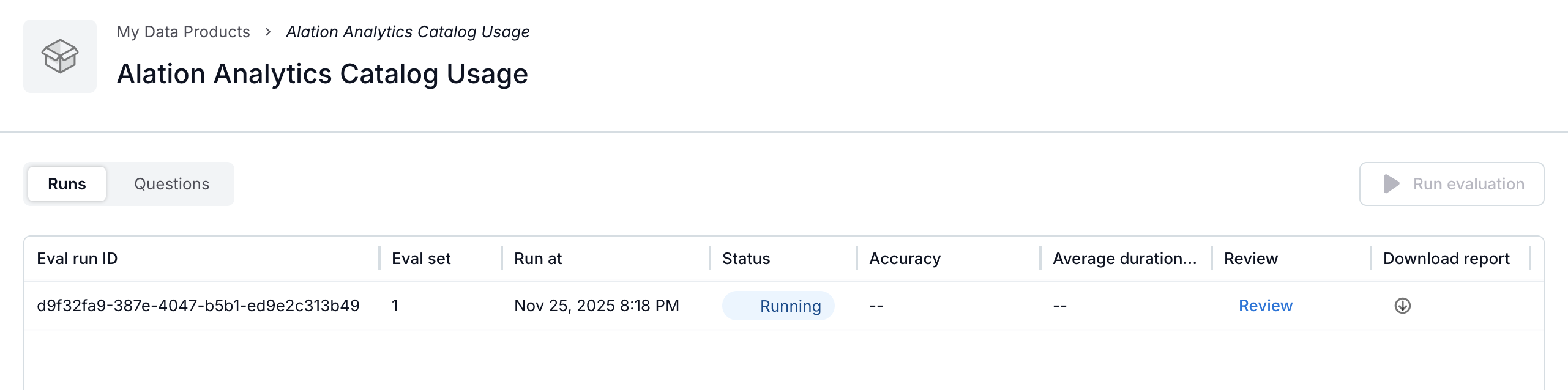
Completed evaluations show a status summary.
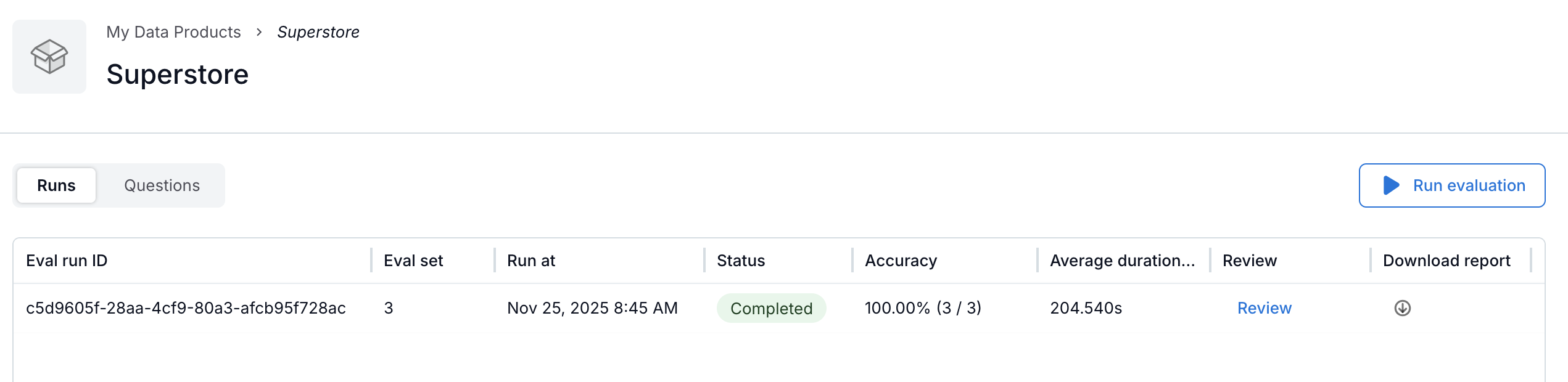
Review Results
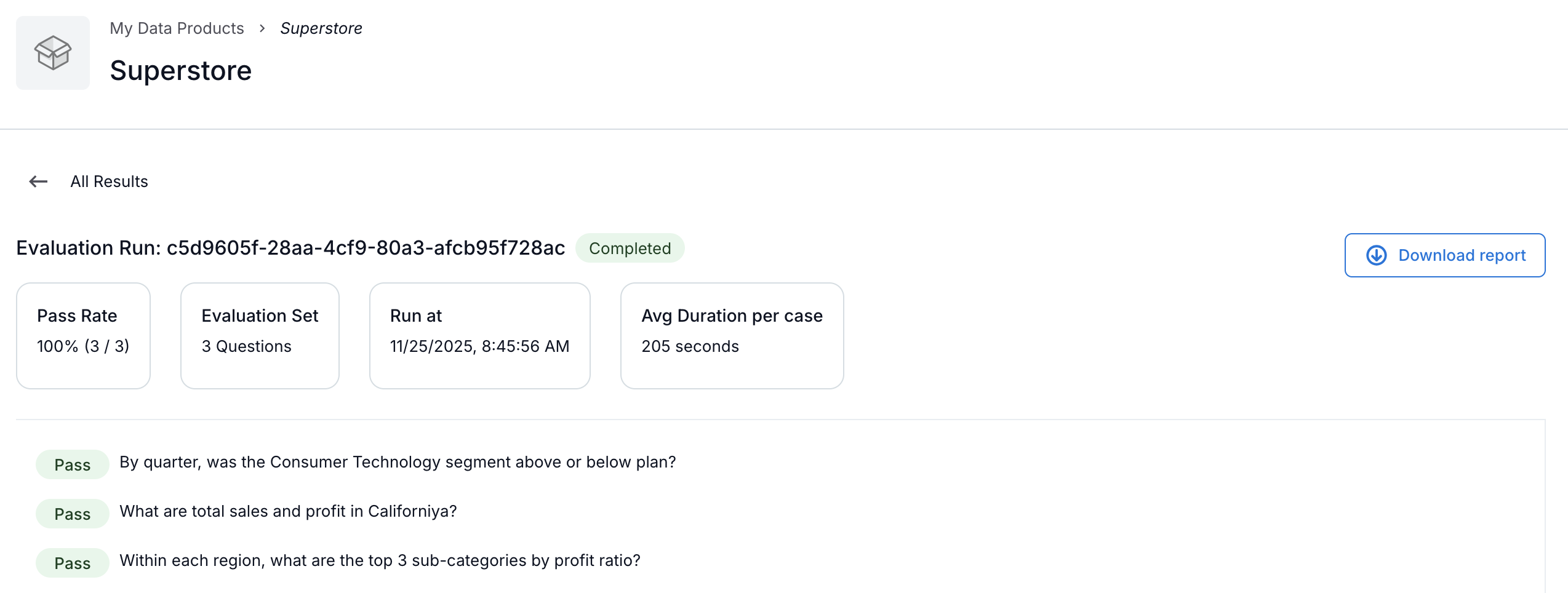
Click Review in the Review column for a completed evaluation to see:
Passed questions
Failed questions
Execution time
Overall run summary
A data product is considered ready for release when all questions pass.
Download the Evaluation Report
You can export a CSV report for an evaluation run, containing:
All questions
All SQL queries
Run outcomes
Detailed evaluation logs
To download the report:
Open the Runs tab and click Download report for an evaluation run:
Use the Download report icon on the Runs tab:
Enable Chat
Once you’re satisfied with the result of the evaluation, enable the Chat for your data product. See Chat with Data Product for instructions.