
Configure Compose
Alation Cloud Service Applies to Alation Cloud Service instances of Alation
Customer Managed Applies to customer-managed instances of Alation
Enhanced Connector Enhanced connectors add extended capabilities and require a separate entitlement in addition to your Alation platform license.
Alation Compose allows users to write and execute SQL queries against MaxCompute data sources directly from the Alation interface.
Prerequisites
Before configuring Compose:
The MaxCompute data source must be configured and connected successfully.
The RAM user must have permissions to execute queries in MaxCompute. The following permissions are required:
odps:Read- Read access to projects and tablesodps:List- List access to project resourcesodps:CreateInstance- Permission to submit SQL jobs
At the project level, grant the RAM user one of the following roles: Admin, Super_Administrator, or role_project_reader. Alternatively, grant specific permissions:
GRANT Read, CreateInstance ON PROJECT <project_name> TO USER <ram_user>;
For more information, see the Prerequisites page.
Network connectivity must be available from the connector host to the MaxCompute JDBC endpoint (
service.<region>.maxcompute.aliyun.com) on port 80 (HTTP). Replace<region>with your Alibaba Cloud region. For a complete list of network requirements, see the Prerequisites page.
Configure JDBC URI
To enable Compose for MaxCompute:
On the MaxCompute data source Settings page, go to the Compose tab.
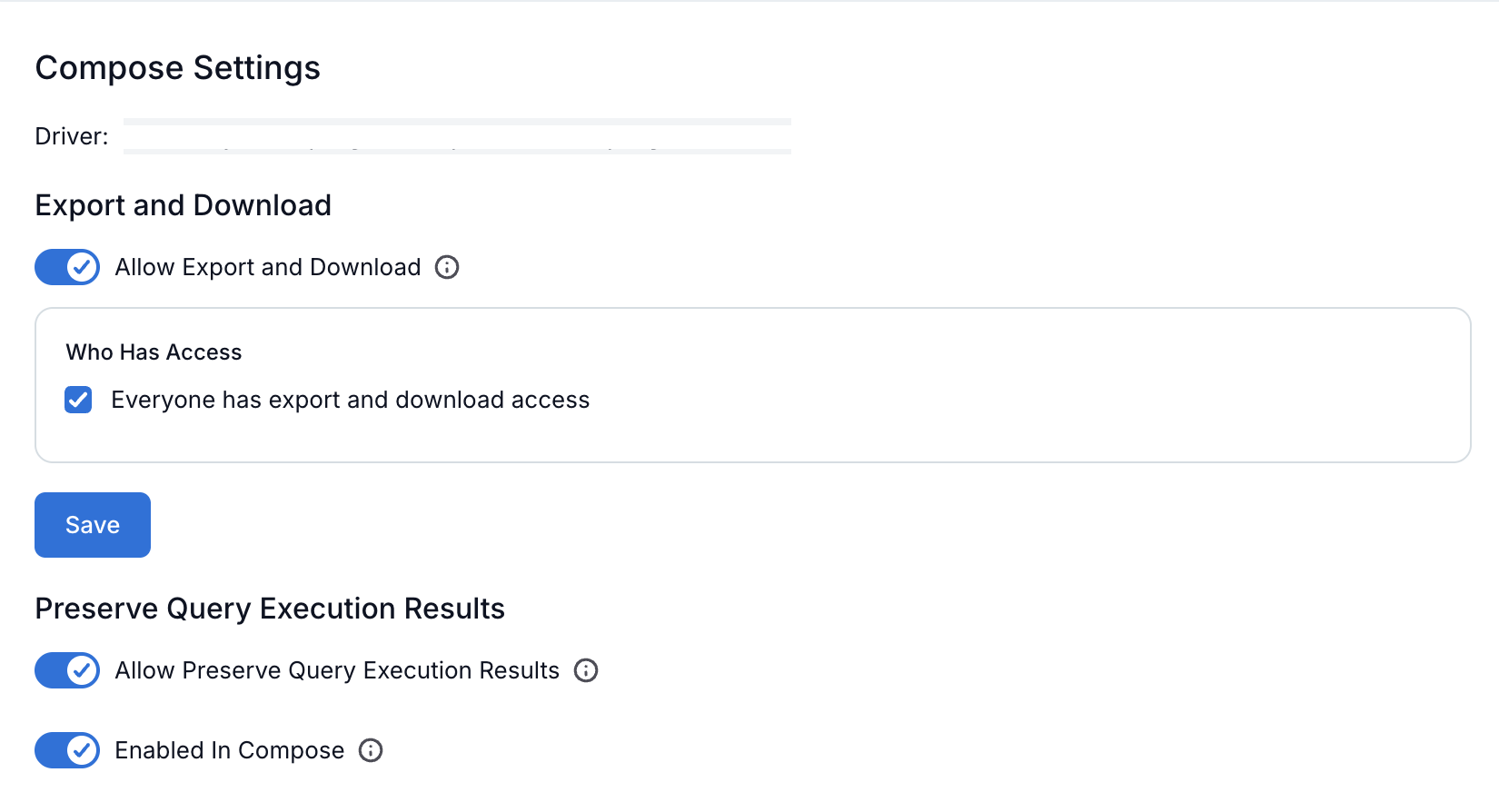
Configure the JDBC URI with the following format:
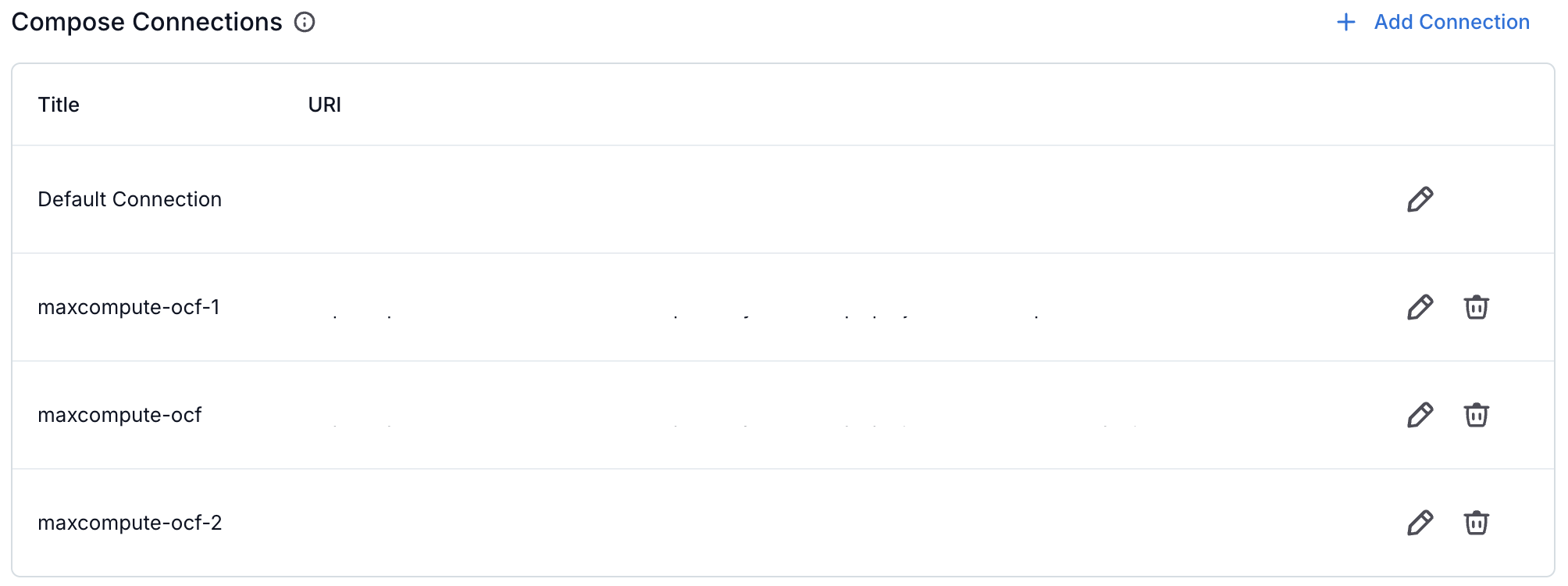
jdbc:odps:http://service.<region>.maxcompute.aliyun.com/api?project=<project_name>Note
The
jdbc:prefix is optional. The connector automatically prepends it if missing.Replace the following placeholders:
<region>: Your Alibaba Cloud region (for example,cn-hangzhou,us-east-1)<project_name>: The MaxCompute project name to connect to
Example:
jdbc:odps:http://service.us-east-1.maxcompute.aliyun.com/api?project=my_projectClick Save.
Authentication
Compose uses per-user Access Key authentication. Each user must provide their own Alibaba Cloud Access Key credentials in the Compose Connection Settings.
Note
Service account credentials configured in the General Settings tab are NOT used for Compose. There is no fallback—if user credentials are missing or invalid, the connection fails.
The user must have the required permissions for query execution as described in the Prerequisites section above.
Configure the Compose connection credentials:
Navigate to the Compose tab in the data source settings.
Under Connection Settings, each user enters their own credentials:
Parameter
Description
Username
Your Access Key ID (not Alibaba Cloud email).
Password
Your Access Key Secret.
Click Save.
Running Queries
After configuring Compose:
Navigate to the MaxCompute data source catalog page.
Click Compose to open the SQL editor.
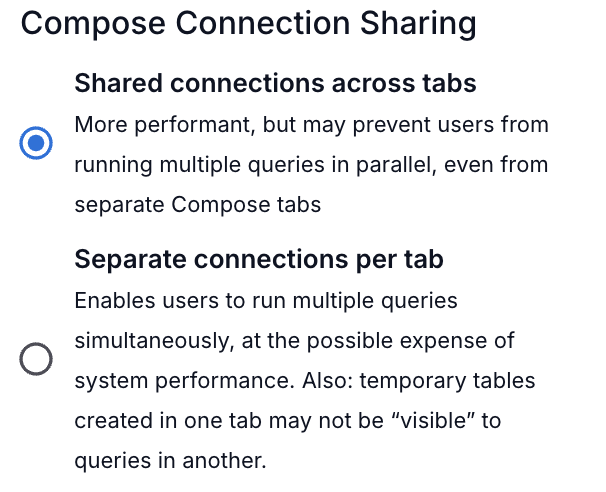
Click Connection Settings and select or create a connection. Enter your credentials and click Connect to establish a connection.
Write your SQL query and click Run to execute.
View the query results in the results panel.
Additional Compose Options
The JDBC URI sets the default project context for query execution. However, users can query tables in other projects by using fully qualified names (project_name.table_name) in their queries, as long as their Access Key has the required permissions (odps:Read, odps:CreateInstance) on the target project.
The MaxCompute connector supports the following standard Compose features:
Option |
Description |
|---|---|
Export |
Export query results to CSV or other formats. See Export and Download Query Results. |
Sharing & Access |
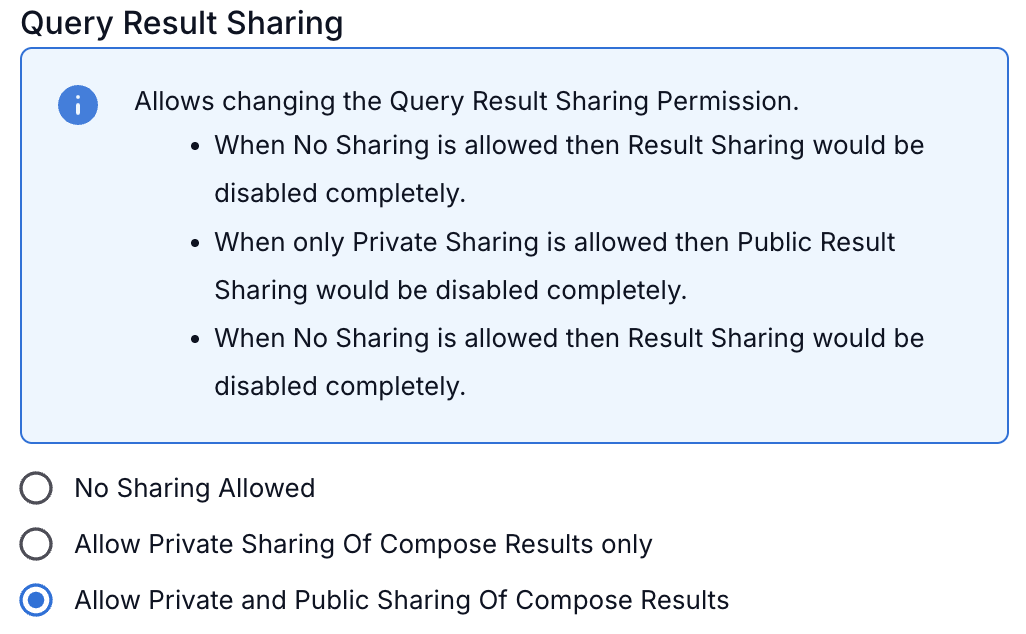
Share query results with other users or groups. See Share and Access Queries - 2023.1 and Later. |
Publish |
Publish queries to make them available in the catalog. See Publish a Query. |
Schedule Settings |
Schedule queries to run automatically at specified intervals. See Schedule Queries. |
Connection Settings |
Configure and manage Compose connections. See User Authentication For Data Sources. |
Troubleshooting
Connection Failed
Verify the JDBC URI format is correct.
Ensure the project name exists and the RAM user has access.
Check network connectivity to the MaxCompute JDBC endpoint (port 80).
Query Timeout
Optimize your query to reduce execution time.
Check MaxCompute quota and resource availability.
Consider using smaller data samples for testing.