
Configure Connection to MaxCompute
Alation Cloud Service Applies to Alation Cloud Service instances of Alation
Customer Managed Applies to customer-managed instances of Alation
Enhanced Connector Enhanced connectors add extended capabilities and require a separate entitlement in addition to your Alation platform license.
Configure New MaxCompute Data Source
Log in to Alation as a Server Admin.
Expand the Apps menu on the right of the main toolbar and select Sources.
On the Sources page, click +Add (top right) and select Data Source.
In the Add a Datasource screen, select Database Type as MaxCompute OCF Connector.
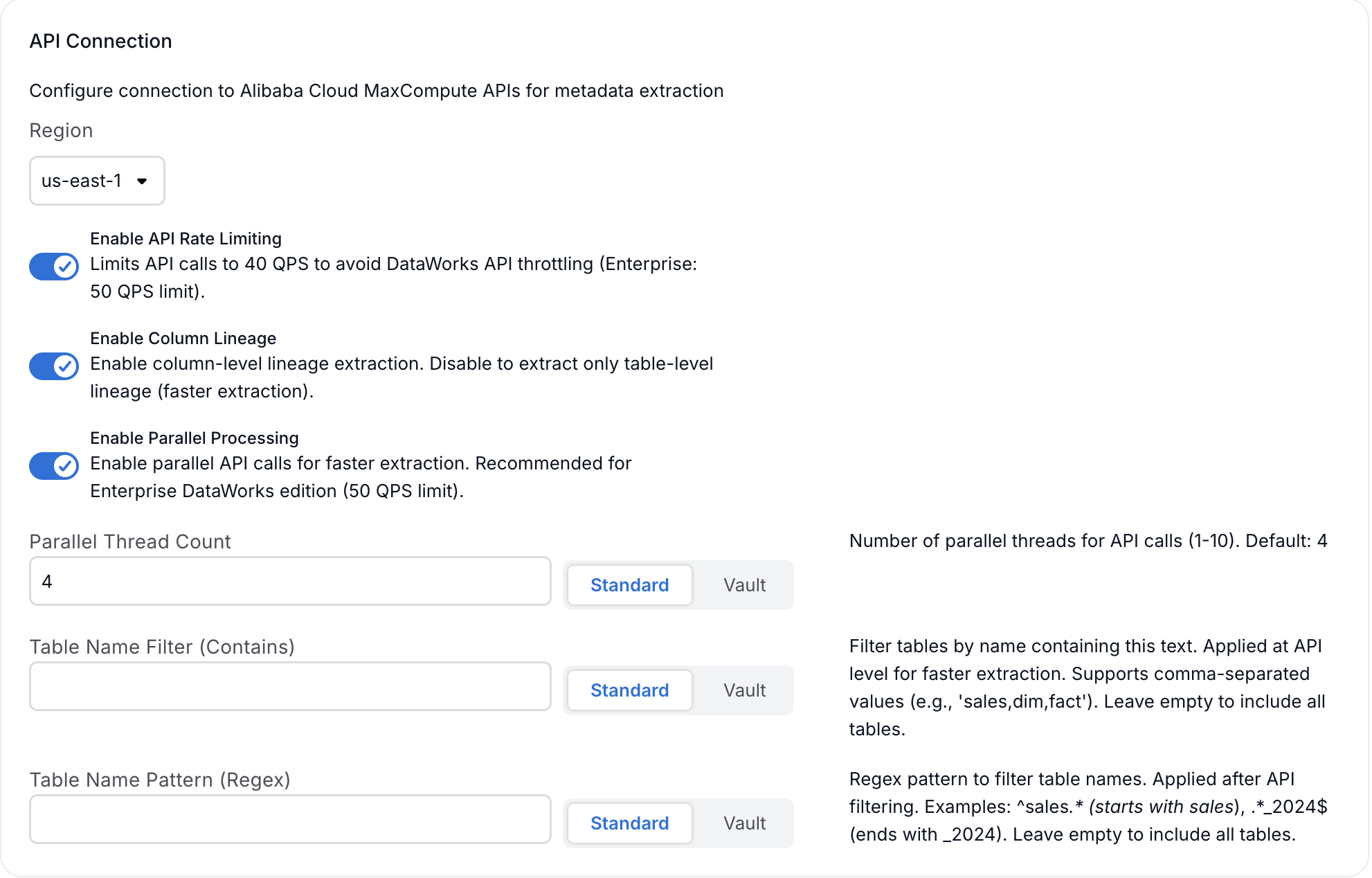
Configure the API Connection Settings under the General Settings tab:
Parameter
Description
Region
Select the Alibaba Cloud region where your MaxCompute service is deployed (for example, cn-hangzhou, us-east-1). Default: cn-hangzhou.
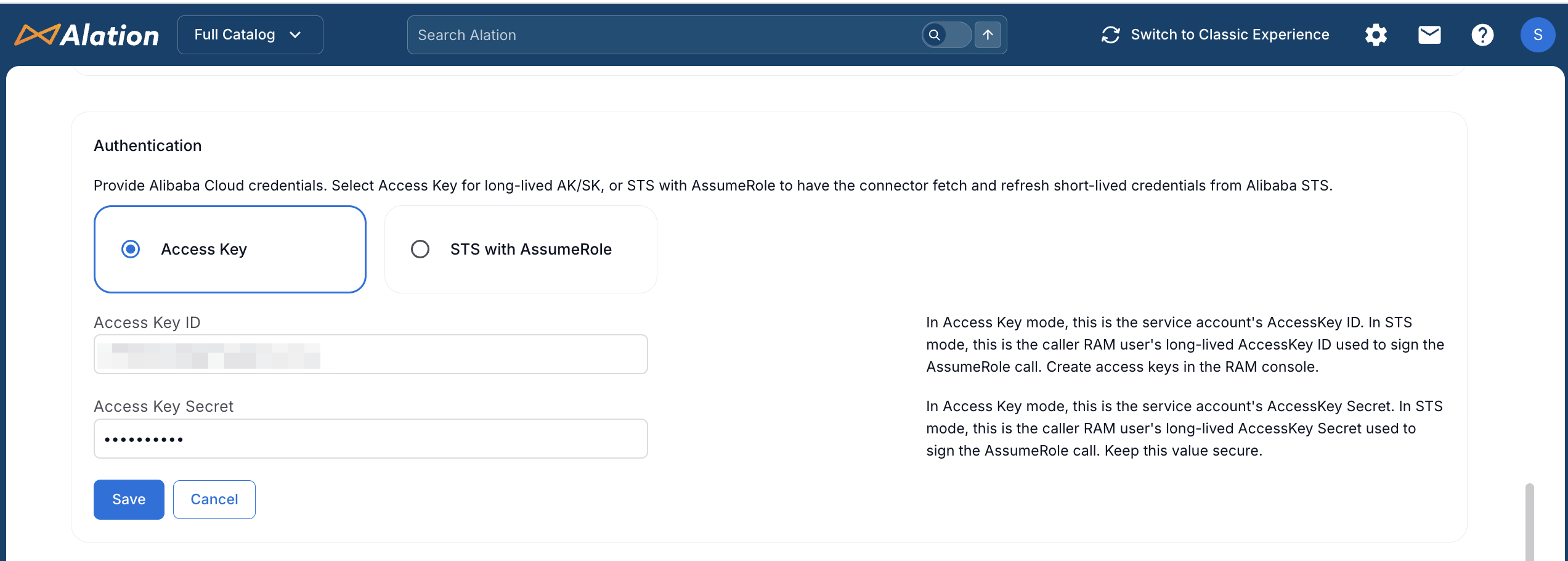
Select the Authentication Type:
Parameter
Description
Authentication Type
Select one of the following:
Access Key (default): The connector uses a long-lived RAM user Access Key for connector-managed calls to MaxCompute and DataWorks.
STS with AssumeRole: The connector uses the RAM user Access Key only to call the Alibaba Cloud STS
AssumeRoleAPI. The connector then uses the short-lived temporary credentials returned by STS for subsequent connector-managed calls to MaxCompute and DataWorks. Available from version 1.1.0.
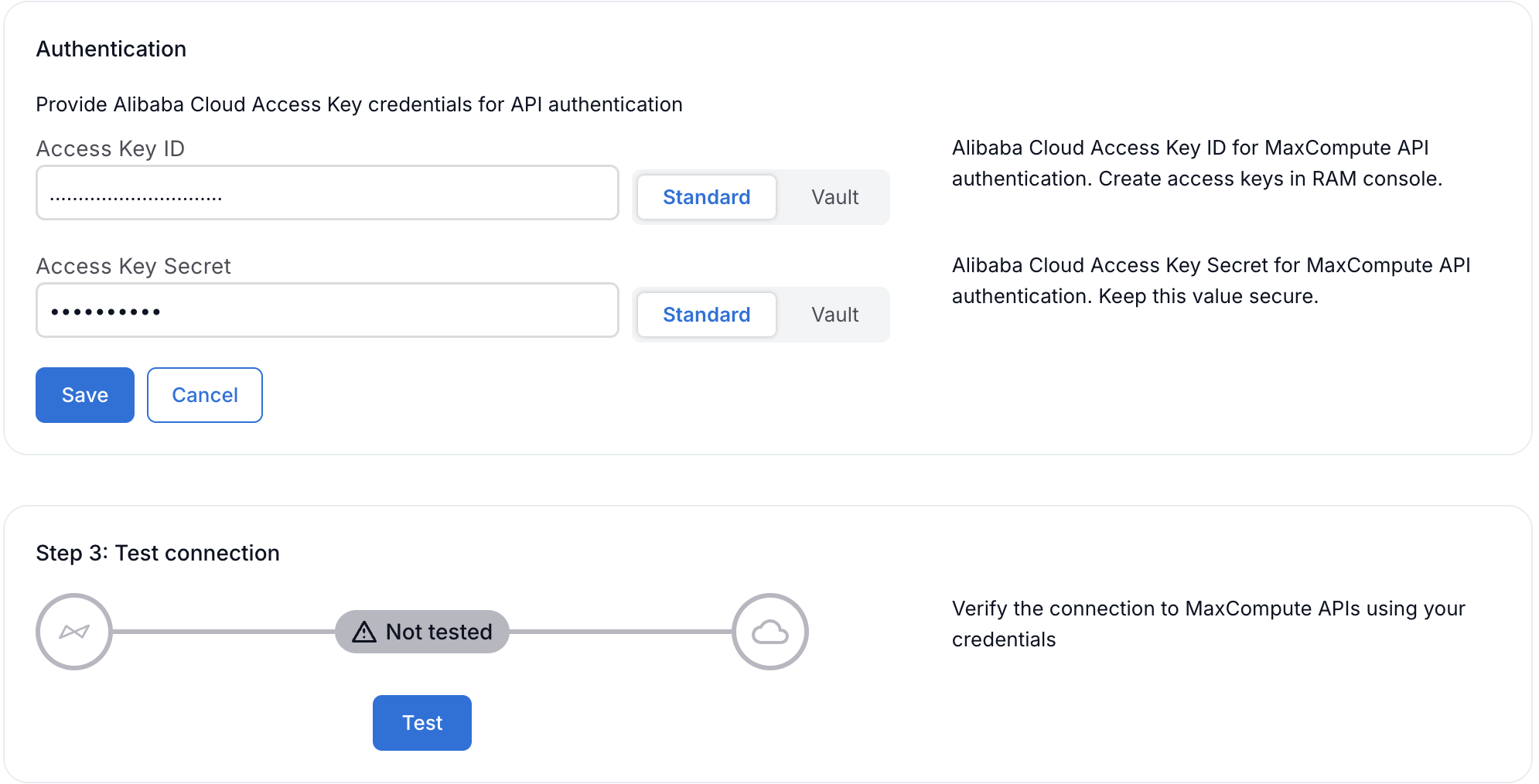
Provide your Alibaba Cloud RAM credentials:
Parameter
Description
Access Key ID
Enter the RAM user’s Access Key ID. When the authentication type is STS with AssumeRole, this Access Key is used only to sign the STS
AssumeRolecall; it is not used to access MaxCompute or DataWorks directly.Access Key Secret
Enter the RAM user’s Access Key Secret.
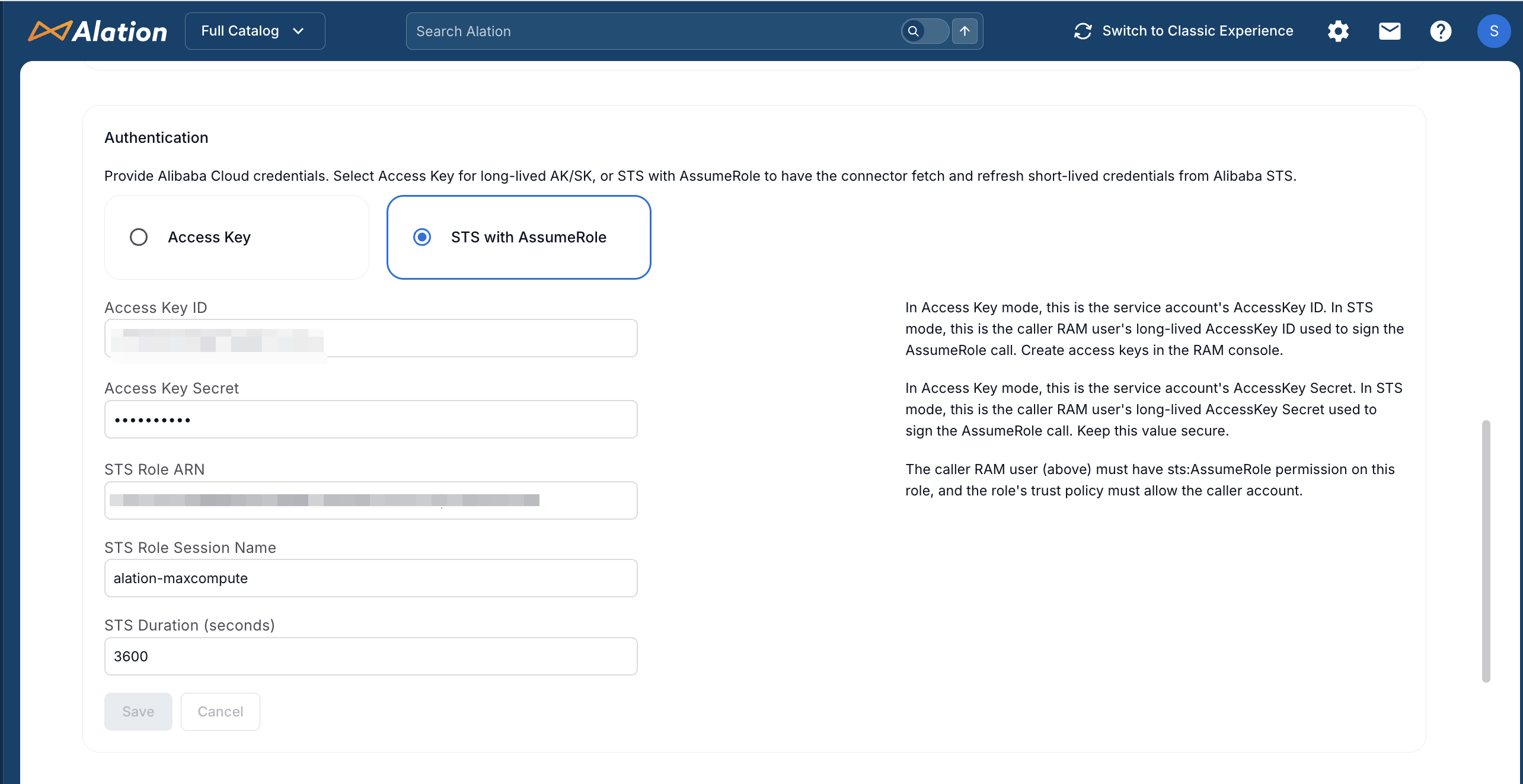
(STS with AssumeRole only) Configure the STS-specific parameters:
Parameter
Description
STS Role ARN
Enter the Alibaba Cloud Resource Name (ARN) of the RAM role the connector will assume. The format is
acs:ram::<account-id>:role/<role-name>.STS Role Session Name
Enter a name for the assumed-role session. This name appears in Alibaba Cloud ActionTrail logs and helps identify activity from this connector. Default:
alation-maxcompute.STS Duration (seconds)
Specify how long each set of temporary credentials remains valid. Allowed range: 900 to 43200 seconds. Default: 3600. The value must not exceed the maximum session duration configured on the RAM role.
Note
When the authentication type is STS with AssumeRole:
The connector calls
AssumeRoleon first use and caches the temporary credentials.The connector refreshes the credentials automatically when they are within five minutes of expiry.
Query execution from Alation Compose is unaffected by this setting and continues to use per-user Access Key credentials. For details, see Configure Compose.
For the RAM permissions required for this authentication type, see Prerequisites.
Under Test Connection, click Test to validate connectivity to MaxCompute APIs. If the connection succeeds, the status shows Success. If errors occur, review the error messages and verify your credentials and network connectivity.
Configure the following optional performance settings:
Parameter
Description
Default
Enable API Rate Limiting
Limits API calls to 40 QPS to avoid DataWorks API throttling.
Enabled
Enable Column Lineage
Enable column-level lineage extraction. Disable for faster extraction.
Disabled
Enable Parallel Processing
Enable parallel API calls for faster extraction.
Disabled
Parallel Thread Count
Number of parallel threads for API calls (1-10).
4
(Optional) Use table filtering to control which tables are extracted into Alation. This is useful when you have a large number of tables but only want to catalog specific ones. By filtering tables, you can:
Reduce extraction time by excluding irrelevant tables
Focus on specific business areas (for example, only sales or finance tables)
Exclude temporary or test tables from your catalog
Parameter
Description
Table Name Filter (Contains)
Extract only tables whose names contain the specified text. You can enter multiple values separated by commas.
Example: Enter
sales,orders,customerto extract only tables that have “sales”, “orders”, or “customer” anywhere in their name.Table Name Pattern (Regex)
Extract only tables whose names match the specified pattern. This uses regular expressions for advanced filtering.
Example: Enter
^fact_.*to extract only tables that start with “fact_”. Enter.*_archive$to extract only tables that end with “_archive”.Note
If both filters are configured, the Table Name Filter (Contains) is applied first at the API level, and then the Table Name Pattern (Regex) is applied to further refine the results.
Click Save to save all configuration.
Configure JDBC for Compose (Optional)
To enable query execution through Alation Compose:
Note
Compose uses per-user Access Key credentials, not the service account credentials from General Settings. Each user must provide their own Access Key ID and Access Key Secret. For details, see Configure Compose.
Navigate to the Compose tab in the data source settings.
Configure the JDBC URI with the following format:
jdbc:odps:http://service.<region>.maxcompute.aliyun.com/api?project=<project_name>
Replace
<region>with your Alibaba Cloud region and<project_name>with the MaxCompute project name. Thejdbc:prefix is optional.Click Save.
Configure Logging
To set the logging level for troubleshooting:
On the Settings page, expand the Connector logs (optional) section.
Select a logging level from the Log Level dropdown and click Save.
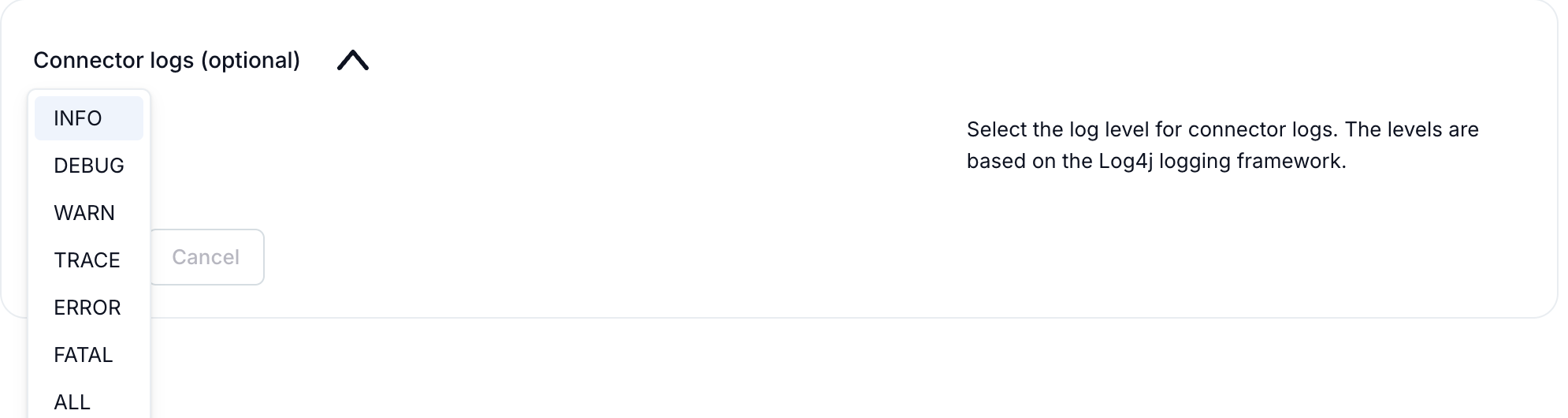
Log Level
Description
INFO
Default level. Logs informational messages.
DEBUG
Logs detailed information useful for debugging issues.
WARN
Logs warning messages for potential issues.
TRACE
Logs very detailed tracing information.
ERROR
Logs error messages only.
FATAL
Logs fatal errors that cause the application to stop.
ALL
Logs all messages at all levels.