
Email Server Configuration on Alation Cloud Service
Alation Cloud Service Applies to Alation Cloud Service instances of Alation
Overview
Alation uses email to send notifications to users and to update conversations from responses in the email. Examples of email notifications that Alation sends out include:
Notifications about the events users subscribe to on their User Profile page
Notifications about the completion of a data export sent to users performing exports
Notifications about the success or failure of scheduled queries sent to query owners
Notifications about the system health and the status of scheduled jobs sent to all Server Admins
As a Server Admin, you can configure email server settings on the Email Server tab of the Admin Settings page.
Important
On Alation Cloud Service, outbound email delivery is managed by Alation using the SendGrid email platform. Customers cannot configure SMTP server settings. The sections below describe only the settings that are available to Server Admins on ACS instances.
Email Notifications on Alation Cloud Service
The only configurable option for email notifications on ACS is the ability to globally disable them.
Turn Off All Email Notifications
Server Admins can turn off all email notifications for all users by selecting the Turn Off All Email Notifications for All Users checkbox on the Email Server tab.
When this setting is enabled, Alation stops sending most email notifications. The following notification types are exempt from this global disable and will continue to be sent:
notify_on_download_ready— notifies users when a requested data export is ready for download
notify_on_download_failed— notifies users when a requested data export has failed
Configuring Email Interactions
Note
Email interactions (Reply By Email) are fully configurable on Alation Cloud Service. This feature allows users to post to conversations by replying to Alation notification emails.
Users communicate in Alation using conversations. When an Alation user is @-mentioned in a conversation post, they receive an email notification. An admin can enable the ability for users to respond to conversations directly from the email by enabling Email Interactions.
When a user starts a conversation anywhere in Alation and @-mentions other users in the post, the @-mentioned users will receive email notifications with the content of the post. Instead of navigating to Alation to respond, they will be able to send their response to Alation by directly replying to the email notification.
When email interactions are enabled, the email notification about the @-mention in a conversation will include the prompt Please type your reply above this line:
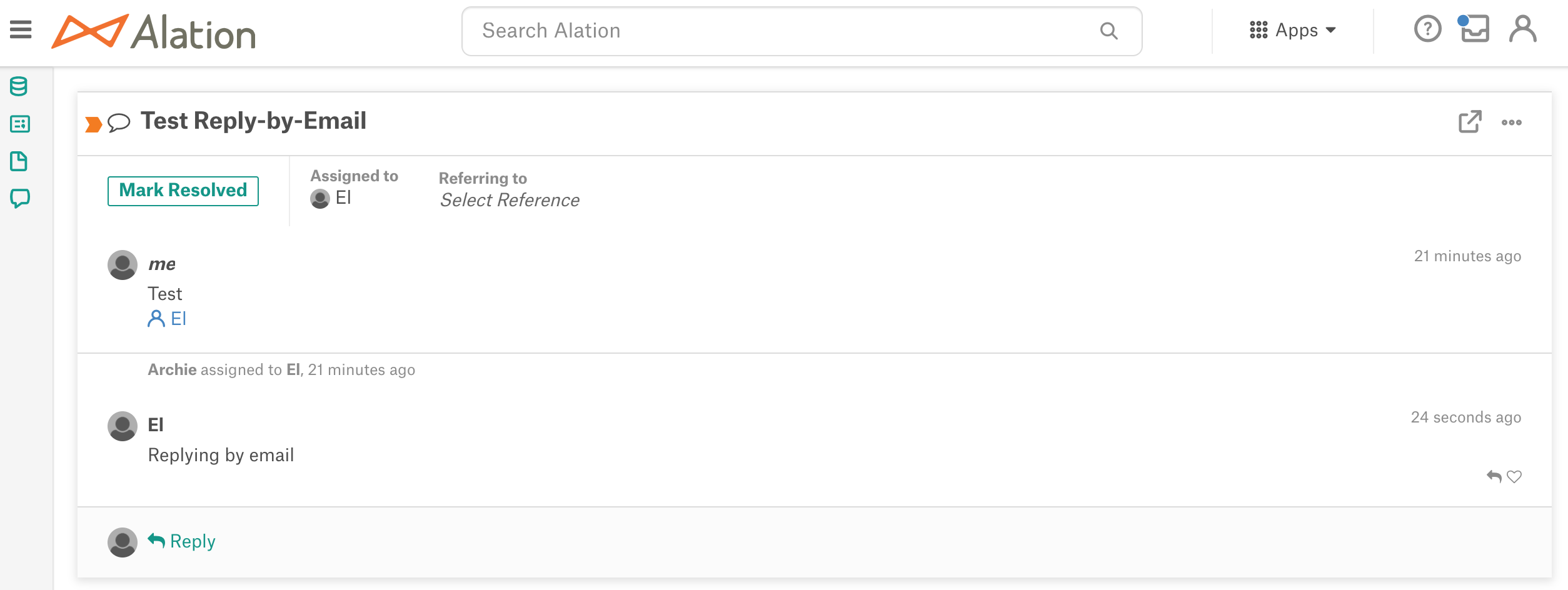
The response will be posted in the corresponding conversation in Alation.
Email interactions can be configured using either of the following methods:
Basic Authentication: Alation needs a dedicated working email account with IMAP-enabled inbox access that will be used to receive emails. See Email Interactions With Basic Authentication.
Microsoft Modern Authentication: It is possible to set up email interactions with Microsoft modern authentication using OAuth 2.0 client credentials. See Email Interactions With MS Modern Authentication.
Mailbox Synchronization
Alation retrieves information from the emails sent to the receiving mailbox every 3 minutes (default). Alation parses the incoming emails and adds the content of the response to the relevant conversations.
When basic authentication is used to configure Reply By Email, Alation archives the incoming emails every Sunday. For archived emails, Alation cleans up emails that are older than 30 days.
When MS modern authentication is used, the incoming emails are not archived.
Email Interactions With Basic Authentication
Important
Do not use a personal email account for configuring email interactions. Alation recommends creating a separate service email account for Alation.
To use basic authentication for email interactions:
Sign in to Alation as a Server Admin.
In the upper right-hand corner of the main toolbar, click the Settings icon to open the Admin Settings page.
In the Server Admin section, click Email Server to open the email server setup page.
In the Email Interactions section, select the Enable Reply via Email checkbox. This will make the fields under Email Interactions editable.
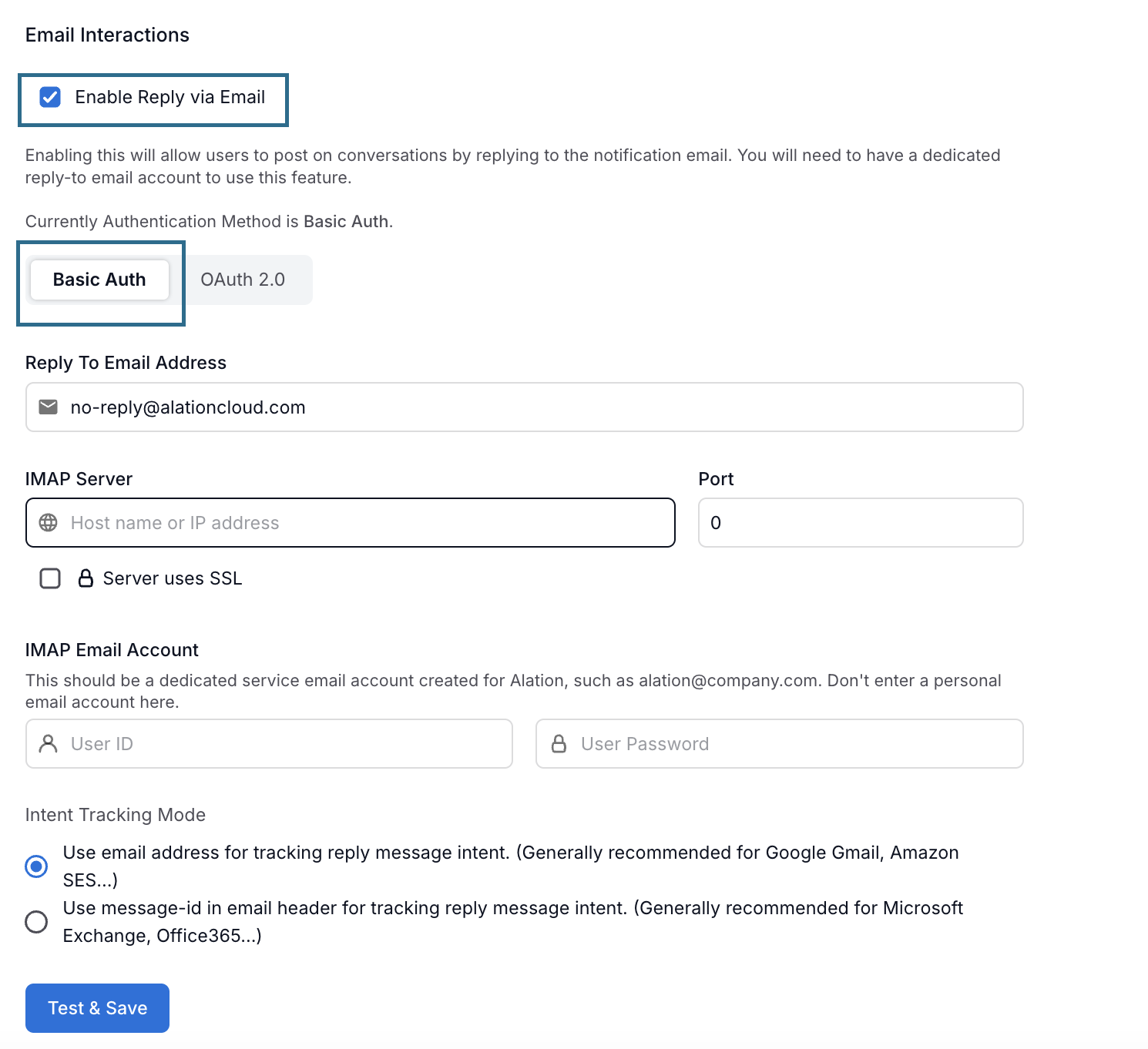
Specify the information on the Basic Auth tab.
Parameter
Description
Reply To Email Address
Specify the reply-to email address in this field. This address should belong to the dedicated email account with an enabled IMAP inbox access. It will be used by Alation to receive email replies from users.
IMAP Server
IMAP Server provide the IMAP server hostname. Depending on your network configuration, it can be your corporate SMTP server.
IMAP Server port provide the port for inbox access
Server uses SSL select this checkbox if IMAP access should work over SSL for this server
IMAP Email Account
User Name provide the user name of the reply-to email account
Password provide the password of the reply-to user account
Intent Tracking Mode
Select the setting that will work with your IMAP server. For details, see Intent Tracking Mode
Click Save. Alation will establish a test connection with the email server. If it succeeds, the settings will be saved and the feature will be enabled. Users will be able to post to conversations by replying to emails. Alation checks the inbox of the Reply To Email account on a regular basis, and the email replies are posted a few minutes after they were sent.
Intent Tracking Mode
Alation needs Intent Tracking Mode to correctly render replies via email and post them to relevant conversations. Intent is a string that Alation appends to the email in order to identify it as a post to a conversation. Alation can encode intent in one of two ways: either in the email address or in the email header. Different email providers have different requirements for including additional strings into the message structure. The admin has to specify this setting depending on the email provider that is in use.
If your IMAP server is Google Gmail or Amazon SES, select Use email address for tracking reply message intent. These email services allow adding strings to the email address.
If your IMAP server is Microsoft Exchange or Office 365, select Use message-id in email header for tracking reply message intent. These email services allow adding strings to the email header.
If your IMAP server is neither Google Gmail or Amazon SES or Microsoft Exchange or Office 365, then save the first option and test by creating a Conversation and replying to it via email. If using the first option results in the recipient not found error for the reply emails, switch to the second option and try again. The option that successfully sends replies works for your server.
Email Interactions With MS Modern Authentication
MS Email Account
To configure email interactions with Microsoft (MS) modern authentication, you need a MS email account that Alation can use as a mailbox to send and receive emails. You can either create a separate email account or use the same email account that was already provided to set up email notifications.
Important
Do not use an existing personal email account. For Alation to update conversations correctly, the incoming emails from users replying to conversations in the email should not be marked as read manually by a user.
Alation recommends to set the Mark as Read property of the MS mailbox to Don’t automatically mark items as read.
MS Azure App Registration
Before performing the configuration on the Alation side, register an application for Alation in your MS Azure portal. This app registration will be authorized to invoke the MS Graph APIs on behalf of Alation. You may need assistance from your Azure portal admin to approve the required API permissions for this application.
Register an App in Azure Portal
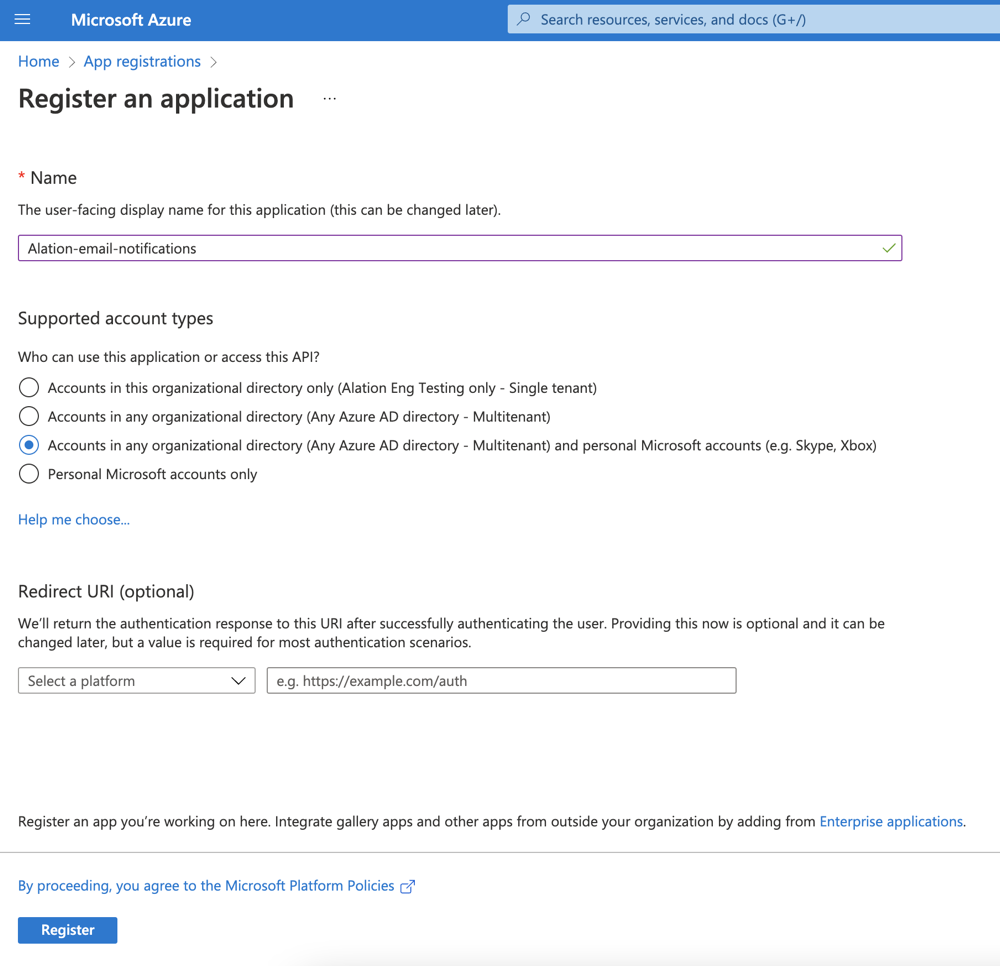
In Azure portal, create an app registration for Alation. When creating the registration, provide the following values:
Name: specify a meaningful name for your app registration
Supported account types: select a value that is appropriate for your environment
Redirect URL: do not specify.
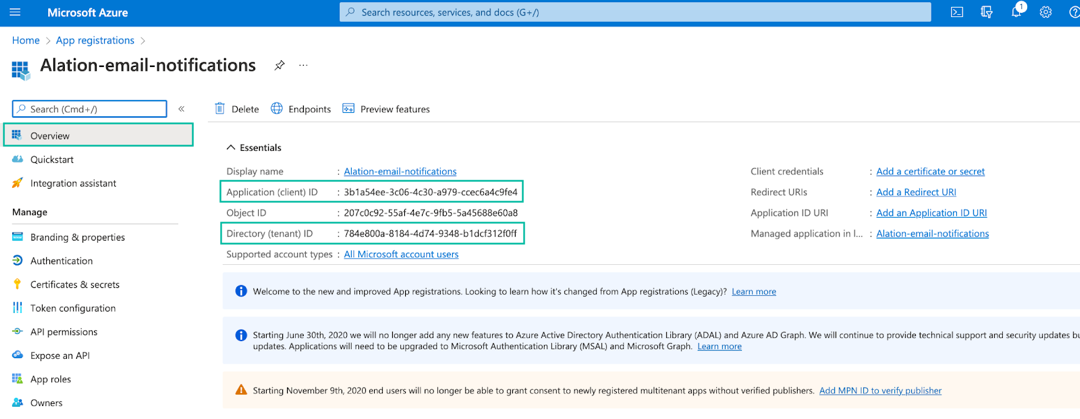
After registering the app, locate the Application (client) ID and the Directory (tenant) ID values on the Overview tab of the app properties. Store them safely. You’ll need these values for configuration in Alation:
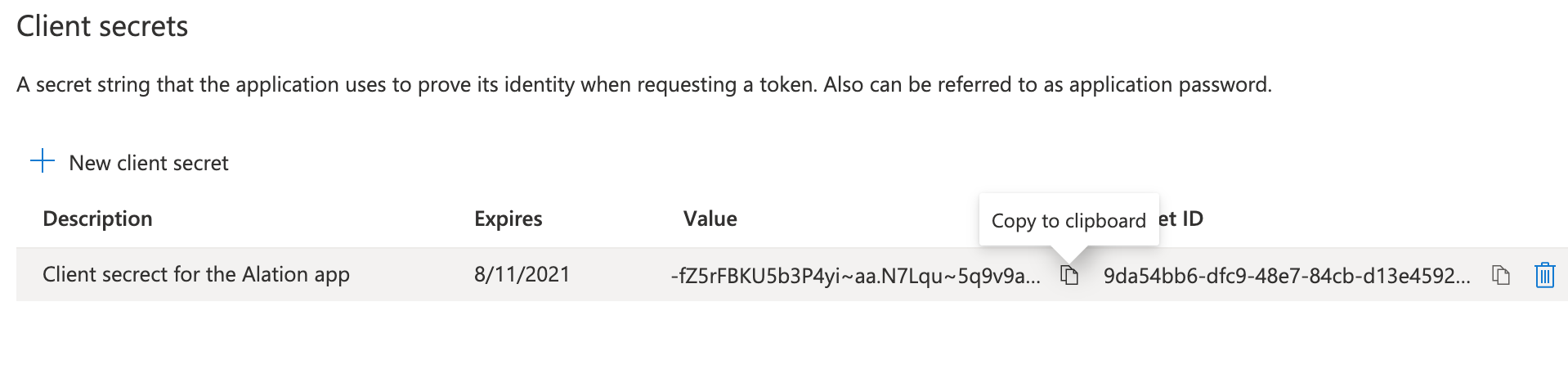
In the left-hand menu under Manage, go to Certificates & secrets.
Under Client secrets, create a new client secret, copy the secret value and store it safely. You will need this value for the configuration in Alation.
Under Manage, select API permissions.
Click Add a permission and select Microsoft Graph API:
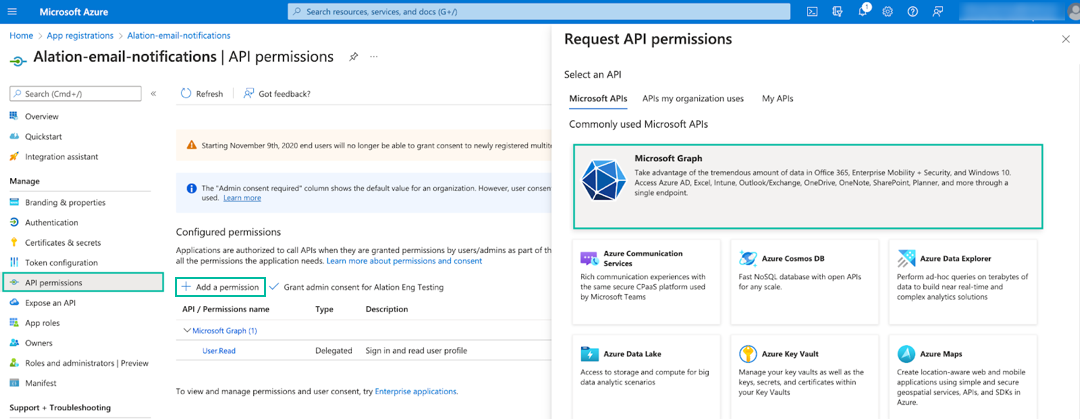
Select the Application permissions box and search for Mail.
Add the following permissions:
Mail.Read
Mail.ReadBasic
Mail.ReadBasicAll
Mail.ReadWrite
Mail.Send
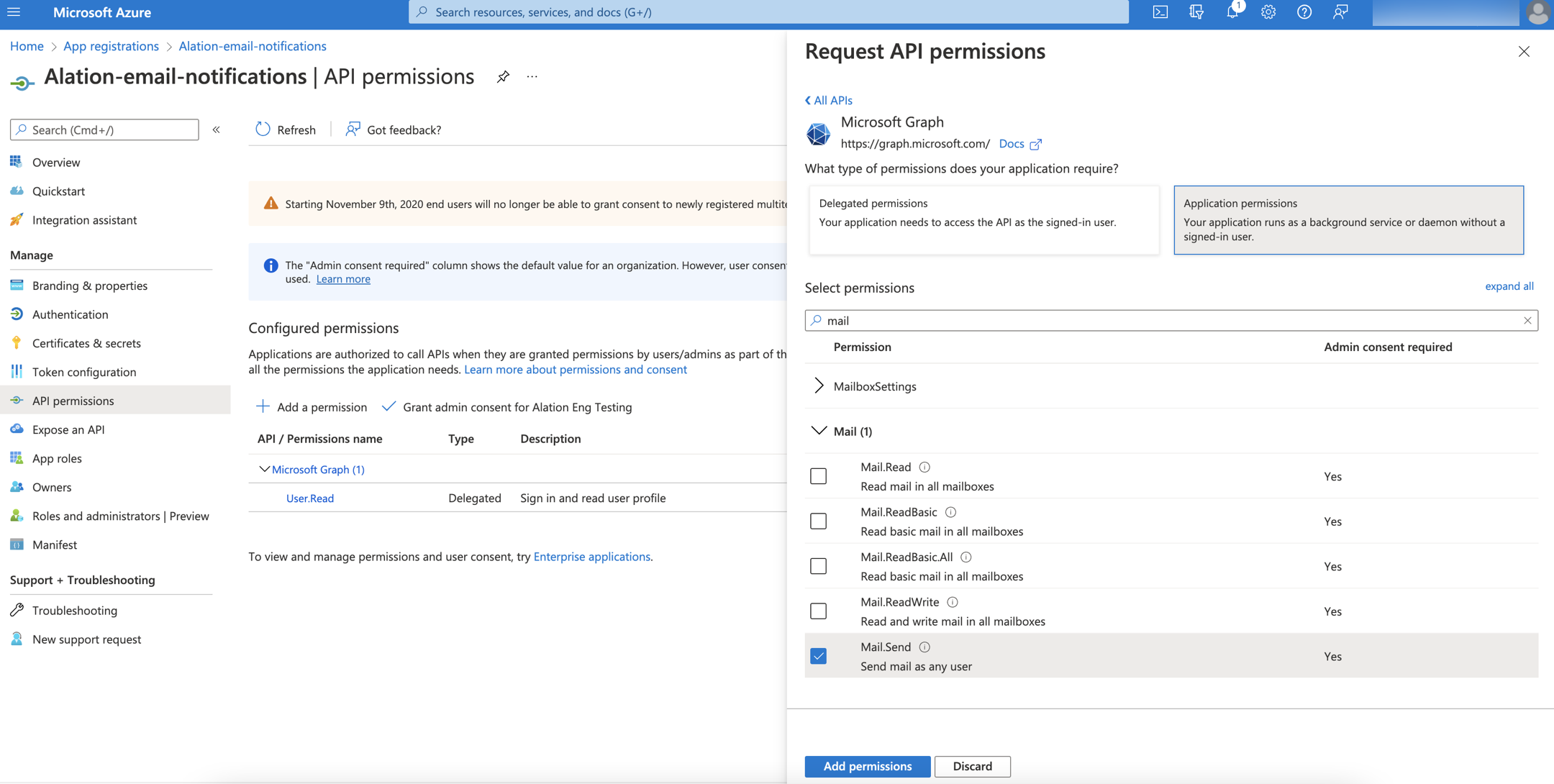
After selecting the permissions, click Add permissions.
The permissions will be added to your application. Next, your Azure portal admin needs to grant admin consent for those permissions. After that, you can configure email interactions on the Alation side.
Note
Refer to the Microsoft documentation for more details on how an application calls the Graph API, for example: Get access without a user.
After creating the app registration and granting it the required permissions, you can configure email interactions in Alation.
Configure Email Interactions With MS Modern Authentication in Alation
When your Azure admin has granted admin consent for the API permissions, you can configure email interactions with MS Modern Authentication in Alation:
Prepare the following information about your Azure app registration:
Application (client) ID - the client ID of the app registration. You can find the client ID on your app registration properties page in Azure portal.
Directory (tenant) ID - the Active Directory tenant ID for the registered application. You can find the tenant ID on your app registration properties page in Azure portal.
Client secret - the client secret value you have generated for your app registration.
Log in to Alation as a Server Admin.
Click the Settings icon on top right to open the Admin Settings page.
In the Server Admin section of the Settings, click Email Server to open the email server setup page.
In the Email Interactions section, select the Enable Reply via Email checkbox. This will make the fields under Email Interactions editable. To use MS Modern Authentication, fill out the information on the OAuth 2.0 tab:
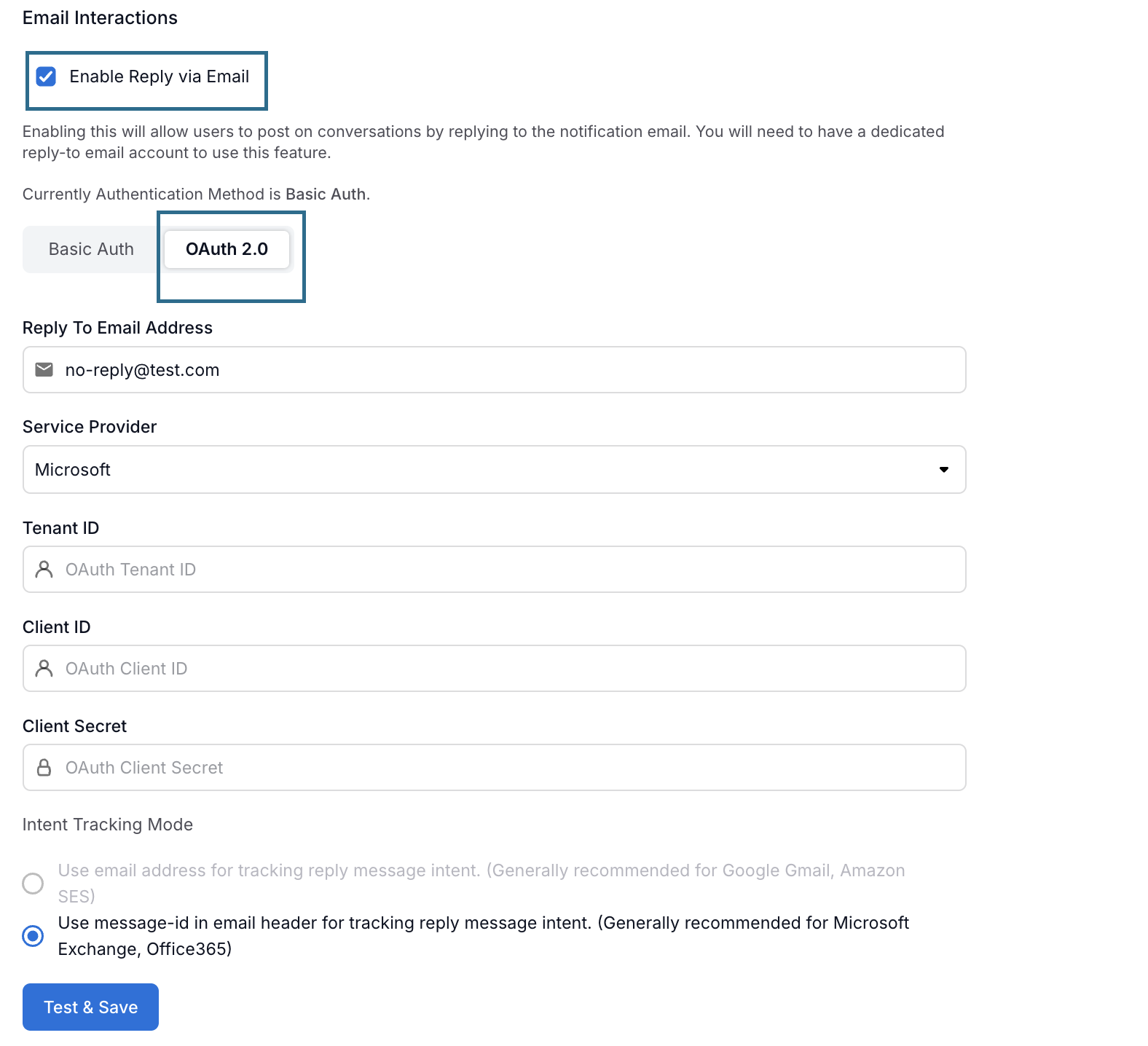
Fill in the following information:
Parameter
Description
Reply To Email Address
Specify the reply-to email address. This address should belong to the dedicated email account that will be used by Alation to receive inbound email replies from users.
Service Provider
Microsoft (non-editable)
Tenant ID
Specify the tenant ID of the application you registered in the Azure portal.
Client ID
Specify the client ID of the application you registered in the Azure portal.
Client Secret
Specify the client secret of the application you registered in the Azure portal.
Intent Tracking Mode
MS email services allow message-id in the email header. The Use message-id in email header option is preselected and non-editable when Microsoft is the Service Provider.
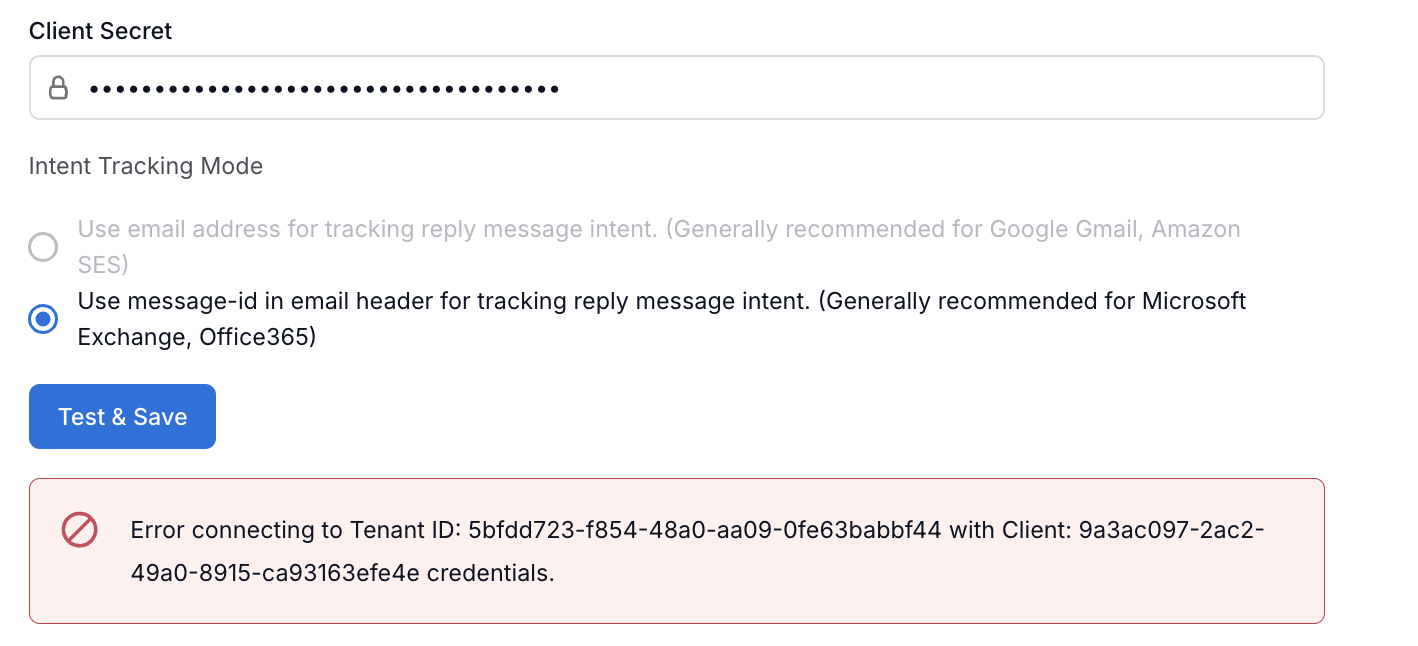
Click Test and Save. Alation checks authentication based on the provided credentials. If the connection cannot be established, it will issue an error message:
Troubleshooting The Configuration
Error |
Solution |
|---|---|
Error connecting to Tenant ID: <tenant-id> with Client: <client-id> credentials. |
Microsoft OAuth2 settings Tenant ID, Client ID or Client Secret are invalid. Verify the OAuth2 settings you have specified in the Alation UI and make sure they are the correct values from your Azure portal. |
Testing The Configuration
To test the configuration:
Create a conversation in Alation and @-mention an Alation user in the post.
Check email on behalf of the mentioned user. This user should receive an email notification from Alation (<Username> mentioned you in <Conversation name>) with the ability to reply by email. There will be the prompt Please type the reply above this line in the notification.
Reply to the email:
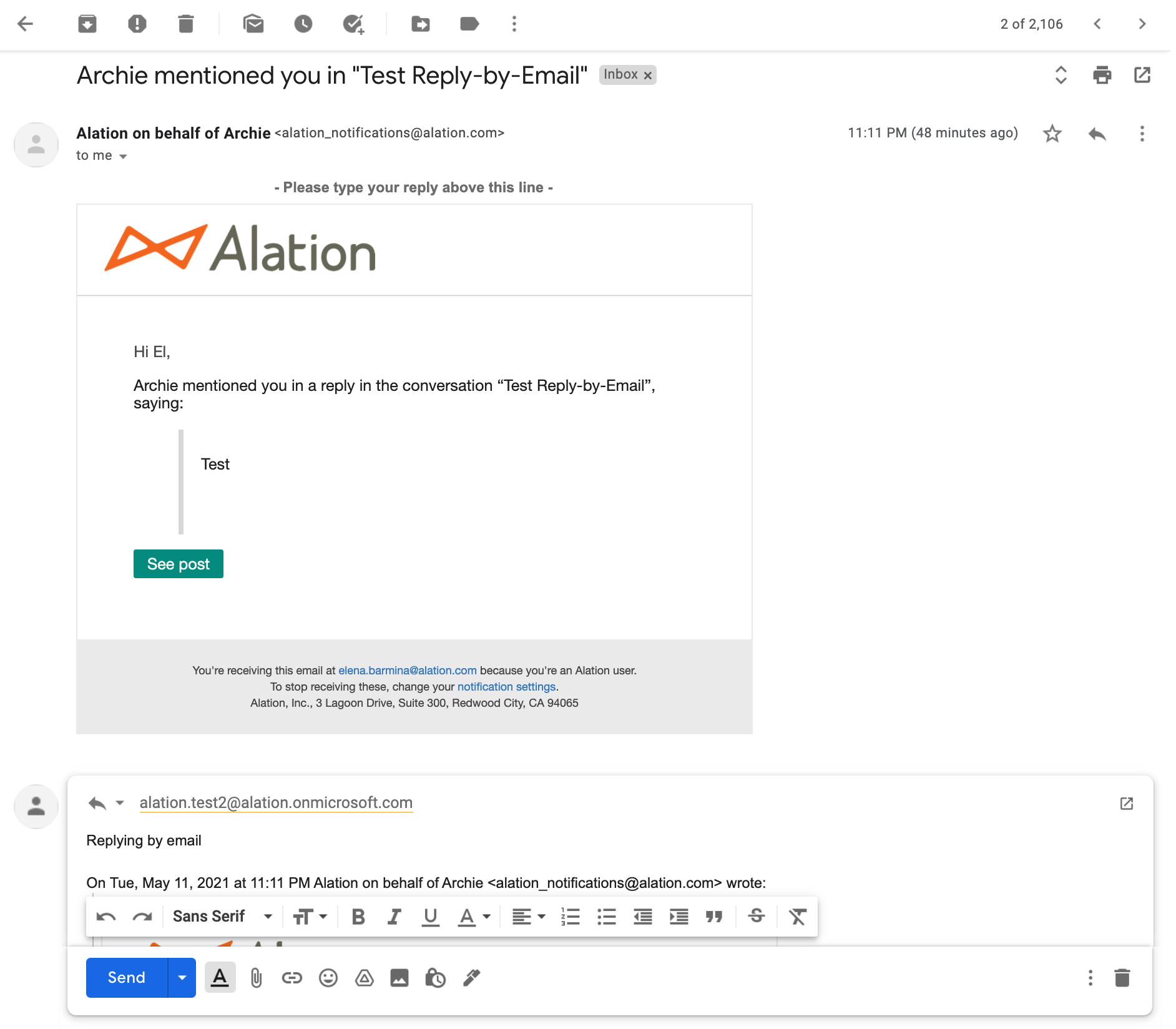
In about 3 minutes, check this conversation in Alation. The response should have been appended to the body of the conversation:
Troubleshooting Reply By Email
Error |
Solution |
|---|---|
Email messages are sent from the replying user to the receiving MS mailbox but are not added as conversation updates in Alation. |
Mailbox configured as the receiving address in the settings is either manually read or read by another application. Email messages should stay unread to be processed.
|
A user has replied to an email notification but there is no incoming email and the Conversation is not updated. |
Check that the user replies to the right notification. Users should reply to notifications that explicitly @-mention them and include the prompt Please type your reply above this line (<Username> mentioned you in <Conversation name>). Note that when a Conversation is assigned to a user, this user also receives an email notification that informs them about the assignment (<Username> assigned you to this Conversation). However, they cannot reply to this email. |